Set up editor permissions
Here you decide what each editor can do in DXPR Builder. Drupal permissions set who may edit pages with the builder. A builder user profile sets which elements, blocks, views and templates each role gets. At the end, a role has its own, smaller set of elements.
The video makes a profile for the Site Builder role.
Before you start
- Your role has the Administer dxpr builder profile permission. Administrators have it.
- The roles you want to set up exist at People > Roles (
/admin/people/roles).
Drupal permissions
DXPR Builder adds these permissions at People > Permissions (/admin/people/permissions):
| Permission | What it controls |
|---|---|
| Edit with DXPR Builder | Access the visual editor on pages with the DXPR Builder field formatter |
| Administer DXPR Builder configuration | Access admin settings at DXPR Studio > DXPR Builder |
| Administer dxpr builder profile | Create and edit user profiles |
Give Edit with DXPR Builder to every role that builds pages. Keep the other two for administrators.
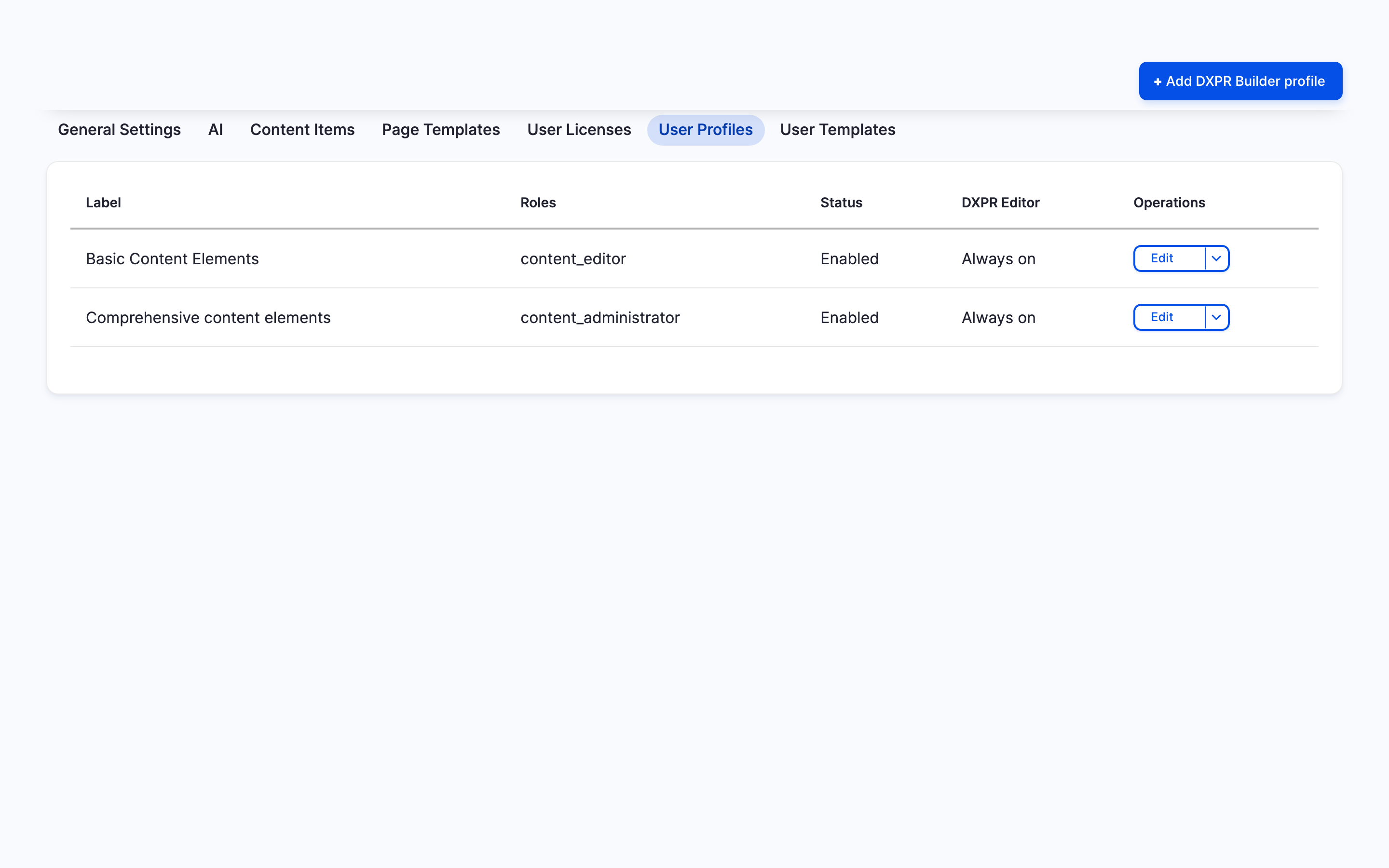
User profiles
A user profile sets which elements, blocks, views, templates and icon sets an editor can use:
- Go to DXPR Studio > DXPR Builder > User Profiles (
/admin/dxpr_studio/dxpr_builder/profile). - Click Add DXPR Builder profile.
- Type a Label, for example "Content editor" or "Marketing manager".
- Open Roles and tick the roles this profile applies to.
- Open Elements and untick the elements these editors should not use.
- Set the other sections the same way: Blocks, Views, Page templates, Global user templates, Icon sets, Text editor buttons (inline editing) and Text editor buttons (modal editing).
- Click Save.
Each user gets one profile: the first enabled one, by lowest Weight, that shares one of their roles. A user whose roles match no profile gets every tool.
Example configurations
Content editor
- Elements: Text, Image, Button, Link and Divider
- Blocks: none
- Views: none
- Purpose: everyday text and image changes
Marketing manager
- Elements: all content elements
- Blocks: webform, newsletter signup
- Views: testimonials, team members
- Purpose: building whole landing pages
Site administrator
- Elements: all elements, including HTML
- Blocks: all blocks
- Views: all views
- Purpose: no limits
What you see
A message confirms the profile, in the video "Created new dxpr builder profile Site builder." The list sorts profiles by Weight, then by label, so the new profile sits among those with the same weight. Editors with that role no longer see the unticked elements in the picker.
If you don't see the profile take effect
- The editor still sees elements you unticked. Another enabled profile with a lower Weight shares one of their roles, and the builder uses that one. Give your new profile the lowest Weight, or remove the role from the other profile.
- Every editor on one content type gets the same tools. The field's display uses a fixed Editing Profile instead of the role-based one. In the DXPR Builder field's formatter settings under Manage display, choose Default (Role-based Profile).
- The editor sees no builder controls until they click the eye icon. Start editor when page loads is off in their profile. Switch it on and click Save.
- The editor gets no builder at all. Their role lacks Edit with DXPR Builder. Tick it at People > Permissions (
/admin/people/permissions). - User Profiles is missing from your DXPR Studio menu. Your role lacks Administer dxpr builder profile. Ask an administrator to grant it.
What's next?
Which editors take a licence seat to continue exploring DXPR Builder.