Change a section with AI
Tell the AI what a section needs, for example a paragraph about parking, and it changes that part of the page for you. It can add content, add a section above or below, or rewrite or replace it. Use this for changes bigger than one paragraph; for a single paragraph, see Rewrite text with AI. The video adds parking details to an Open Day section.
Before you start
- AI is switched on, with Enable page creation assistant ticked. See Turn on AI in DXPR Builder.
- The page has the section or element you want to change.
Set up
- Point at the section and click More on its control bar.
- Choose Edit with AI.
- Describe the change in the box, for example "Add a short paragraph about parking below the text".
- Click Generate content.
- Wait while the AI makes the change.
- Click Save on the builder toolbar.
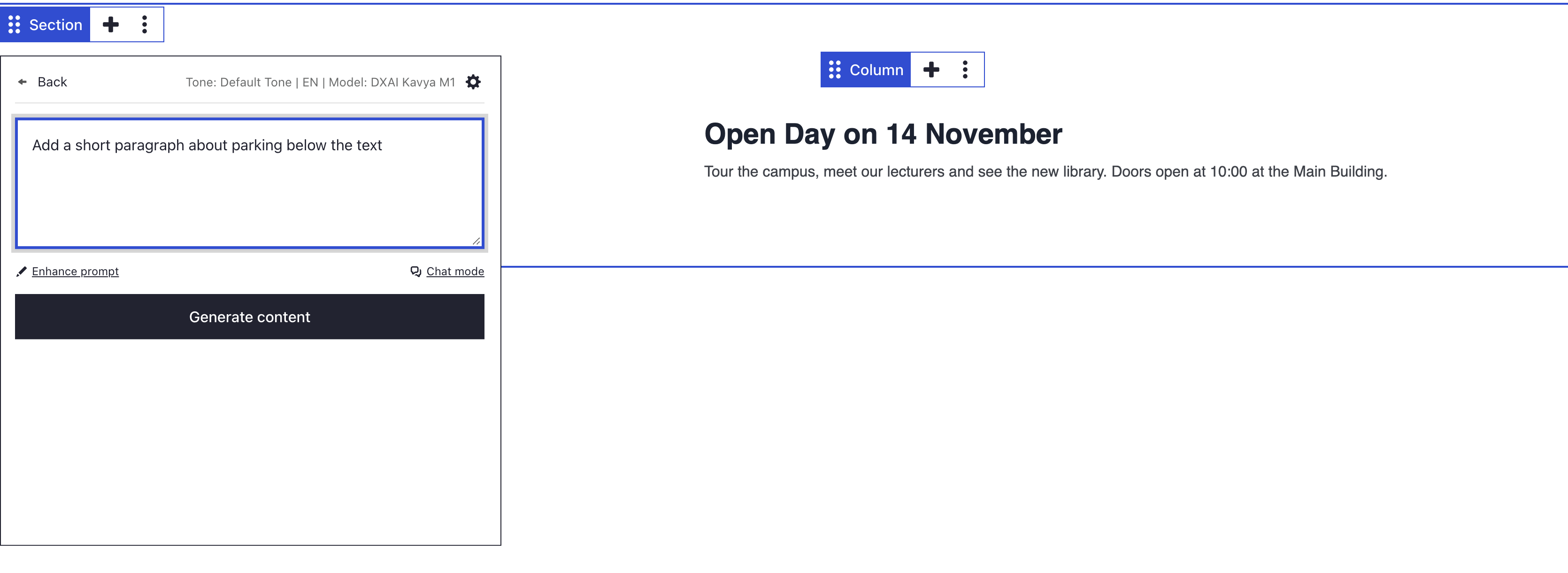
Every element has the same Edit with AI in its More menu: a text, a button, a row or a column. You can also select an element and press Ctrl+E (Cmd+E on a Mac). On an Image element, Edit with AI creates or edits the picture instead, see Generate an image with AI.
What you see
While the AI works, a status line says what it is doing, for example "Adding new content at the end..." or "Replacing the selected element...". Cancel generation (or Esc) stops it. Then the change appears on the page as normal builder elements, which you edit like any others.
The AI chooses where the change goes, based on your words:
| Your words | What the AI does |
|---|---|
| "add ... below", "add ... at the end" | Adds content at the end of the element |
| "add ... at the top" | Adds content at the start of the element |
| "add a section above" or "below" | Adds a new section before or after it |
| "rewrite", "shorten", "translate" | Rewrites the content inside the element |
| "replace this with ..." | Replaces the whole element |
Not what you wanted? Press Ctrl+Z (Cmd+Z on a Mac) to undo the change, then try clearer words. Open Edit with AI again and the box still holds your last request.
If you don't see the change
- The More menu has no Edit with AI. Enable page creation assistant is off. Tick it at
/admin/dxpr_studio/dxpr_builder/ai_settings. - Edit with AI is greyed out. No AI provider is configured. Follow Turn on AI in DXPR Builder.
- A message says "Could not determine which part of the page to change." The AI could not tell where to put the change. Select the element you mean, open Edit with AI on it and say where the change goes, for example "below the heading".
- The status line turns into "Hmm...something seems to have gone wrong." DXPR could not finish the request, for example because the account is out of credits. Click Retry, or check Credits remaining at
/admin/dxpr_studio/dxpr_builder/ai_settings.
What's next?
- Draft a page with AI: start a whole page from a brief.
- Rewrite text with AI: change the tone of one paragraph.
- Undo and redo: step back through your changes.