Put a colour or photo behind content
Give a band of your page a brand colour or a photo, so a heading stands out and the band reads as one block. You set the colour and the photo in the Style panel of any element. A Section adds a Background effects panel for a fixed photo, parallax, a gradient or a YouTube video.
The video follows the recipe below: it puts a photo behind a heading and a dark gradient over the photo, so the white heading stays readable.
Before you start
- Open the page in DXPR Builder; pointing at an element shows its control bar with More. New to the builder? See Your first page.
- Save in the dialog keeps a change in the editor. Save on the builder toolbar above your content stores the page and shows "Saved field".
- Use a Section for a full band of the page. Only a Section has Background effects.
- Use a Text or Card element for a coloured box behind a few lines inside a column.
- Use your theme for backgrounds on every page, such as the page body or the footer.
- Keep words out of the photo. A background picture has no alt text, so screen readers skip it. Put your message in a heading on top.
Recipe: a readable heading on a photo
White text on a busy photo is hard to read. A dark gradient over the photo fixes that, and it keeps working when you swap the photo. You need a Section that holds your heading in a Text element.
- Hover the Section, click More, then Settings.
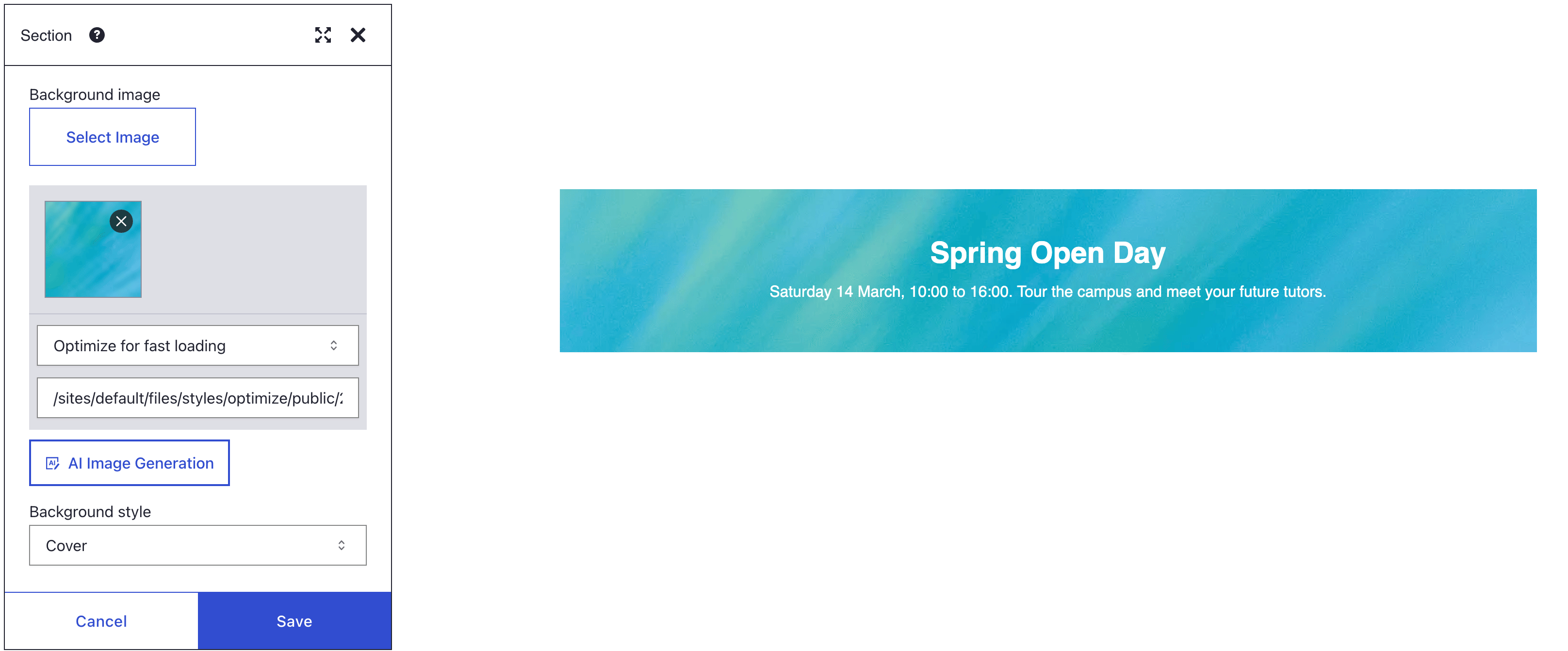
- Open the Style panel and click Select Image under Background image. Choose a photo. A thumbnail appears, with an image size list.
- In the image size list, pick a size at least as wide as the widest screen you design for, or Original image (No resizing). Avoid Optimize for fast loading for a full band.
- Set Background style to Cover and Background position to Center center.
- Open the Background effects panel and set Background effect to Gradient. Your photo stays; the gradient lies over it.
- In the colour field of Start color, type
rgba(0, 0, 0, 0.6): black at 60%. Typergba(0, 0, 0, 0.3)for End color. Leave Gradient direction at 180, so the veil runs from top to bottom. - Click Save in the dialog. The section shows the photo under a dark veil.
- Hover the Text element, click More, then Settings. In its Style panel, set Font color to white and click Save.
- Click Save on the toolbar.
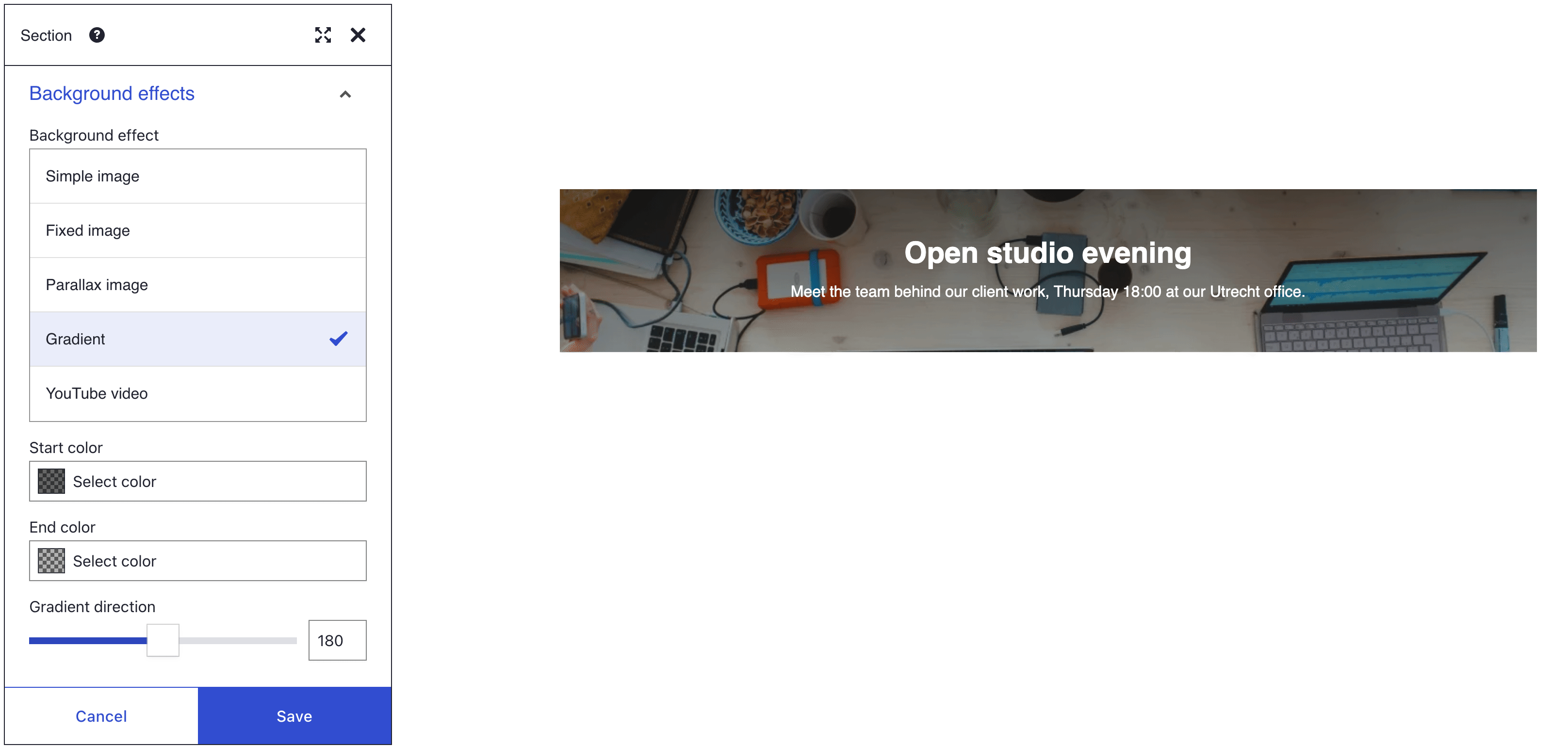
Check the heading against the lightest part of the photo. Aim for a contrast of at least 4.5 to 1, or 3 to 1 for large headings; the typography page explains these targets. Still hard to read? Raise both values, for example to 0.8 and 0.5.
What you see
The section shows your photo under a dark veil, darkest at the top, with the white heading on it. Cover fills the whole section, so on a narrow screen more of the photo's sides are cut off.
How the settings work
| Control | What it does |
|---|---|
| Background | A colour behind the content. The picker's opacity slider makes it see-through. |
| Background image | A picture behind the content: from Select Image, from a URL, or from AI Image Generation unless your site turned it off. |
| Background style | How the picture fills the element. See the next table. |
| Background position | The point the picture is pinned to. With Cover, it decides which part of the photo stays visible. |
| Background style | Result |
|---|---|
| Theme defaults | Unless your theme says otherwise, the picture repeats at its own size from the top left corner. |
| Cover | The picture fills the element and the edges that do not fit are cut off. Best for photos. |
| Contain | The whole picture shows, once. Empty bands may remain on two sides. Best for logos. |
| No repeat | One copy at its own size. |
| Repeat | The picture tiles across the element. Good for patterns. |
The colour sits under the picture. It shows through the clear parts of a picture, in the bands around a Contain picture, and while the photo loads. Pick a colour close to the main tone of the photo.
The size Optimize for fast loading scales a picture down to at most 1024 px wide and saves it as WebP. That suits a box, but it looks soft on a full band on a large screen.
The same picture loads on every screen size, phones included. The Hover style panel has its own Background and Background image, so a box can change colour or swap its picture on hover.
Section background effects
These effects need a Section. Fixed image and Parallax image move the photo from Background image, so set the photo first.
| Background effect | What visitors see | Settings |
|---|---|---|
| Simple image | The photo scrolls with the page. This is the default. | none |
| Fixed image | The photo stays still while the content scrolls over it. | none |
| Parallax image | The photo scrolls slower than the content. | Parallax speed (0 to 100; choosing Parallax image sets 20 when it is 0), Parallax mode (Fixed or Local), Disable on mobile (screens under 481 px wide) |
| Gradient | A blend of two colours, alone or over the photo. | Start color, End color, Gradient direction (1 to 360 degrees; 180 runs from top to bottom), Start position, End position |
| YouTube video | A muted video plays while the section is on screen and pauses when it scrolls away. | YouTube video URL, Start time in seconds, Stop time in seconds, Video options |
Over a photo, the gradient always runs from edge to edge. Start position and End position only apply to a gradient without a photo.
If you don't see the background
- The photo shows as a thin strip. A background adds no height; the section is as tall as its content and padding. Add content, or turn on 100% height in the General panel. For more padding, follow a taller section.
- The photo repeats or shows only one corner. Background style is on Theme defaults. Choose Cover.
- The photo looks soft on a wide screen. Optimize for fast loading makes it at most 1024 px wide. Pick a wider size in the image size list.
- The photo is hidden behind solid black. The gradient colours have no transparency. End each value with a number below 1, such as
rgba(0, 0, 0, 0.6). - The heading stays dark. A colour class under the Text element's HTML classes, or a theme rule with
!important, wins. Remove the chip, or see typography. - The background is gone after a page reload. Save in the dialog keeps a change in the editor only. Click Save on the toolbar.
- The colour does not show. The photo covers it. For a tint over the photo, use Gradient in Background effects.
- Start position and End position change nothing. The section has a Background image, so the gradient runs edge to edge. Use Gradient direction and transparent colours instead.
- A class colour wins. A class such as Primary background under HTML classes beats your Background. Remove its chip.
- Background does nothing on a Circle counter, Progress bar or Divider. These elements use their own colours. Set Background color, Back color or Color in the General panel.
What's next?
- Typography: set the heading colour on your photo and check its contrast.