Adding an HTML Element
You get a spot on the page where your own code runs, such as a social post or a booking widget. Use it when a third-party embed or custom markup has no matching element.
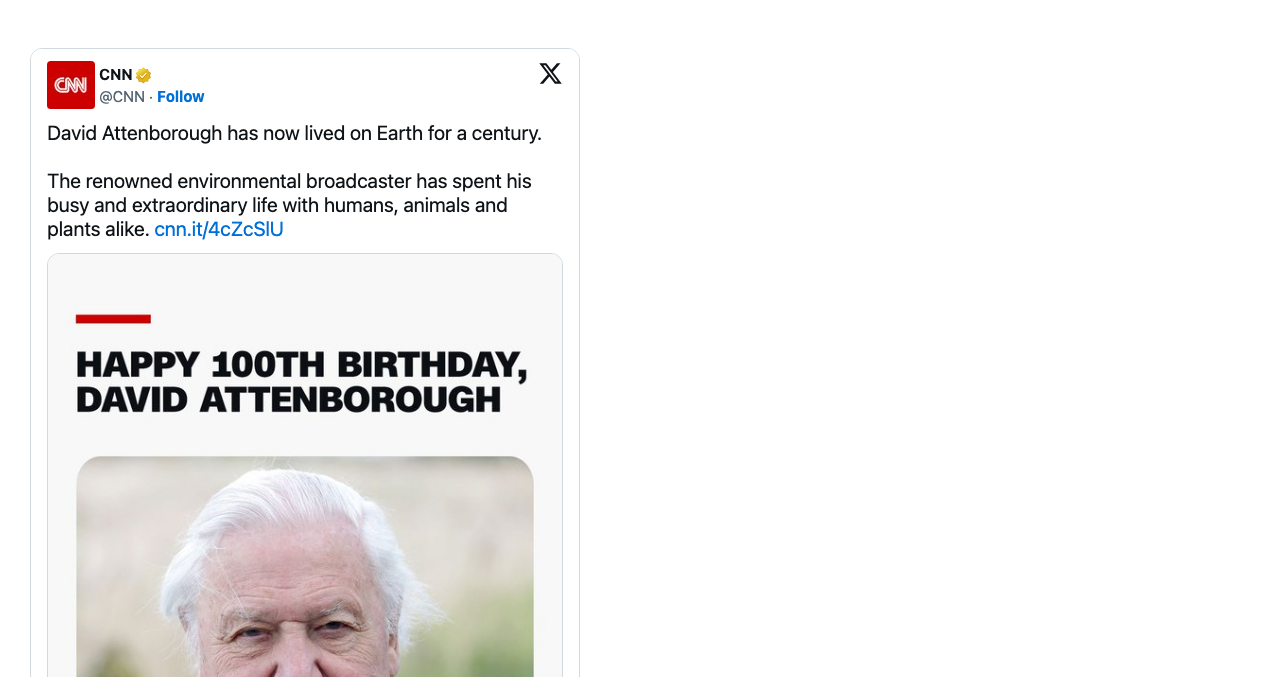
Add an HTML element
Open your page while logged in: the builder controls appear when you hover the content area. Your first page shows the basics.
- Hover the column and click + in its control bar, or click Add Elements on an empty page. Open the Content tab and click HTML. It lands at the top of the column and its settings dialog opens.
- Copy the embed code from the service's Embed or Share option. Paste it into the Raw HTML editor.
- Click Save in the dialog. Then click Save in the toolbar at the top of the content area to store the page.
What you see
Your embed works in the editor as soon as you click Save in the dialog, because the builder runs its script there too. In the video, a Google Calendar of US holidays shows as soon as the dialog closes. Visitors see it once you save the page and it is published.
Set up your HTML element
Hover the element and open More > Settings in its control bar. Options:
- Raw HTML: a code editor for your HTML, CSS or JavaScript. Scripts run in the editor and on the published page.
- HTML ID: an optional ID to target the element with CSS or JavaScript.
- HTML classes: optional CSS classes for the element wrapper.
If you don't see it
- HTML is not in the Content tab. Your user profile hides it. Ask an administrator to enable it in User Profiles.
- It is gone after you reload. The page was not saved. Add it again and click Save in the toolbar at the top of the content area.
- The embed shows as plain text or a bare quote. The embed script has not loaded yet, or its
<script>line is missing. Wait a few seconds, or paste the full embed code again. - The field has code but visitors see nothing. Your site runs text format filters for visitors, and the format can strip tags such as
<script>or<iframe>. Editors still see the code working. Ask an administrator to clear Apply text format filters to frontend content in General settings, or to allow those tags in the text format. Then reload the published page. - The layout below the element breaks. The code has an unclosed tag. Check that every opening tag has its closing tag.
What's next?
Style tab to change spacing and background for your HTML element.
Something wrong or missing on this page?
Report it
or edit the page.