Set up an A/B test
Try a second version of a headline, a picture or a whole section on a live page. You build version B in the editor, choose what counts as success, and save. From then on each visitor sees one version, and more visitors get the one that works. For three or more versions, continue with Multivariate testing.
Before you start
- The RL module is installed and enabled:
composer require drupal/rl, thendrush en rl. - RL: rl.php accessibility on Reports >
Status report (
/admin/reports/status) says "rl.php is accessible".
Set up
- Hover the element you want to test and click More on its control bar.
- Under A/B testing, choose Create variant.
- With the B pill highlighted, change the text, picture or layout.
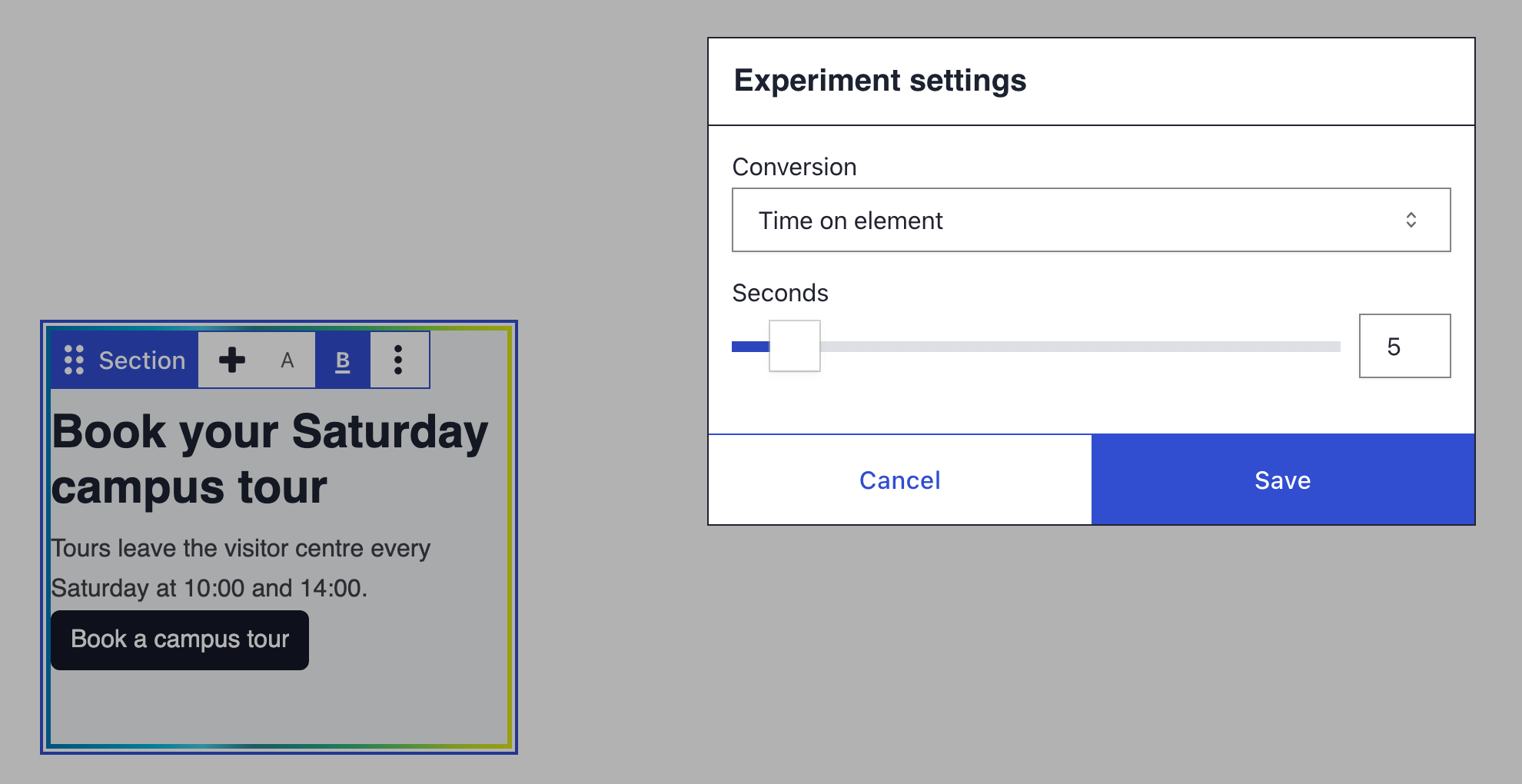
- Click More again and choose Experiment settings.
- Pick a Conversion, set the Seconds or a CSS selector (optional), and click Save.
- Click Save on the toolbar to start the test.
What you see
The control bar now shows the pills A and B. Click a pill to switch between the versions; your changes to B leave A as it was. Each new variant starts as a copy of the version you are viewing.
Visitors each see one version. To follow the test, open More and choose View A/B test results: the report opens in a new browser tab. See Analysing results.
Smart sort for accordions and tabs
Smart sort keeps every item but changes their order. Items that visitors open or click most move to the top, and on tabs the top item opens on page load.
- Click More on an Accordion or Tabs element.
- Under Smart sort, choose Enable smart sort. A sort icon appears on the element's control bar.
- Optional: choose Experiment settings and switch between Open item and Click on item.
- Click Save on the toolbar.
Other containers with two or more items offer smart sort in the Power user view. To stop, choose Disable smart sort and save: saving deletes the numbers collected so far.
Remove a variant
- Click the pill of the variant you want to remove.
- Click More and choose Remove variant B (the label names the active variant).
- Click Save on the toolbar.
Saving deletes the numbers of the removed variant. When only one version is left, the test ends and its data is deleted. Letters stay stable: removing B does not rename C.
Settings
These are the fields of the Experiment settings dialog.
| Setting | What it does | Default |
|---|---|---|
| Conversion | What counts as success: Time on element, Time on page or Click on element | Time on element |
| Seconds | For the two time conversions: how long, from 1 to 60 | 10; the dialog proposes 5 |
| CSS selector (optional) | For Click on element: count clicks on other elements of the page, such as #signup-form |
empty: clicks on the variant itself |
If you don't see Create variant working
- Create variant is greyed out and mentions the RL module. The RL module is not enabled. Install and enable it as shown under Before you start.
- Create variant is greyed out: "A/B test results are not being collected." The site cannot reach rl.php. Follow the advice of RL: rl.php accessibility on the status report.
- Create variant is greyed out: "A parent element already has A/B variants." Tests cannot be nested. Remove the other test first, or pick an element outside it.
- Create variant is greyed out: "This element uses smart sort." One element runs one kind of test. Choose Disable smart sort first.
- There is no Create variant on a Drupal block or view. Blocks and views cannot hold variants. Create the variant on the column or section around them.
- Visitors always see version A. Without rl.php, every visitor gets the first version. Administrators see a warning on pages with a test. Fix rl.php as the status report describes.
What's next?
Analysing results once your test is running to continue exploring DXPR Builder.