Save and publish your page
Save on the DXPR toolbar stores your changes. Whether visitors see them depends on the page's publishing state, which you set in Drupal's edit form. This page covers both, plus revisions and what happens when you and a colleague open the same page. The video builds an open day call to action, saves it and previews the result.
Save your page
- Build or change the page in DXPR Builder.
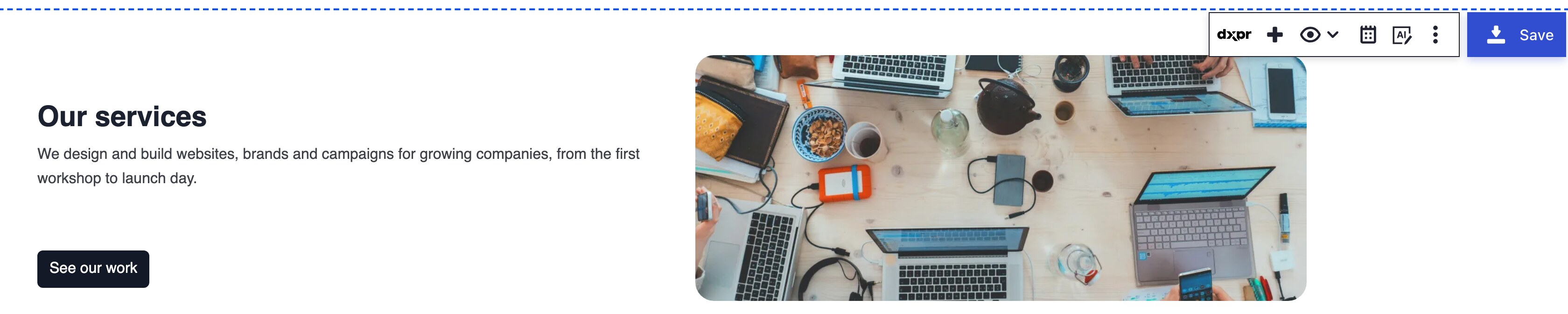
- Click Save on the toolbar at the top right of the page.
- Open the view menu, the eye icon on the toolbar, and choose Preview to see the saved page as visitors will.
You can also save with Ctrl+S (Cmd+S on a Mac).
What you see
A Saved message appears at the top right and names the field and the page. The red dot on the Save button disappears. That dot shows whenever you have unsaved changes. If you try to leave the page with unsaved changes, the browser asks you to confirm.
Save writes your layout into the page's DXPR Builder field, in the language you are editing. It changes nothing else:
- The publishing state stays as it is. A draft stays a draft. On a published page, your changes go live as soon as you save.
- Other fields stay as they are. The title, URL alias and menu link do not change.
Publish or unpublish the page
Every content type that DXPR CMS ships with uses the Basic workflow. It has three states:
| State | Visible to visitors | Notes |
|---|---|---|
| Draft | No | New pages start here |
| Published | Yes | The version visitors see |
| Unpublished | No | Offered only on a published page |
- Click the Edit tab of the page.
- Find Change to. On a page that was never saved, it is labelled Save as.
- Choose Published, or Unpublished to take the page offline.
- Click Save on the form.
On a content type without moderation, the form has a Published checkbox instead. Tick it to publish and clear it to unpublish.
Leave the layout itself to the builder. On a Landing Page the form keeps it in the closed HTML Content Editing group: editing it there can break the layout.
Revisions
Every builder save creates a new revision, with you as its author and the log message "Saved with DXPR builder". Open the page's Revisions tab to compare versions or revert to an earlier one.
When a colleague edits the same page
Your first click in the builder content locks the page for you, per language. A colleague who opens it then sees a warning that you hold the lock, and only a Locked button instead of the editing controls. Saving releases the lock; your next click takes it again.
If you don't see your changes
- Visitors still see the old version. The page is a draft or unpublished. Publish it from the Edit tab as described above.
- An error says "Server error: Unable to save field". Drupal did not accept the save, for example because your session expired. Your changes stay on screen: log in again in a new tab, then click Save again. See Changes do not save for other causes.
- Part of the page reverted after a reload. Each DXPR Builder field on a page, such as the body and a block, has its own toolbar and Save button. Save every field you edited.
- The edit form refuses to save. It says the content was modified by another user: you saved in the builder after you opened the form. Reload the Edit tab and make your change again.
- The controls are gone and a Locked button shows. A colleague holds the lock. Ask them to save, or click Locked and then Confirm to take over. The last save wins, so agree who saves.
What's next?
- See your page as visitors do: check the page before you publish it.
- Undo and redo your changes: step back through changes before you save.
- Changes do not save: fixes for failed saves and lost layouts.