Use the element More menu
Every element, column, row and section has a More button, the three dots on its control bar. Its menu holds the actions you use most on that part of the page. You learn here what each entry does and where it appears. The example moves a button below its text, then copies a section and pastes it.
Add a heading and a button
- Click Add Elements in the empty content area and, from the Layout tab, pick Section.
- Click + on the section and, from the Content tab, pick Text. Type a heading, set it to Heading 2, add one line and click Save.
- Click + on the section again and pick Button; it lands above the text. Type the Title, set the Link, keep the Type on Primary and click Save.
Move an element
- Hover the button: its control bar appears with the More button.
- Click More to open the menu.
- Choose Move Down: the button swaps places with the text below it.
Copy and paste a section
- Hover the section: its bar has the same More button.
- Click More and choose Copy.
- Click More on the section again and choose Paste. The copy goes inside the section, at the top, so its content now shows twice.
- Click Save.
To place a second section after the first one, choose Clone on the section instead; see Duplicate an element with Clone.
Every action
Which entries you see depends on what you hover. Each entry shows its keyboard shortcut on the right; see Keyboard shortcuts.
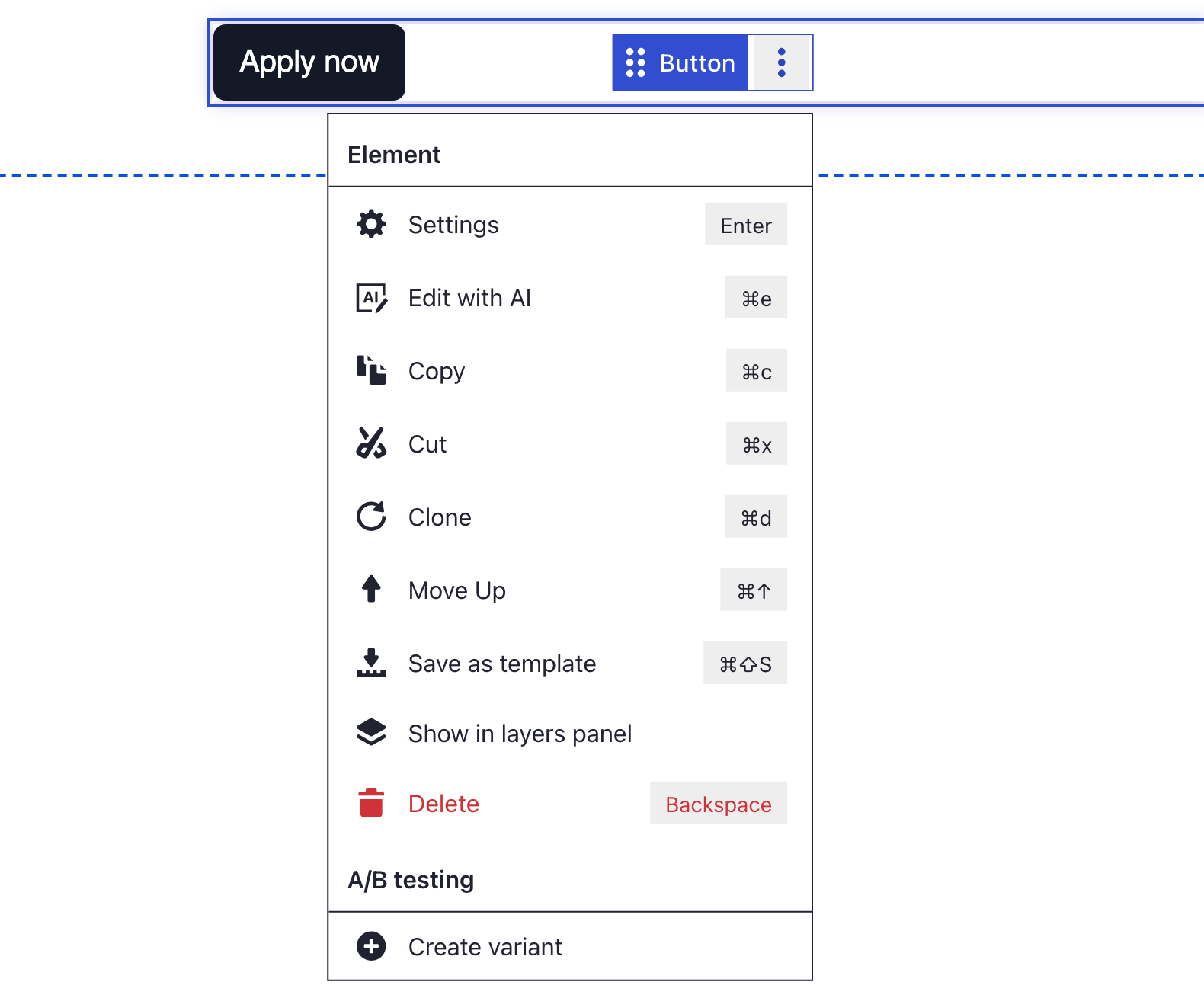
| Action | What it does | Shown on |
|---|---|---|
| Settings | Opens the settings dialog | everything |
| Edit with AI | Opens an AI prompt for this part of the page | everything except Drupal blocks and views, when AI is set up |
| Copy | Puts a copy on the clipboard | everything except columns |
| Cut | Removes it and puts it on the clipboard | elements that hold no other elements; not on sections, rows, columns, Tabs, Collapse panel, Carousel, Card, Panel, Jumbotron, Link, Positioned layers or their parts |
| Paste | Inserts the clipboard content inside, at the top | sections, columns, single tabs, carousel slides, Collapse panel toggles, Card, Panel, Jumbotron, Link and Positioned layers |
| Clone | Puts a duplicate right after it; see Clone | everything except columns and carousel slides |
| Move Up, Move Down | Swaps places with the neighbour above or below | anything with a neighbour on that side, except columns |
| Edit View | Opens the view in the Views editor in a new tab | Drupal views |
| Save as template | Saves it as a template for other pages | everything |
| Show in layers panel | Opens the Layers panel with this item selected | everything |
| Delete | Removes it at once, without asking | everything except columns |
| Create variant | Starts an A/B test on it | when A/B testing is available |
What you see
After Move Down, the button sits below the text. After the paste, the heading and the button show twice inside the section. In Preview you see the page without control bars, as visitors will.
If you don't see the More button
- No control bar appears on hover. The page is in Preview mode. Click the eye icon on the DXPR toolbar and choose Edit.
- The bar belongs to the wrong part of the page. Hovering shows the bar of the innermost item under the pointer. Move to the edge of the column, row or section, or use Show in layers panel; see Selecting elements.
- There is no Paste entry. Only parts that hold elements have it: sections, columns, single tabs, carousel slides, Collapse panel toggles, Card, Panel, Jumbotron, Link and Positioned layers. Rows, Tabs, Collapse panel and Carousel do not. Select an element and press Ctrl+V (Cmd+V on a Mac) to paste after it.
- There is no Cut entry. Parts that hold other elements cannot be cut: sections, rows, columns, Tabs, Collapse panel, Carousel, Card, Panel, Jumbotron, Link and Positioned layers. Use Copy, or drag them to a new place.
- You deleted the wrong item. Delete does not ask first. Press Ctrl+Z (Cmd+Z on a Mac) to bring it back.
What's next?
- Selecting elements: reach the bar of any section, row or column.
- Duplicate an element with Clone: where the copy lands and what it keeps.
- Copy and paste elements: the same actions with the keyboard.
- Save content as a template: reuse an element on other pages.
Something wrong or missing on this page?
Report it
or edit the page.