Utility classes
Every element has an HTML classes field with a list of named classes. Bootstrap 5 utilities and drop shadows are built in. Your theme can add a group of its own through its .info.yml, and a module through an alter hook. This page explains what the list contains and how you register your own classes, so editors pick a brand look by name instead of typing class names.
Apply a class
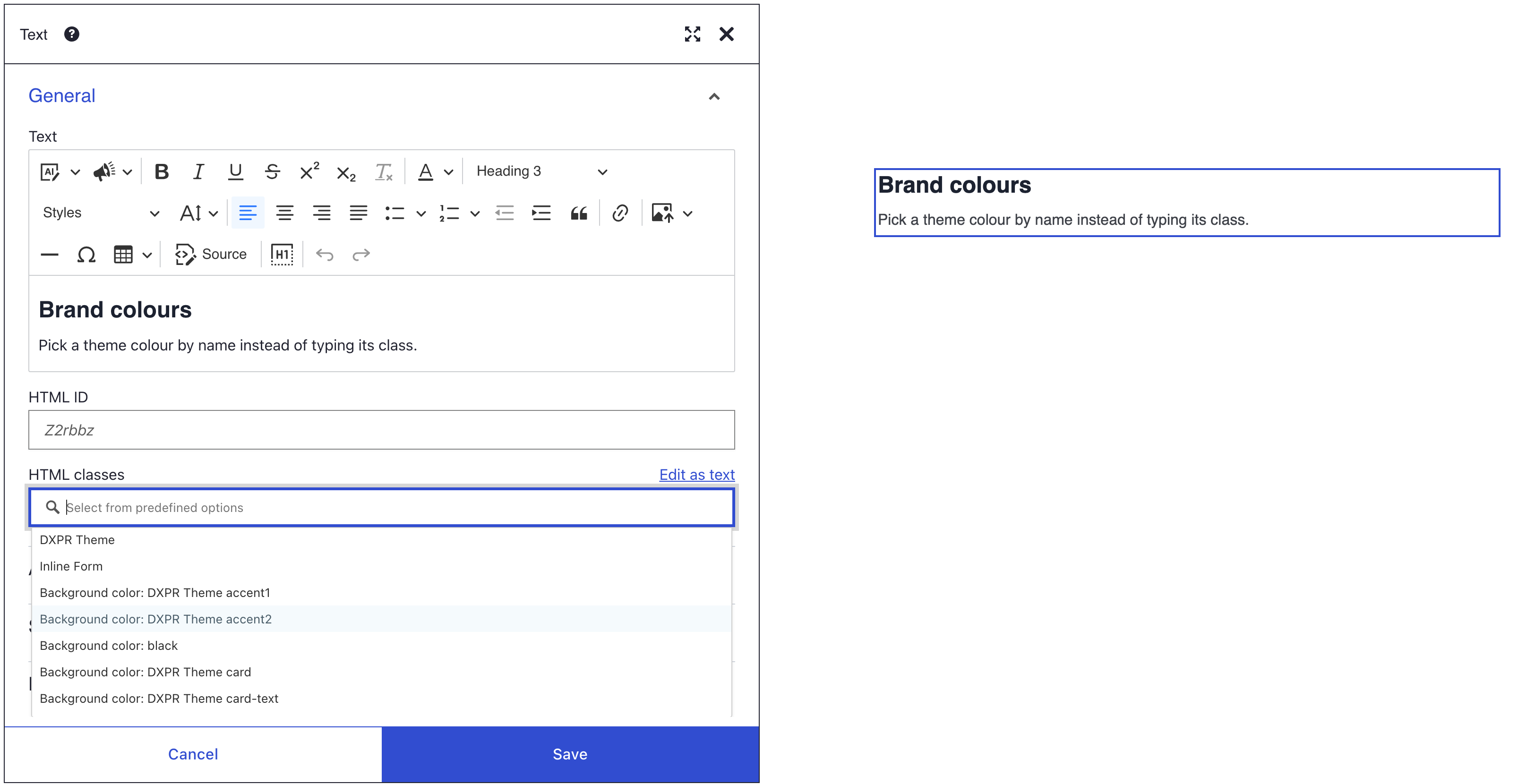
- Open the element's settings and find HTML classes at the bottom of the General panel.
- Click the box and pick a class from the list. Typing in the box filters the list.
- To enter a class that is not in the list, click Edit as text and type it.
- Click Save in the dialog, then Save on the builder toolbar.
The classes go into the element's class attribute in the saved HTML. HTML ID and classes walks editors through common uses.
What the list contains
The editor builds the list when it starts. It merges three sources in this order:
- The built-in list. It holds a Drop shadows group, a short Bootstrap classes group and the Bootstrap 5 utilities, grouped by job: Display & Visibility, Responsive Visibility, Margins, Padding, Text Colors and more.
- A group for every installed theme whose
.info.ymlhas adxpr_builder_classeskey. The group is labelled with the theme's name. - Changes from modules, see Register classes from a module.
So every site has classes for space, such as mt-3 and px-4, for display, such as d-none, and for text, such as text-center and fw-bold. You set nothing up for them.
Register classes in a theme
Add a dxpr_builder_classes mapping to the theme's .info.yml. Each key is a class name, or several separated by spaces; each value is the label editors see. DXPR Theme registers its classes this way:
dxpr_builder_classes:
  dxpr-theme-form-inline: 'Inline Form'
  dxpr-theme-util-background-accent1: 'Background color: DXPR Theme accent1'
  dxpr-theme-util-border-accent1: 'Border color: DXPR Theme accent1'
-
Add the mapping to
themes/custom/mytheme/mytheme.info.yml:yaml dxpr_builder_classes: brand-card: 'Brand card' brand-card shadow-lg: 'Brand card with shadow' -
Write the CSS for the classes in a library the theme loads on every page; see Custom CSS.
- Clear caches with
drush cr, so Drupal reads the info file again. - Open an element's settings and check that HTML classes shows a group with your theme's name and the two entries.
Every installed theme with the key adds its group, not only the default theme. The group always carries the theme's name; the info file cannot rename it.
Register classes from a module
A custom module can add classes, or remove classes a theme registered, with an alter hook. It cannot remove the built-in Bootstrap entries, because the editor adds those in the browser. The code is on Hooks API reference.
Bootstrap version
The built-in list is Bootstrap 5. If your theme does not load Bootstrap 5, set Sideload Bootstrap files to Bootstrap 5 under Bootstrap at DXPR Studio > DXPR Builder > General Settings, so the classes have CSS behind them. See Performance for what that loads.
If you don't see your classes
- Your theme's group is missing from HTML classes. Drupal still uses the old copy of the theme's info file. Click Clear all caches at Configuration > Development > Performance (
/admin/config/development/performance), or rundrush cr. - A theme with the key adds no group. Only installed themes count. Install the theme at Appearance (
/admin/appearance); it does not need to be the default theme. - The element looks the same after you pick a class. No CSS for that class loads on the page. Add the rules to a library your theme loads, see Custom CSS. For Bootstrap classes, see Bootstrap version.
What's next?
- Custom CSS: write the rules behind your classes.
- Text editor: offer classes for paragraphs and words in the Styles list.
- Hooks API reference: the other hooks DXPR Builder provides.