Share and tidy up the templates editors saved
Editors save sections as user templates and insert them again from the Saved templates tab. On the User Templates tab you see every saved template on the site, whoever made it. Here you share a private template with all editors and hand templates over when someone leaves. You can also hide templates without deleting them, or remove the ones nobody needs.
Before you start
- Your role needs Administer site configuration.
- Editors save templates with Save as template in an element's More menu; see Save a section and reuse it.
Set up
To share a private template with every editor:
- Go to DXPR Studio > DXPR Builder > User Templates
(
/admin/dxpr_studio/dxpr_builder/user_templates). - Click Edit next to the template.
- Tick Global.
- Click Save.
Hand templates to another editor
A template belongs to the account in its UID field. When that account is deleted, the template disappears from the editor for everyone. Before you delete an account, move its templates:
- Click Edit next to the template.
- Enter the new owner's user ID in UID.
- Click Save.
You find a user ID in the address of the account's page, for example
/user/12.
Hide a template without deleting it
To keep a template out of the Saved templates tab, for example a default template that does not fit your site's design:
- Click Edit next to the template.
- Untick Enabled.
- Click Save.
Its Status column now reads Disabled, and no editor sees it, including its owner. Tick Enabled again to bring it back. Pages that already use the template keep their content.
Remove a template
Open the arrow next to Edit, click Delete, then confirm with Delete. Pages that already use the template keep their content, because inserting a template copies it into the page.
What you see
The message "Updated dxpr builder user template" names your template, and its Global column now reads True. The list also shows Label, Machine name, Thumbnail, Type, User ID, Status, Migration and Operations.
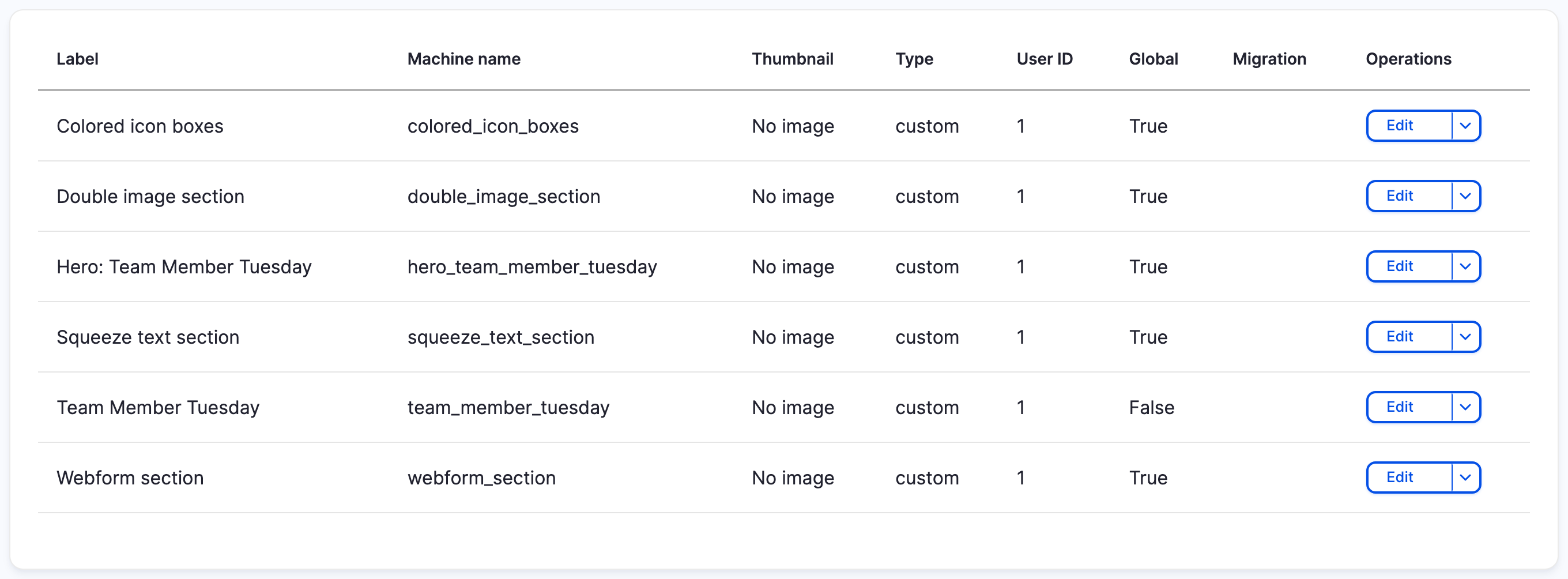
In the editor, open the Saved templates tab. Every editor now finds the template under Global Templates. A private one sits under Private Templates, and only its owner sees it.
Settings
| Setting | What it does | Default |
|---|---|---|
| Label | The template name editors see and search for. | The name the editor typed |
| Machine name | The template's ID, made from the label. Locked after the first save. | From the label |
| UID | The user ID of the owner. | The editor who saved it |
| Image | The thumbnail in the list and in the Saved templates tab. | The image the editor added, if any |
| Template | The DXPR Builder markup that is inserted. | The saved section |
| Type | What was saved, used by the type filter in the editor: for example section, row, az_block, az_view or custom. |
custom |
| Global | Offers the template to every editor. | The Global template choice the editor made |
| Enabled | Untick to hide the template from the Saved templates tab without deleting it. | Ticked |
Add user template at the top of the list creates a template from markup you paste, with the same fields.
If you don't see a template in the editor
- A template is gone for everyone, but its owner still exists. It is disabled: its Status reads Disabled. Edit it and tick Enabled.
- A template is gone for everyone. The account in its UID no longer exists, so the editor skips the template. Edit it and enter the user ID of an existing editor.
- A global template is missing for some editors. Their user
profile leaves it out, and new global templates are not added to
existing profiles. Tick it under Global user templates at User
Profiles (
/admin/dxpr_studio/dxpr_builder/profile). - An editor sees "A template with the name ... already exists". Another template already has the machine name made from that name. Ask the editor to choose another name.
What's next?
- Page templates: turn a saved section into a full-page layout.
- User profiles: choose which global templates each role gets.
- Find and insert a saved template: what editors see in the tab.