Adding a Panel
You get a framed box with a coloured title bar that keeps related content together, such as opening hours or a notice. Use it when one block of a page needs its own heading and frame.
Add a panel
Open your page while logged in: the builder controls appear when you hover the content area. Your first page shows the basics.
- Hover the column and click + in its control bar, or click Add Elements on an empty page. Open the Content tab and click Panel. It lands at the top of the column, without a dialog.
- Hover the panel, click More in its control bar and choose Settings. Type a Title.
- Choose a Type for the colour: DXPR, Default, Primary, Success, Info, Warning or Danger. Here we pick Primary.
- Click Save in the dialog.
- Click the + inside the panel body and add a Button from the Content tab. A Text element works too, for example for opening hours. Then click Save in the toolbar at the top of the content area to store the page.
What you see
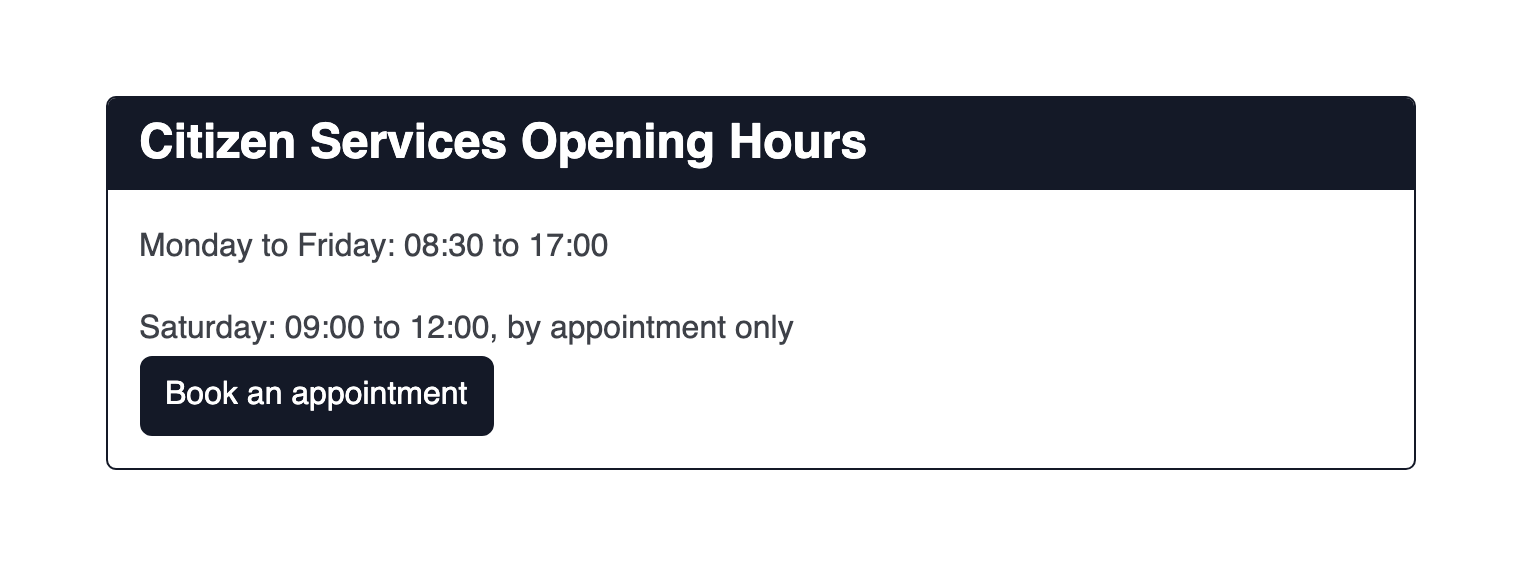
Your title sits in a coloured title bar, and the button sits in the panel body below it. The button is its own element, so you edit and style it on its own. In the video, a Primary panel titled Citizen Services Opening Hours holds a booking button. Visitors see it once you save the page and it is published.
Set up your panel
Hover the element and open More > Settings in its control bar. Options:
- Title: the text in the title bar. Leave it empty for a panel without a title bar.
- Type: the colour of the border and title bar, taken from your theme: Default, Primary, Success, Info, Warning or Danger. DXPR, the default, is a dark box with light text instead.
The panel is a container. Add or drag text, images, icons or buttons into its body.
If you don't see it
- Panel is not in the Content tab. Your user profile hides it. Ask an administrator to tick Panel (Bootstrap 3) under Elements in User Profiles.
- It is gone after you reload. The page was not saved. Add it again and click Save in the toolbar at the top of the content area.
- No settings dialog opens when you add the panel. A panel goes in without a dialog. Hover the element and open More > Settings to set its title and type.
- The panel shows a title bar and nothing below it. No element was added inside yet. Click the + in the panel body and add a Text or Button.
- The title bar is missing. The Title field is empty. Hover the element and open More > Settings, then type a title.
What's next?
Style tab to change spacing and background for your panel.