Use DXPR Builder on your content types
Turn content types you already have into pages you build visually. You switch the display of a long text field, such as Body, to the DXPR Builder formatter. After that, every item of that type shows the builder to your editors. Use this page on an existing site; a new DXPR CMS site has its content types set up already.
The video switches the Body field of a content type to DXPR Builder.
Before you start
- DXPR Builder is installed with your product key (Install DXPR Builder).
- You can manage content types, for example as an administrator.
Use DXPR Builder on a content type
These steps use a long text field the content type already has, such as the default Body field. If it has none, add a DXPR Builder field first.
- Go to Structure > Content types.
- Open the menu beside your content type and click Manage display.
- If an overview of view modes opens, click Manage for Default.
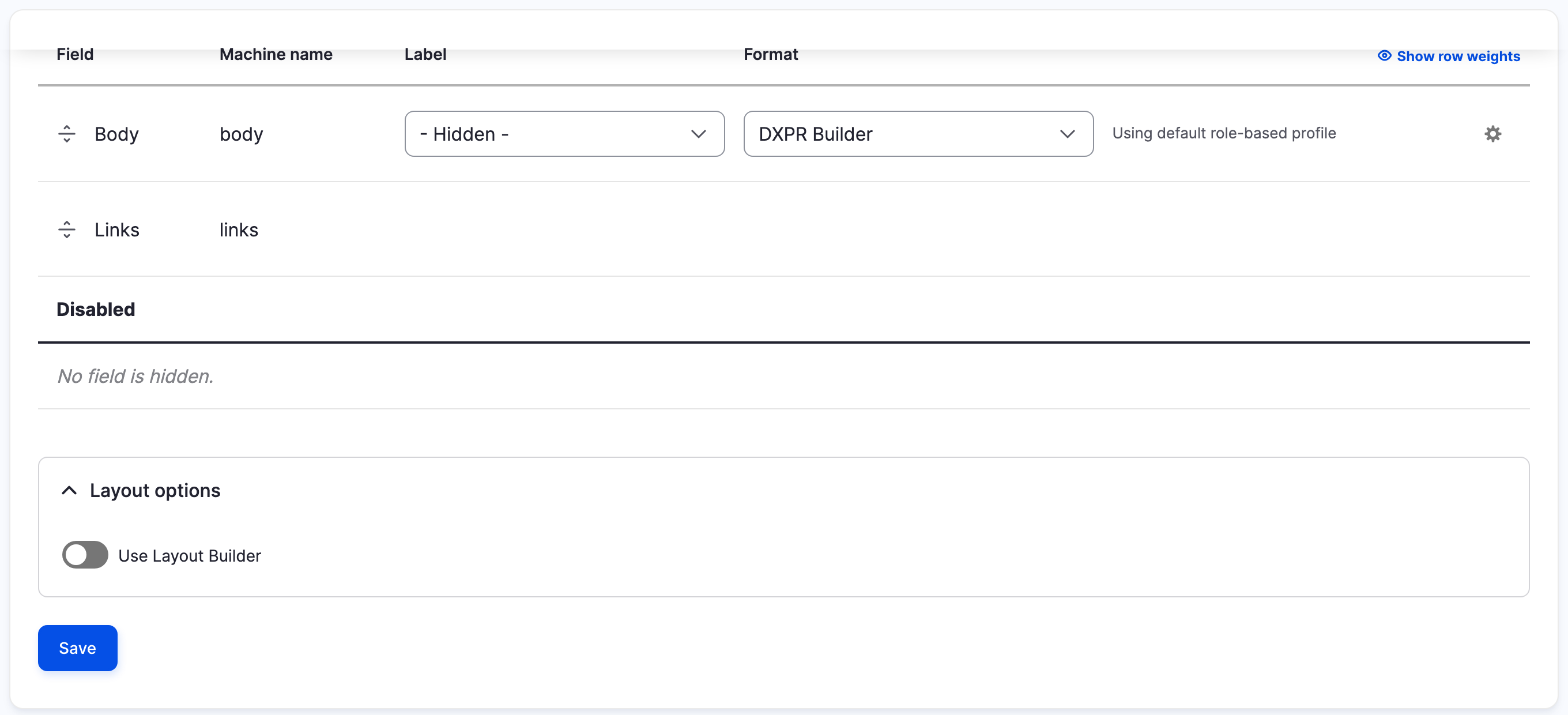
- Change the Format of your text field from Default to DXPR Builder.
- Click Save.
- Create content of that type and type a Title.
- Click Save.
- Hover over the content area. The DXPR Builder toolbar appears.
Add a DXPR Builder field
Add a field when the content type has no long text field yet.
- Go to Structure > Content types and click Manage fields for your content type.
- Click Create a new field.
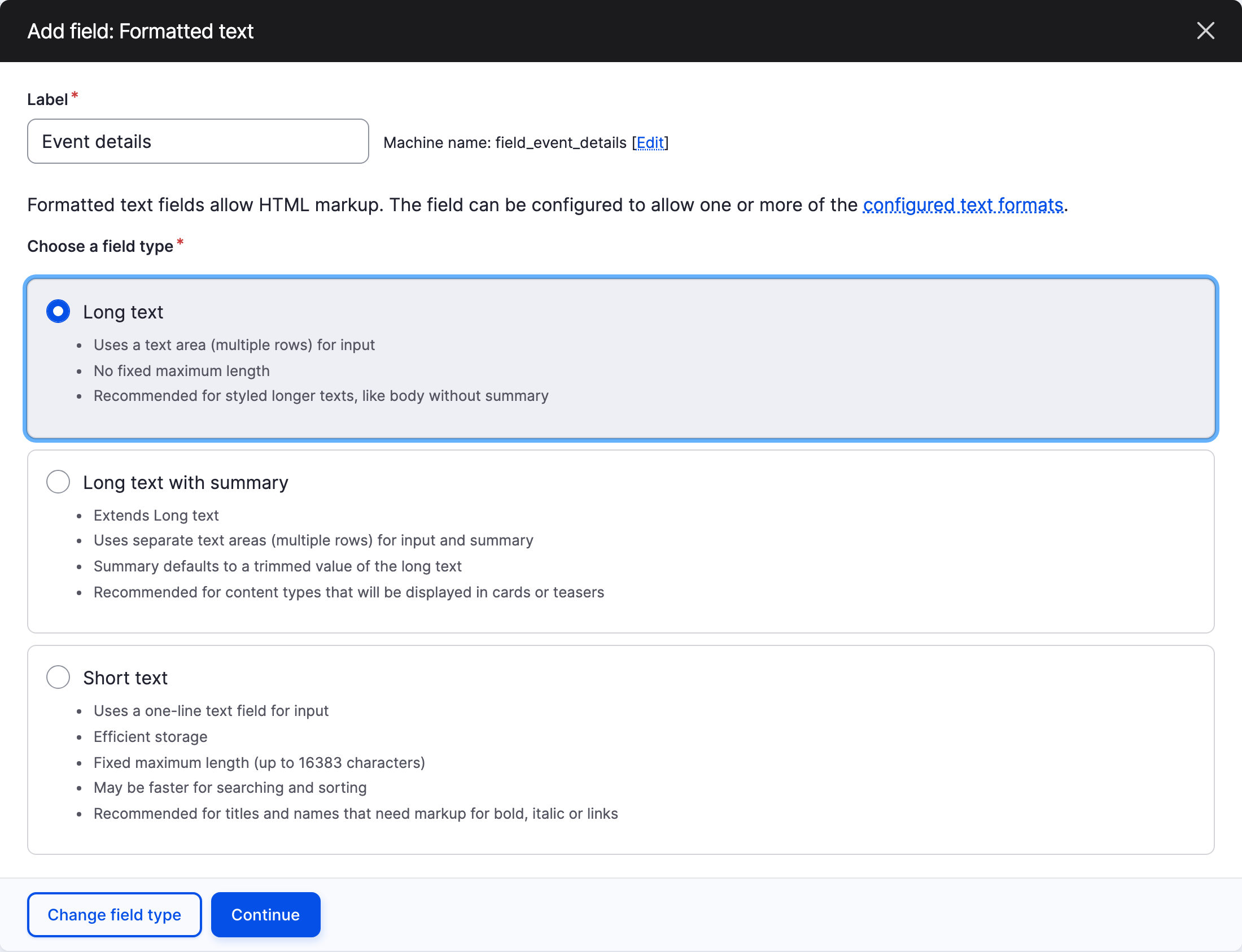
- Choose Formatted text, then Long text. Older Drupal versions call it Text (formatted, long).
- Type a Label, such as "Event details", and click Continue.
- Click Save.
Then set its Format to DXPR Builder with steps 2 to 5 above.
Hide the field on the edit form
The content types that ship with DXPR Builder hide their builder field on the edit form, so editors change it only in the builder. To do the same on your type:
- Open Manage form display for your content type.
- Drag the builder field into the Disabled section.
- Click Save.
What you see
Content of the type opens with the builder where the field was. A new item shows an empty builder with Add Elements. Editors without the Edit with DXPR Builder permission and visitors see the rendered page, without controls.
A content type can have more than one builder field. Each field gets its own builder on the page, one per editable area.
The formatter works on Short text, Long text and Long text with
summary fields of any entity type. That includes custom block types;
dxpr_builder_block adds a ready-made Drag and Drop Block type.
Settings
| Setting | What it does | Default |
|---|---|---|
| Editing Profile (gear icon beside the formatter) | Picks the user profile that sets the elements, blocks, views and editor buttons for this field | Default (Role-based Profile): each editor gets the profile of their role |
If you don't see the builder
- The Format list has no DXPR Builder option. The field is not a formatted text field. Add a Long text field as described above and use that one.
- Manage display shows a Manage layout button but no Format column. The display uses Layout Builder. Click Manage layout, configure the field's block and set its Formatter to DXPR Builder.
- Content shows the field as plain text. The format was set on another view mode. Set it on Default, or on the view mode your pages use.
- The controls do not appear for an editor. The editor's role lacks the Edit with DXPR Builder permission. Grant it at People > Permissions (
/admin/people/permissions).
What's next?
- Build your first page: add sections, rows and elements to the new content.
- User profiles: decide what each role sees in the builder.
- The editing tools: every control in the builder.