Manage the layouts editors start a page from
Page templates are full-page layouts. Editors pick one under Choose a template when a DXPR Builder field is still empty. On the Page Templates tab you add your own layouts, change their order and hide the ones you do not want. The quickest way to make one is to turn a section that an editor saved into a page template.
Before you start
- Your role needs Administer site configuration for this tab.
- For Create page template, it also needs Administer DXPR Builder configuration.
- Build the layout on a page and save it as a template, as described in Save a section and reuse it.
Set up
- Go to DXPR Studio > DXPR Builder > User Templates
(
/admin/dxpr_studio/dxpr_builder/user_templates). - In the row of your saved layout, open the arrow next to Edit and click Create page template.
- Click View page templates dashboard in the message.
- Click Edit next to the new template.
- Change the Category, upload an Image and set a Weight.
- Click Save.
The new page template keeps the label and machine name of the saved layout. Its category starts as DXPR.
Add a template by hand
Use this when you have the template markup, for example from another site.
- Go to DXPR Studio > DXPR Builder > Page Templates
(
/admin/dxpr_studio/dxpr_builder/page_template). - Click Add page template.
- Enter a Label and a Category.
- Paste the markup into Template.
- Click Save.
What you see
The message "Created new dxpr builder page template" or "Updated dxpr builder page template" names your template. The list shows Label, Machine name, Thumbnail, Category, Weight, Status, Migration and Operations. Thumbnail reads No image until you upload one.
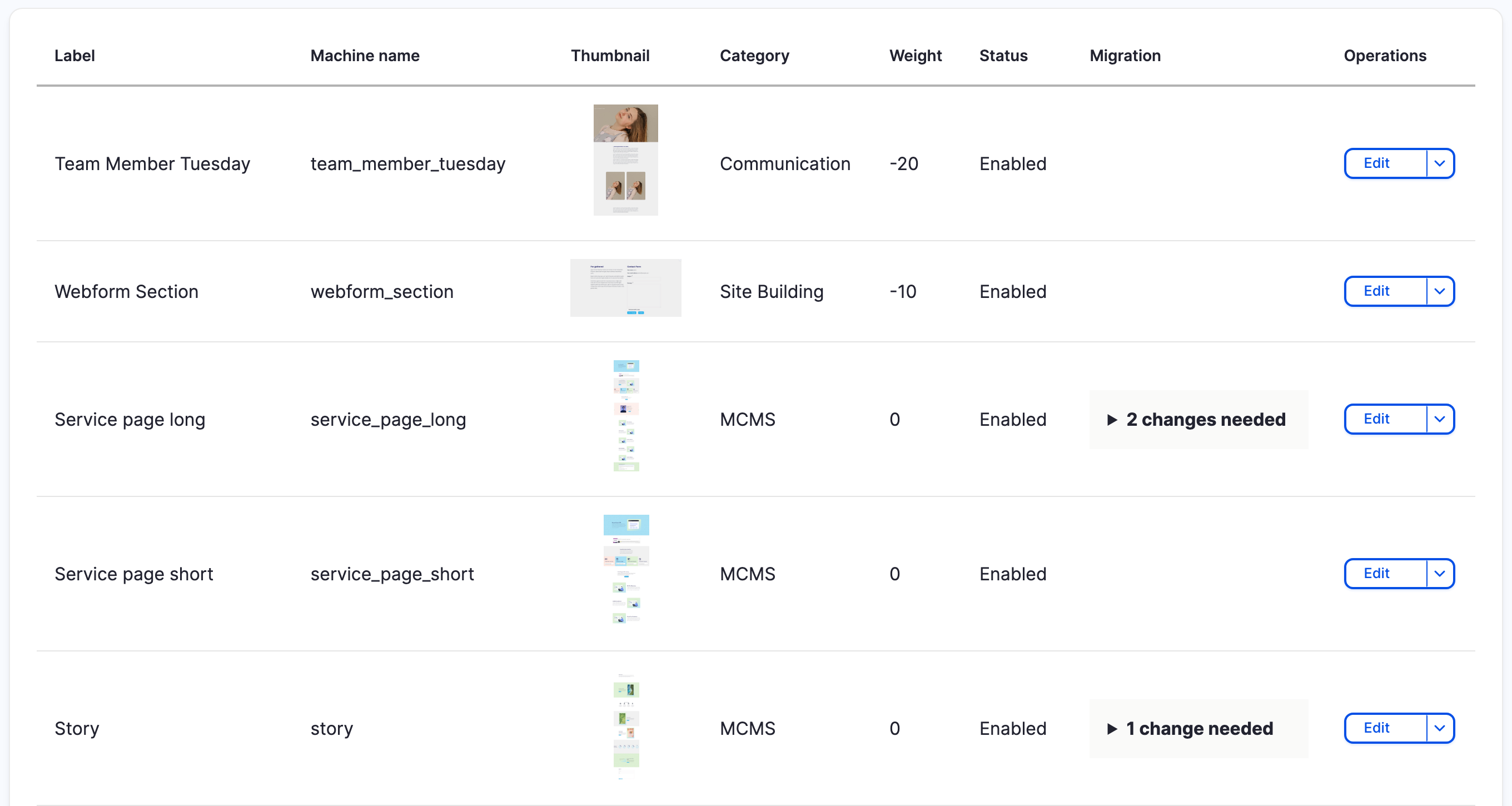
In the editor, the Layouts dialog of an empty field now offers the template. It sorts by Weight, then by label. Pages made earlier keep their content: a template is copied into the page, never linked.
Settings
| Setting | What it does | Default |
|---|---|---|
| Label | The name editors see in the Layouts dialog. | Empty, required |
| Machine name | The template's ID, made from the label. Locked after the first save. | From the label |
| Enabled | Untick to hide the template from editors without deleting it. | Ticked |
| Category | A free-text group name, shown in the list on this tab. | Empty, required |
| Image | The thumbnail in the list and in the Layouts dialog. | None; the dialog shows a placeholder |
| Template | The DXPR Builder markup that fills the page. | Empty, required |
| Weight | The position in the Layouts dialog; lower numbers come first. | Empty, sorted as 0 |
DXPR Builder ships five templates: Text Columns, Split Content and Buttons, About Us, About Me and Homepage Basic. To hide one, untick Enabled rather than deleting it; a deleted template does not come back.
If you don't see the template in the editor
- There is no Choose a template button. The field already has content; templates are offered on an empty field only. Start a new page, or delete the content and save.
- The template is missing from the Layouts dialog. It is not
enabled, or the editor's user profile leaves it out. Tick
Enabled, or tick the template under Page templates in the
profile at User Profiles (
/admin/dxpr_studio/dxpr_builder/profile). - "Page template creation failed because a page template with the same name already exists". A page template already uses that machine name. Delete that page template, or save the layout again under a new name.
What's next?
- User profiles: choose which page templates each role gets.
- Start a page from a template: what editors see.
- User templates: manage the sections editors save.