Turn on AI in DXPR Builder
Connect DXPR Builder to DXPR's AI service and choose which AI tools your editors get. When you are done, the AI Agent button is on the builder toolbar of every page. You need a DXPR account and the AI modules installed. AI use is paid in DXPR credits. The video connects the key, switches the tools on and opens a page to show the button.
Before you start
- Install the DXPR AI provider: run
composer require drupal/ai_provider_dxpr, thendrush en ai_provider_dxpr. This also installs the AI and Key modules. - Get your API key from your DXPR account. Sign-up at dxpr.com is free.
- Save the key in Drupal. Go to Configuration > System > Keys (
/admin/config/system/keys) and click Add Key. Give it a label with "DXPR" in it, choose the Authentication key type and paste the key. - You need the Administer LLM Providers and Administer DXPR Builder configuration permissions.
Set up
- Go to Configuration > AI > AI Infrastructure > AI Platform Providers > DXPR AI Provider (
/admin/config/ai/providers/dxpr). - Under DXPR API Key, choose the key you saved.
- Choose the Default model. DXAI Kavya M1 suits most sites.
- Click Save configuration.
- Go to DXPR Studio > DXPR Builder > AI (
/admin/dxpr_studio/dxpr_builder/ai_settings). - Check Credits remaining under Usage and Credits.
- Under AI Features, choose the tools your editors get: Enable text editing assistant, Enable page creation assistant and Enable image generation.
- Click Save settings.
- Open a page that uses DXPR Builder and point at the toolbar at the top right of the content.
- Click AI Agent: the prompt for your first request opens.
Saving the provider form makes DXPR the default AI provider of your site, unless another one was chosen before. DXPR Builder always uses DXPR, whichever default you choose later.
What you see
The builder toolbar now has an AI Agent button next to Show history. On an empty page, a prompt box sits above Generate content. Click into a text and the text toolbar starts with AI Agent and Tone of voice. Each element's More menu has Edit with AI.
The credits used this month show below Credits remaining. Follow your subscription page to top up.
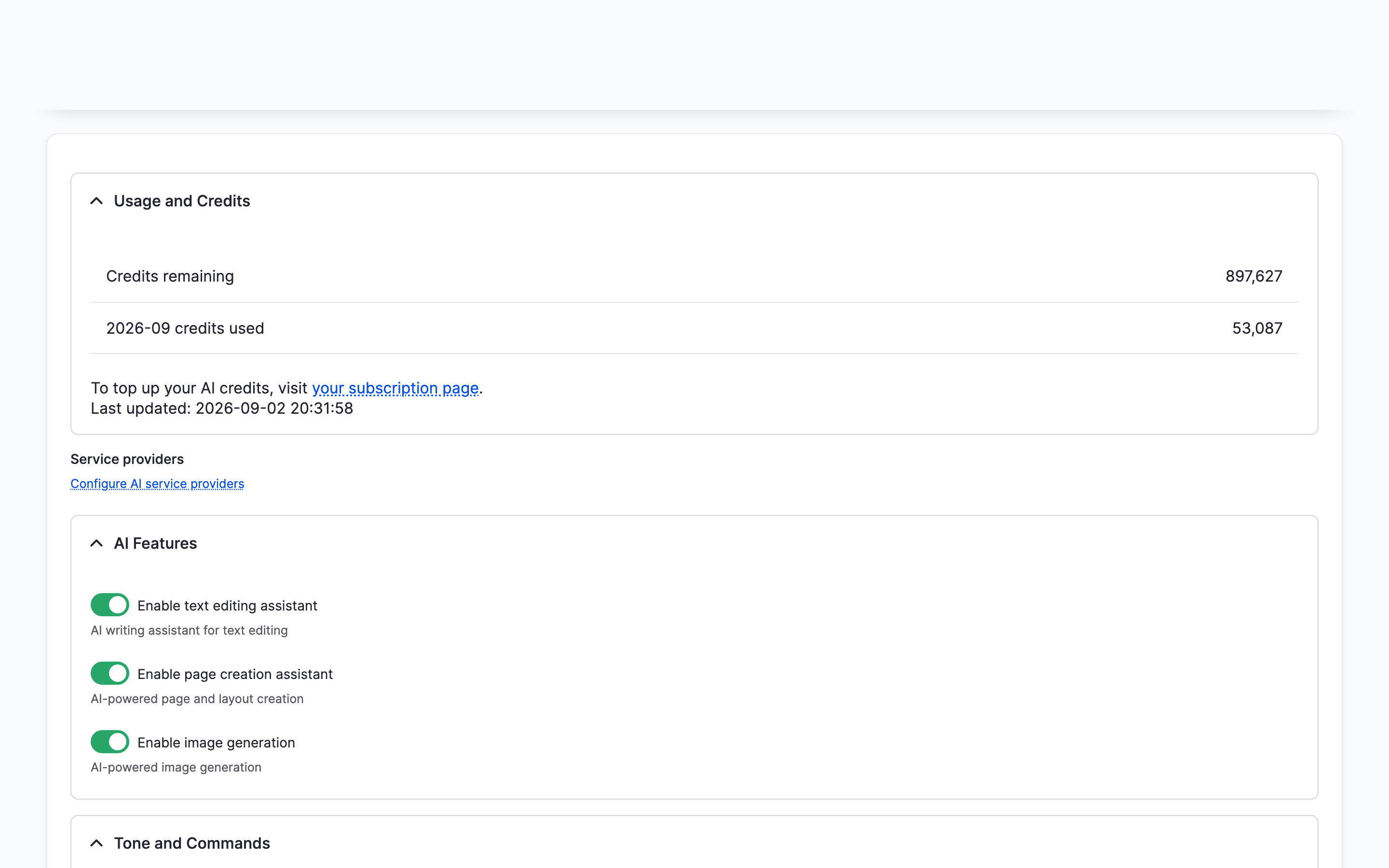
Settings
| Setting | What it does | Default |
|---|---|---|
| Default model | DXAI Kavya M1 gives the best results. DXAI Kavya M1 EU keeps text with MistralAI in France. DXAI Kavya M1 Fast answers faster at lower quality | DXAI Kavya M1 |
| Allowed models | The models editors can switch to. With one model ticked, editors see no model choice | All three |
| Enable text editing assistant | The AI Agent and Tone of voice buttons in the text toolbar | On |
| Enable page creation assistant | The prompt on empty pages, the AI Agent toolbar button and Edit with AI | On |
| Enable image generation | Edit with AI on Image elements and the AI Image Generation button for background images | On |
AI configuration explains every other setting on the AI page.
If you don't see the AI Agent button
- The AI Agent button is greyed out, and its tooltip says no AI provider is configured. No key is chosen on the provider form, or the form was never saved. Choose the key at
/admin/config/ai/providers/dxprand click Save configuration. - There is no AI Agent button at all. Enable page creation assistant is off. Tick it at
/admin/dxpr_studio/dxpr_builder/ai_settingsand click Save settings. - The key list under DXPR API Key only shows "- Select a key -". No key exists yet. Add one at
/admin/config/system/keys. - Saving the provider form shows "You are using the Free Tier of DXPR or have run out of quota." Your account has no credits left. Top up at dxpr.com/user/me/subscription/credits.
- Usage and Credits reads "Unable to load usage data". DXPR Builder could not reach dxpr.com with the product key under General Settings. Check the product key and the server's internet access, then reload the page.
What's next?
- Rewrite text with AI: change the tone or length of a paragraph.
- Draft a page with AI: turn a short brief into a full page.
- AI configuration: tones, commands and output filtering.