Enter your product key and site-wide settings
On the General Settings tab you connect the site to your DXPR subscription with a product key. You also choose settings that apply to every editor: control bars, text styles, Bootstrap and the media browser. Come here when you install the builder, change your subscription or switch media browsers. AI features have their own tab; see AI configuration.
Before you start
- Your role needs Administer DXPR Builder configuration.
- Have your product key ready. The Find your product key link on the tab opens dxpr.com/getting-started.
Set up
- Go to DXPR Studio > DXPR Builder > General Settings
(
/admin/dxpr_studio/dxpr_builder/settings). - Under License, choose a Storage method.
- With Configuration storage, paste your key into Product key. With Key module, choose the key that holds it under Key.
- Open the other sections and change what you need. The Settings table below explains each one.
- Click Save settings.
Configuration storage saves the key with the site settings.
Key module reads it from a key that you manage under Manage
keys (/admin/config/system/keys). Depending on the key's
provider, the value can live in a file or an environment variable
instead of the database.
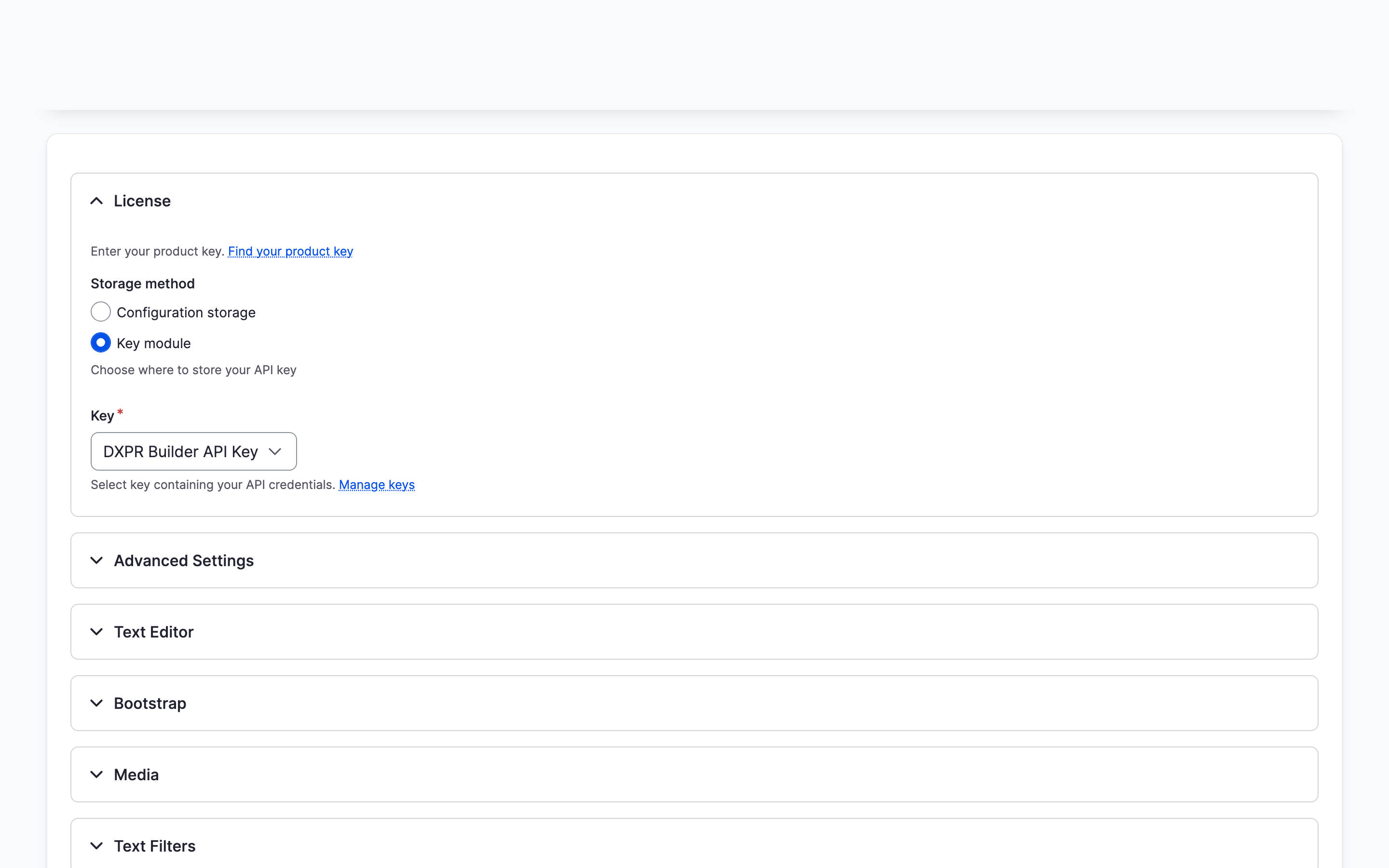
What you see
The form reloads with your values and the message "The configuration options have been saved." License stays open; the other sections are collapsed. To confirm the key works, open the User Licenses tab: the box at the top names your subscription tier and counts your licences. Editors now see the builder controls on pages with a DXPR Builder field.
Settings
| Setting | What it does | Default |
|---|---|---|
| Storage method (License) | Where the product key is kept: Configuration storage or Key module. | Configuration storage |
| Product key (License) | Your key. Shown only with Configuration storage. | Empty |
| Key (License) | The key that holds your product key. Shown only with Key module. Saving this form never changes the key's value; edit it under Manage keys. | None |
| Scroll offset selector (Advanced Settings) | CSS selector of a fixed or sticky header. Smooth scrolling to an anchor stops below that header. | .dxpr-theme-header--sticky, .dxpr-theme-header--fixed |
| Control bars (Advanced Settings) | Where editors find an element's control bar. On each element: every element has its own bar. One row: one row of bars above the element you point at, and the page keeps its published layout. A user profile can set this per role, and each editor can choose under Editor settings in the editor or on their account page. | On each element |
| Custom styles (Text Editor) | The entries of the text editor's Styles list, one per line as [label]=[element].[class], for example Sassy Title=h1.sassy-title. Clearing the field restores the shipped list. See Text editor. |
The styles DXPR Builder ships, starting with Lead=p.lead |
| Sideload Bootstrap files (Bootstrap) | None (theme provides Bootstrap), or Bootstrap 5 to let the builder load Bootstrap on its pages. | Nothing selected, so no Bootstrap files load |
| Browser type (Media) | How editors pick images: Basic file upload, Media Library, Media Library (Acquia DAM) with the Acquia DAM module, or an entity browser, listed by machine name, with the Entity Browser module. See Media Library. | Media Library when that module is on, otherwise Basic file upload |
| Apply text format filters to frontend content (Text Filters) | Runs the field's text format filters for visitors. People who can edit with the builder see the unfiltered content. Some filters may not work with builder markup. | Off |
| Asset source (Editor Assets) | Where the editor's JavaScript comes from: Cloud, Local (minified) or Local (unminified). The section only appears when the module contains a local build. While local files exist, Cloud loads them too, because cloud files exist only for releases. See Editor assets. | Cloud |
If you see an error or no builder
- "Product key required" under Product key. The field is empty while Storage method is Configuration storage. Paste your key, or choose Key module and pick a key.
- "Invalid product key. Copy the complete key without extra spaces." The pasted text is not a whole key, or it is a key made for DXPR Builder 1.x. Copy your current key again from the Find your product key link, without spaces or line breaks.
- "Select a key" under Key. Key module is chosen but no key
is selected. Pick your key, or create one first under Manage
keys (
/admin/config/system/keys). - "The selected key does not hold a valid product key." under Key. The chosen key holds another secret, such as an AI provider's key. Pick the key that holds your product key, or paste the product key into it under Manage keys.
- The Product key field is gone. Storage method is set to Key module. A module update can move a key from Configuration storage into a key named DXPR Builder JWT, which Key now shows.
- An error says "We are having trouble connecting to the DXPR servers". Your server cannot reach the DXPR licence service. See Firewall and data residency for the hosts to allow.
- There is no Editor Assets section. The module folder holds no local build, so the editor loads from the DXPR CDN. Nothing needs fixing.
What's next?
- User licences: see who holds a licence on your key.
- User profiles: give each role its own set of elements and buttons.
- AI configuration: switch on AI features.