Drag elements into place
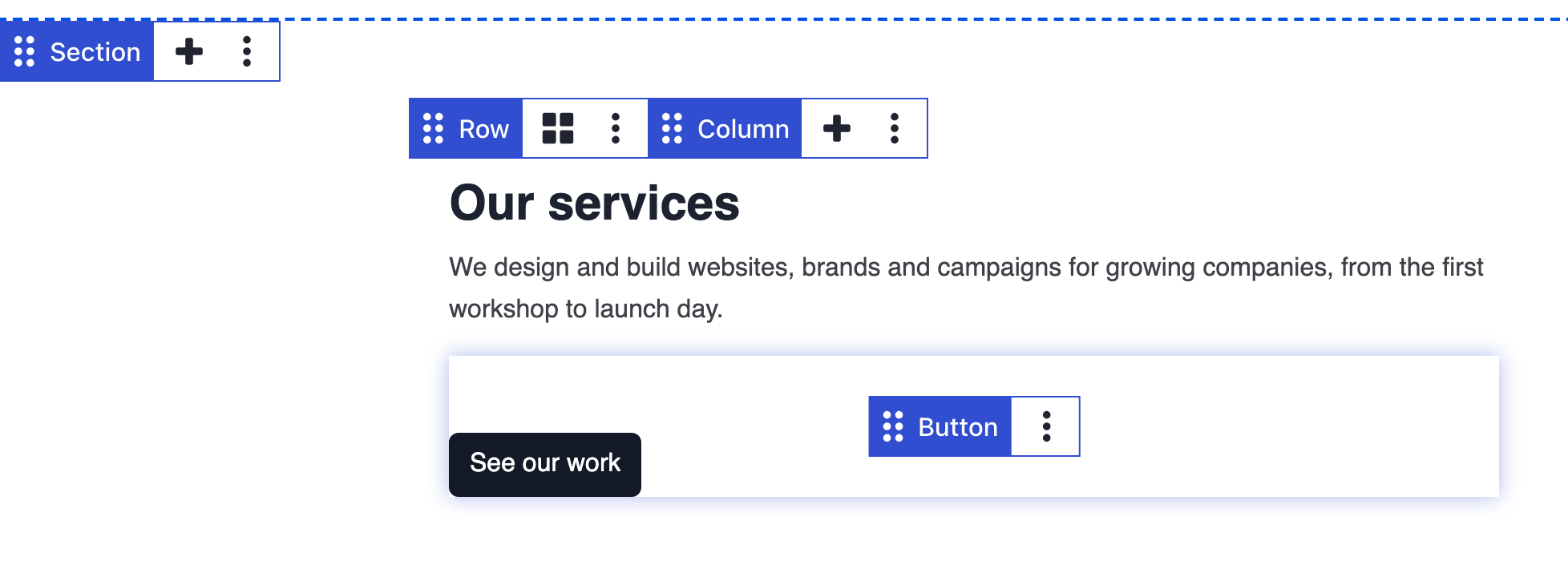
You can drag elements, rows and sections to put them where you want them. Move them up or down a column, or into another column or section. New elements land at the top of their column, so a drag is the quick way to put them in order. The example drags a Book a free consultation button below the text it belongs to.
Drag an element
- Hover over the element to show its control bar.
- Press and hold the drag handle: the dotted grip with the element's name, on the left of the control bar.
- Drag the element to its new place. A striped placeholder shows where it will land.
- Release the mouse button to drop it there.
- Click Save on the toolbar to store the page.
In the example, each element also gets a 48 pixel top margin in its Style panel.
Where you can drop
An element can land between two elements in the same column, in another column, or straight in another section. It can also go into a container element such as a tab or a collapse panel. Any DXPR Builder area on the same page accepts it too.
Move a section, row or column
Sections and rows have the same handle on their control bar. Drag a section up or down the page, or drag a row into another section. Columns stay in their row: drag a column's handle left or right to swap it with its neighbour.
Move without dragging
Click the element's name in its control bar to select it. Press Ctrl+Up or Ctrl+Down (Cmd on a Mac) to move it one place. For a column, press Ctrl+Left or Ctrl+Right. The More menu has the same moves as Move Up and Move Down.
What you see
While you drag, a copy of the element follows the pointer and the striped placeholder marks the drop point. After the drop, the element sits in its new place and the rest of the column closes up around it. The dot on the Save button shows that the change is not saved yet.
If you don't see the element move
- Nothing moves when you drag. You pressed on the element itself, not on its handle. Press and hold the dotted grip with the element's name.
- The place you want is off screen. The page only scrolls while the pointer is near the window's edge. Move the pointer close to the top or bottom edge and wait.
- A column will not leave its row. Columns only swap places inside their row. Drag the elements inside the column to the other row instead.
- An element in Positioned layers shows no placeholder. Those elements are placed freely on a canvas. See Positioned layers.
- The element landed in the wrong place. Press Ctrl+Z (Cmd+Z on a Mac) to undo the drop.
What's next?
- Copy and paste elements: repeat an element instead of moving it.
- Selecting elements: reach the handle of a column, row or section.
- Rows and columns: change the column layout of a row.