Write and design with AI
Draft a landing page from a short brief, rewrite a paragraph in a friendlier tone, or create a photo for an event announcement, all inside the editor. DXPR Builder's AI runs on DXPR's Kavya models and is paid in DXPR credits. Use the table to find the page for what you want to do.
| I want to ... | Use | Needs |
|---|---|---|
| switch the AI tools on for my editors | Turn on AI in DXPR Builder | a DXPR API key and the Administer DXPR Builder configuration permission |
| rewrite a paragraph in another tone, shorter or longer | Rewrite text with AI | Enable text editing assistant |
| draft a whole page from a short brief | Draft a page with AI | Enable page creation assistant |
| add to, rewrite or rebuild one section or element | Change a section with AI | Enable page creation assistant |
| check AI text and keep it or undo it | Review and keep AI text | any AI tool switched on |
| learn which request leads to a layout, plain text or rich text | Explore the AI content tools | Enable page creation assistant |
| write one brief in several tones and compare them | Compare writing tones with AI | Enable page creation assistant |
| translate the text on a page | Translate content with AI | Enable page creation assistant |
| start a page from a public web page | Clone a web page with AI | an empty page and a public address |
| let the AI write version B for an A/B test | Create an A/B test variant with AI Chat | the RL module |
| make a new photo or illustration | Generate an image with AI | Enable image generation |
| change a photo that is already on the page | Change a photo with AI | Enable image generation and a photo stored on your site |
| give my images alt text | Let AI write your alt text | the AI Image Alt Text module |
| choose the model or the order of the AI services | Models and providers | the Administer LLM Providers permission |
| limit what AI text may contain | AI configuration | the Administer DXPR Builder configuration permission |
| find out why an AI button is missing | AI troubleshooting |
Which should I use
Start with Turn on AI in DXPR Builder. Until it is done, the AI buttons stay greyed out.
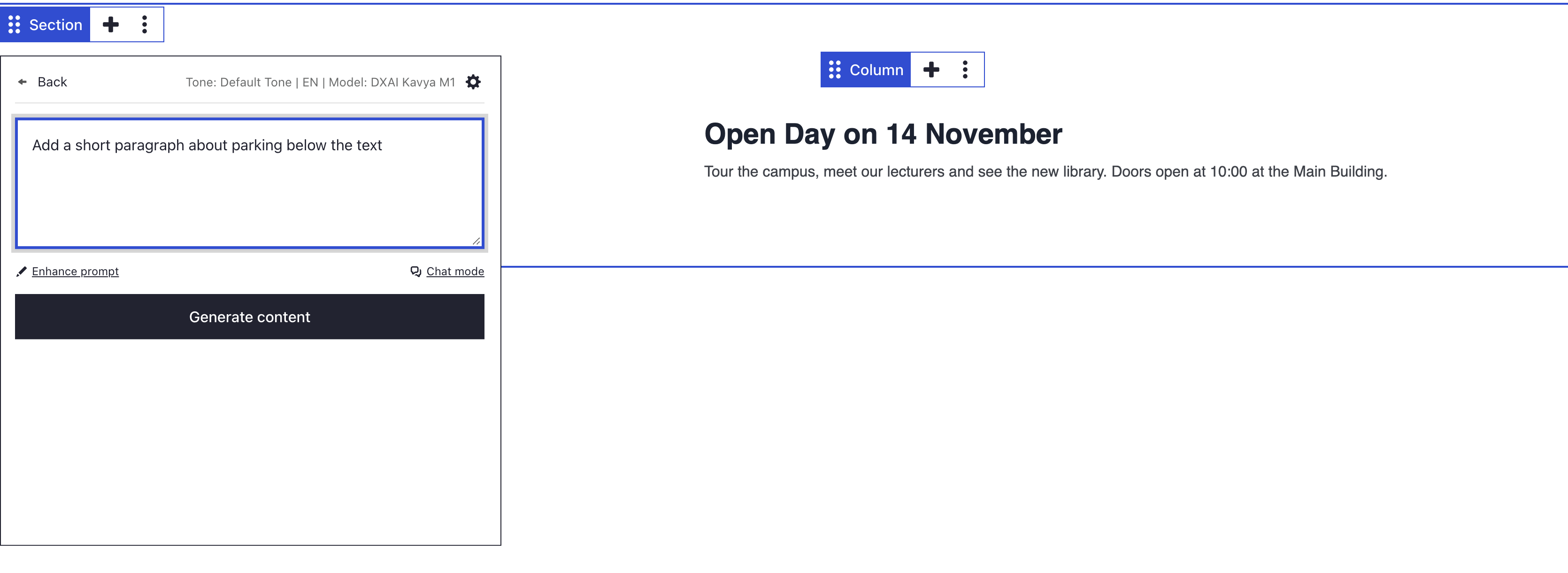
For text, work at the size of the change. To change one paragraph, use the AI Agent menu in the text toolbar: it rewrites only what you select. To change a whole element or section, use Edit with AI in its More menu, see Change a section with AI. To start a page from nothing, use the prompt on the empty page.
For images, generate when you have no photo. Edit when you have a photo that is nearly right, for example to change the light or the background. AI cannot tell what is true about your event or your campus. Check every fact and every photo before you publish.
Before you start
- AI is set up as described in Turn on AI in DXPR Builder.
- You have the Edit with DXPR Builder permission and a licence seat for DXPR Builder.
- Your DXPR account has credits left. Each request uses credits.
What's next?
Turn on AI in DXPR Builder to connect your key and switch the tools on.
In this section
- AI setup: Connect your DXPR API key, choose the default model and switch the AI tools on for your editors
- Configuration: Every setting on the DXPR Builder AI page: credits, feature switches, tones, commands and output filtering
- Models and providers: The three Kavya models, where they run and how to restrict providers
- Page creation: Describe the page you need and let the AI build its sections, text and buttons
- Section editing: Ask the AI to add to, rewrite or rebuild one section or element of a page
- Image generation: Create a photo or illustration from a description, in an Image element or as a background
- Image editing: Change the light, background or style of a photo on your page with a written instruction
- Image alt text: Let AI describe a photo as you upload it, and see where DXPR Builder keeps alt text
- Text commands: Rewrite, shorten, lengthen or change the tone of a paragraph from the text toolbar
- Review and keep AI text: Read AI text before you keep it, then keep it or undo it in each AI tool
- Explore the content tools: The six ways the AI writes content in DXPR Builder, with a request to try for each
- Compare writing tones: Write the same brief in three tones of voice and choose the one that suits your readers
- Translate content: Translate the text of a page or section with AI, check it and keep it
- Clone a web page: Rebuild a public web page as editable DXPR Builder content with one AI request
- A/B variant with AI Chat: Let AI Chat write version B of a button or section for an A/B test
- Use cases: Worked examples for marketers, webmasters and developers