Rewrite text with AI
Make a paragraph friendlier, shorter or simpler without leaving the page. You pick a tone, select the text and choose a command; the AI rewrites the selection in place. Use this for one paragraph or a few sentences. To change a whole section, use Edit with AI in its More menu instead. The video rewrites an Open Day announcement in an approachable tone.
Before you start
- AI is switched on, with Enable text editing assistant ticked. See Turn on AI in DXPR Builder.
- The page has a Text element with the paragraph you want to change.
Set up
- Click the paragraph on the page. The text toolbar appears above it.
- Click Tone of voice and choose a tone, for example Approachable.
- Select the sentences you want to change.
- Click the arrow next to AI Agent and choose Improve Tone of Voice.
- Click outside the text when the new text is in place.
- Click Save on the builder toolbar.
If you select nothing in step 3, the command works on all the text of the element.
What you see
The new text replaces your selection, in the tone you chose. For a long text, a Cancel Generation button shows in the toolbar while the AI writes. The tone stays chosen for your next commands in this browser. Not happy with the result? Click Undo in the toolbar to get the old text back.
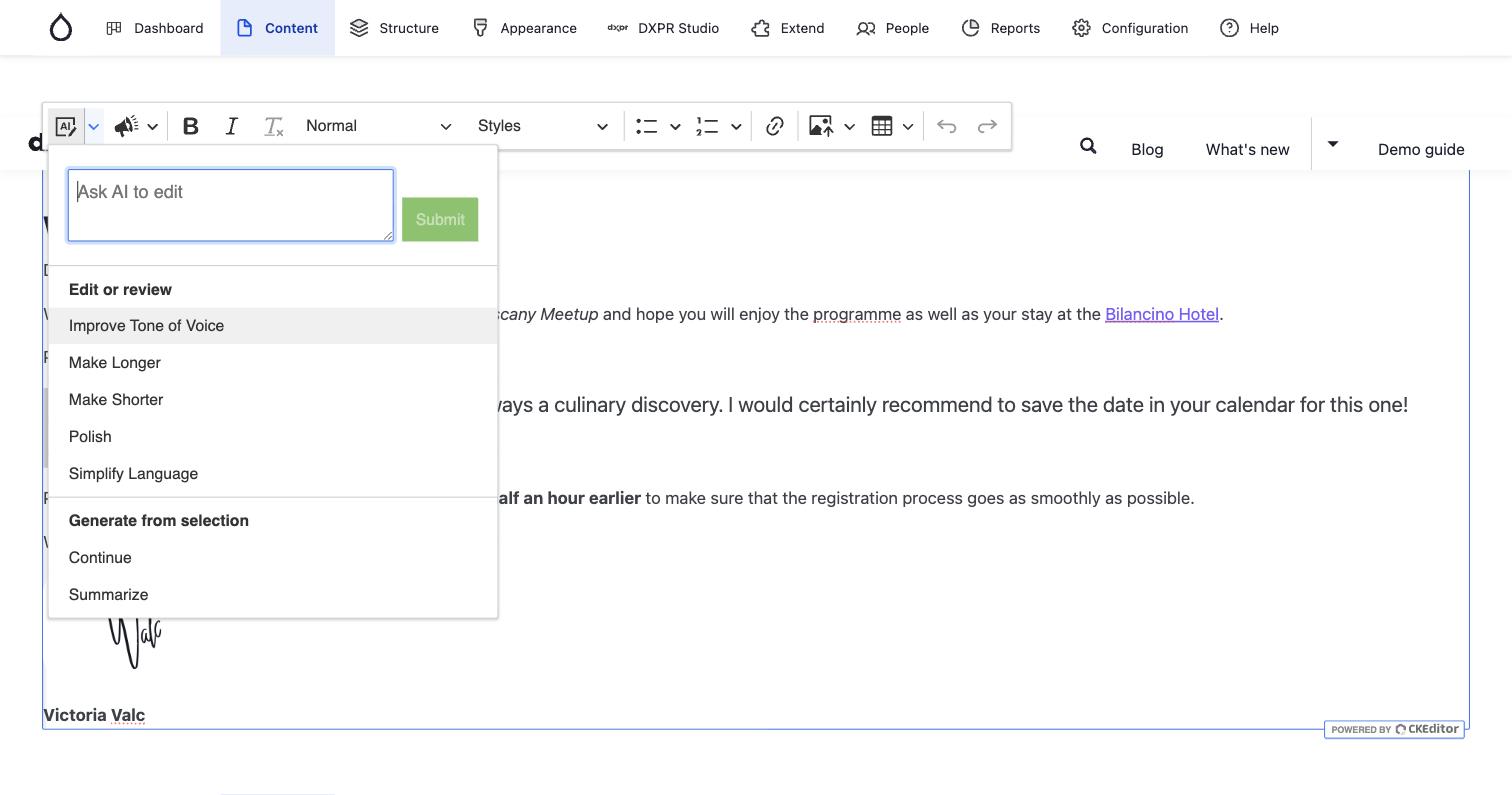
Commands
| Command | What it does |
|---|---|
| Polish | Fixes spelling and grammar and applies good writing practice, keeping the meaning |
| Improve Tone of Voice | Rewrites the text in the tone chosen under Tone of voice, keeping the key message |
| Make Shorter | Removes repeated, redundant or non-essential words |
| Make Longer | Adds description and detail |
| Simplify Language | Makes the text easier to read |
| Summarize | Condenses the text into one paragraph with the key points |
| Continue | Writes on from the end of the text |
Tone of voice offers these tones:
- Default tone: no tone instruction
- Professional, Educational, Persuasive, Approachable, Formal and Inspirational
Your site administrator can change both lists, see AI configuration.
Ask in your own words
For anything the commands do not cover, type an instruction in the Ask AI to edit box at the top of the AI Agent menu, for example "Translate into Dutch". Then click Submit or press Ctrl+Enter (Cmd+Enter on a Mac). The instruction works on your selection, like a command.
You can also type / at the start of an empty line, then your instruction, and press Enter. The AI writes its answer in that place. Press Ctrl+/ (Cmd+/ on a Mac) to start such a prompt in the middle of a text.
If you don't see the AI text
- The toolbar has no AI Agent or Tone of voice button. Enable text editing assistant is off, or your user profile sets its own text editor buttons. Tick the setting at
/admin/dxpr_studio/dxpr_builder/ai_settings, or add AI Assistant and AI Tone of Voice under Text editor buttons (inline editing) in your profile at DXPR Studio > DXPR Builder > User Profiles. - The commands in the AI Agent menu are greyed out. The text element is empty. Type or paste some text first.
- A message says "AI service is currently unavailable. Please try again later." The site could not get an answer from DXPR. Try again in a minute. If it keeps failing, check the key and your credits as described in AI troubleshooting.
- The text comes back in the wrong tone. Default tone or another tone is still chosen. Open Tone of voice: the tick shows the current tone.
What's next?
- Draft a page with AI: write a whole page from a short brief.
- Inline text editing: format the new text by hand.
- AI configuration: add your own tones and commands.