Choose what each role sees in the builder
A user profile limits what editors with certain roles see in DXPR Builder: elements, blocks, views, templates, icon sets and text editor buttons. You create one profile per group of editors, for example a short list for content editors. Editors that no profile matches see everything. How profiles are picked is explained in Builder profiles.
Before you start
- Your role needs Administer dxpr builder profile.
- The roles exist and have Edit with DXPR Builder; see Set up editor permissions.
Set up
- Go to DXPR Studio > DXPR Builder > User Profiles
(
/admin/dxpr_studio/dxpr_builder/profile). - Click Add DXPR Builder profile.
- Enter a Label.
- Open Roles and tick the roles this profile is for.
- Open Elements and untick what these editors should not use.
- Do the same in Blocks, Views, Page templates, Global user templates and Icon sets.
- Open Text editor buttons (inline editing) and tick the toolbar buttons to offer.
- Do the same in Text editor buttons (modal editing).
- Click Save.
What you see
The message "Created new dxpr builder profile" names your profile. The list shows Label, Roles as machine names, Status (Enabled or Disabled), DXPR Editor (Always on or Always off) and Operations. The list is sorted by Weight, then by label: the order in which profiles apply.
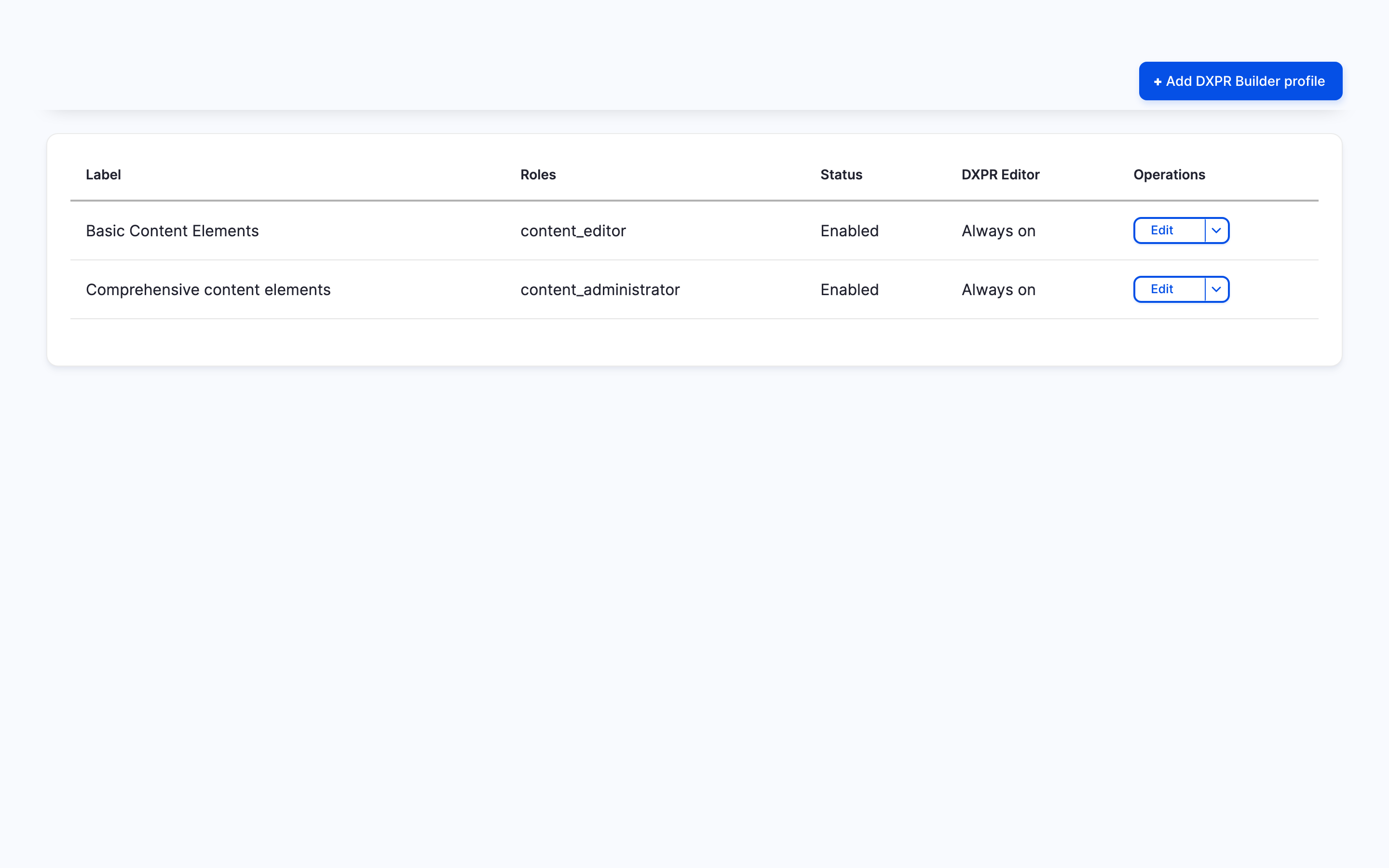
Editors with a ticked role see the change on their next page load. The element picker offers only the ticked elements. The Drupal Blocks and Drupal Views tabs list only the ticked items, and the text editor shows only the ticked buttons.
Settings
| Setting | What it does | Default |
|---|---|---|
| Label | The profile's name in the list and in the field formatter's Editing Profile choice. | Empty, required |
| User profile enabled | Untick to switch the profile off without deleting it. | Ticked |
| Start editor when page loads | Off: pages open without editing controls until the editor clicks the eye icon on the main container controls. | Ticked |
| Control bars | Same as the site, On each element or One row. Editors can still choose for themselves under Editor settings. See General settings. | Same as the site |
| Weight | From -10 to 10. When an editor matches several enabled profiles, the lowest weight wins. | 0 |
| Roles | The roles the profile applies to. Anonymous user and Authenticated user are not offered. | None |
| Elements, Blocks, Views | What the element picker offers. Blocks read "Category: Admin label"; views read "View: Display". | All ticked |
| Page templates, Global user templates | Which enabled page templates and global user templates editors can insert. Editors always see the templates they saved themselves. | All ticked |
| Icon sets | Which icon sets the icon pickers offer. | All ticked |
| Text editor buttons (inline editing) | The toolbar when editors type straight on the page, in a Text, Alert or Blockquote element. | 19 buttons: AI, formatting, alignment, bullet list, link, image, table, undo and redo |
| Text editor buttons (modal editing) | The toolbar in the text editor dialog. | 31 buttons: the inline set plus underline, scripts, numbered list, indents, block quote, source code and more |
Each group from Elements to Icon sets has a Check/Uncheck all box, such as Check/Uncheck all Blocks. Tick it, and the group includes items created later. Leave it off, and new blocks, views or templates stay hidden until you tick them. A new profile starts with every item ticked but this box off.
Both toolbar groups offer the same 36 buttons. The Text editor page lists them and the ones a new profile ticks. Untick every button of a group to give that toolbar its built-in set of buttons.
If you don't see the profile at work
- Editors still see every element. No enabled profile includes one of their roles. Tick the role under Roles, and check that User profile enabled is ticked.
- Editors get a different profile than you expected. They match several profiles, and the first enabled one in the list wins. Give the profile they need a lower Weight than the others.
- A new block, view or template is missing for editors. New items are not added to existing profiles. Tick the item, or tick the group's Check/Uncheck all box.
- One content type ignores the profile. Its DXPR Builder field is set to a fixed Editing Profile. Change it at Structure > Content types > Manage display, in the field's format settings.
- Unticking Marquee changes nothing. Profiles cannot hide the Marquee element yet.
- The editing controls are missing when a page opens. Start editor when page loads is off for this profile. Click the eye icon on the main container controls, or tick the setting.
What's next?
- Builder profiles: how DXPR Builder picks a profile, and planning one per role.
- Set up editor permissions: combine roles, permissions and profiles step by step.
- General settings: the site-wide control bar setting a profile can override.