AI troubleshooting
Find the cause when an AI button is missing, greyed out or returns an error. Most problems come from one of three places: the DXPR key, the switches on the DXPR Builder AI page, or your DXPR credits.
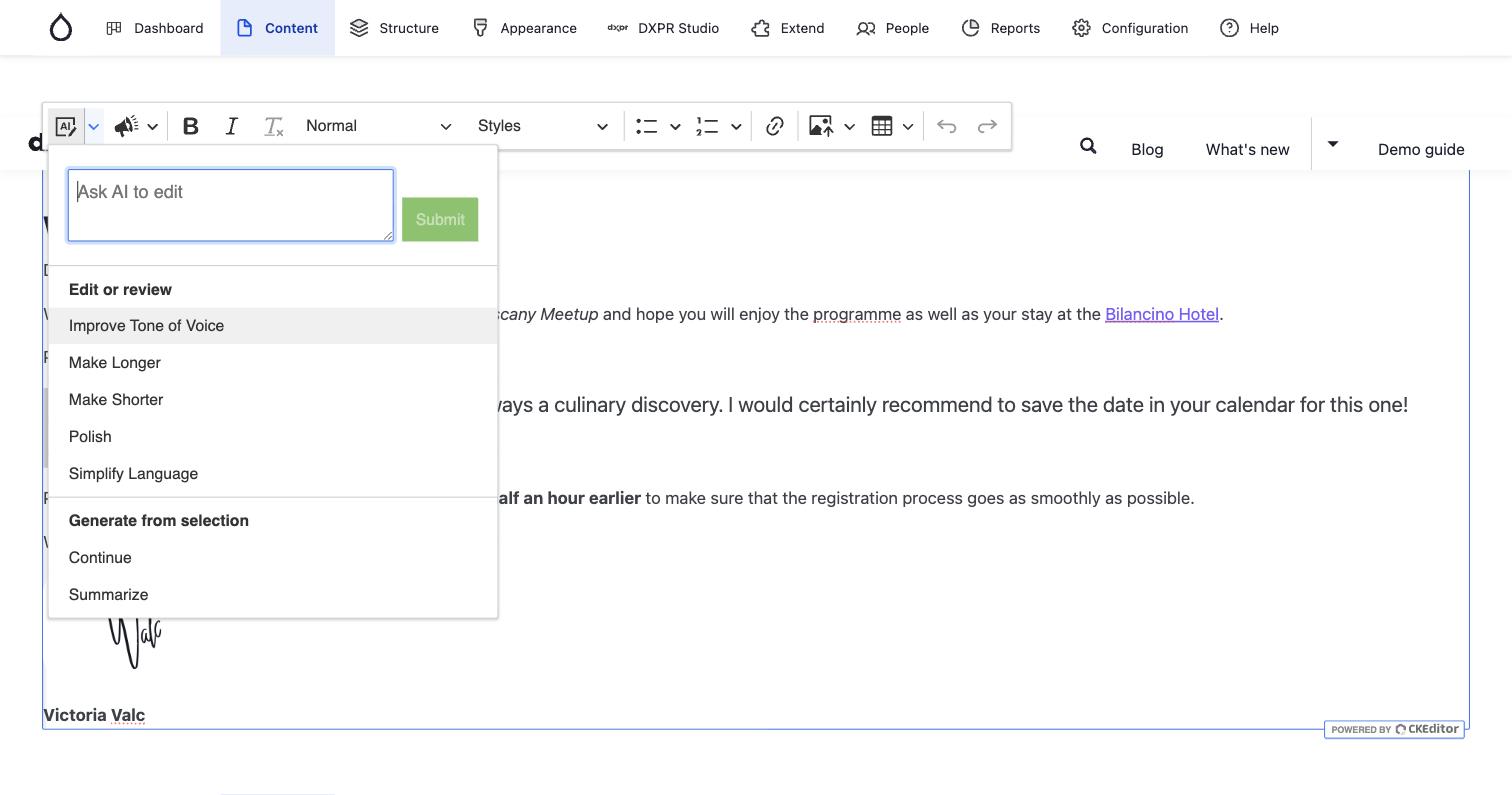
AI buttons are greyed out
- Pointing at an AI button shows "AI features are unavailable: no AI provider is configured." DXPR is not set up as the AI provider, or its key is empty. Go to Configuration > AI > AI Infrastructure > AI Platform Providers > DXPR AI Provider (
/admin/config/ai/providers/dxpr), choose your key under DXPR API Key and click Save configuration. - The message says "AI features require the AI module." The AI module is not installed. Run
composer require drupal/ai_provider_dxpr, thendrush en ai_provider_dxpr.
An AI button is missing
Each switch on DXPR Studio > DXPR Builder > AI (/admin/dxpr_studio/dxpr_builder/ai_settings) hides its own tools:
- No AI Agent or Tone of voice in the text toolbar. Enable text editing assistant is off. A user profile with its own text editor buttons can also leave them out: add AI Assistant and AI Tone of Voice to the profile.
- No AI Agent on the builder toolbar, no prompt on an empty page and no Edit with AI in the More menus. Enable page creation assistant is off.
- No Edit with AI on Image elements, and no AI Image Generation under Background image. Enable image generation is off.
After changing a switch, click Save settings and reload the page you edit.
A request fails
- The text toolbar says "AI service is currently unavailable. Please try again later." DXPR did not answer the request. Try again in a minute. If it keeps failing, check the key on the provider page and your credits.
- A page or element request says "The AI service ran into a problem processing this request." The same cause, from the page and element tools. Try again, then check the key and your credits.
- An image shows "Image generation failed. Please try again." or "Image editing failed. Please try again." DXPR could not create the image, often because of the credits or a description that breaks the content rules. Click Retry, or Cancel and change the description.
- A warning says "Your AI credit balance is low". Fewer than 5,000 credits are left. Top up at dxpr.com/user/me/subscription/credits before you run out.
Credits
Usage and Credits on the DXPR Builder AI page shows Credits remaining and the credits used this month. When it reads "Unable to load usage data", DXPR Builder could not reach dxpr.com with the product key under General Settings: check that key and the server's internet access. Saving the provider form with an empty account shows "You are using the Free Tier of DXPR or have run out of quota."
Results are slow or weak
- Answers take long. Long texts and whole pages take longer. DXAI Kavya M1 Fast answers faster at lower quality; choose it under Default model on the provider page, or under Model in the editor's AI Settings dialog.
- The text is generic. Say who reads the page, what it is for and which facts matter. Choose a tone under Tone of voice before you run a command.
- Links or images in the result are missing. AI Output Filtering removed links to domains that are not on Allowed domains. See AI configuration.
Confirm the fix
Reload the page in the builder. The AI Agent button on the toolbar is no longer greyed out. The text toolbar starts with AI Agent and Tone of voice. A short command such as Polish on one sentence returns new text.
What's next?
Turn on AI in DXPR Builder to check every setting from the start.