Adding a Video
You get a YouTube or Vimeo video that fits your column, with an optional cover image and play button. Use it for product demos, lectures, tutorials or promo clips.
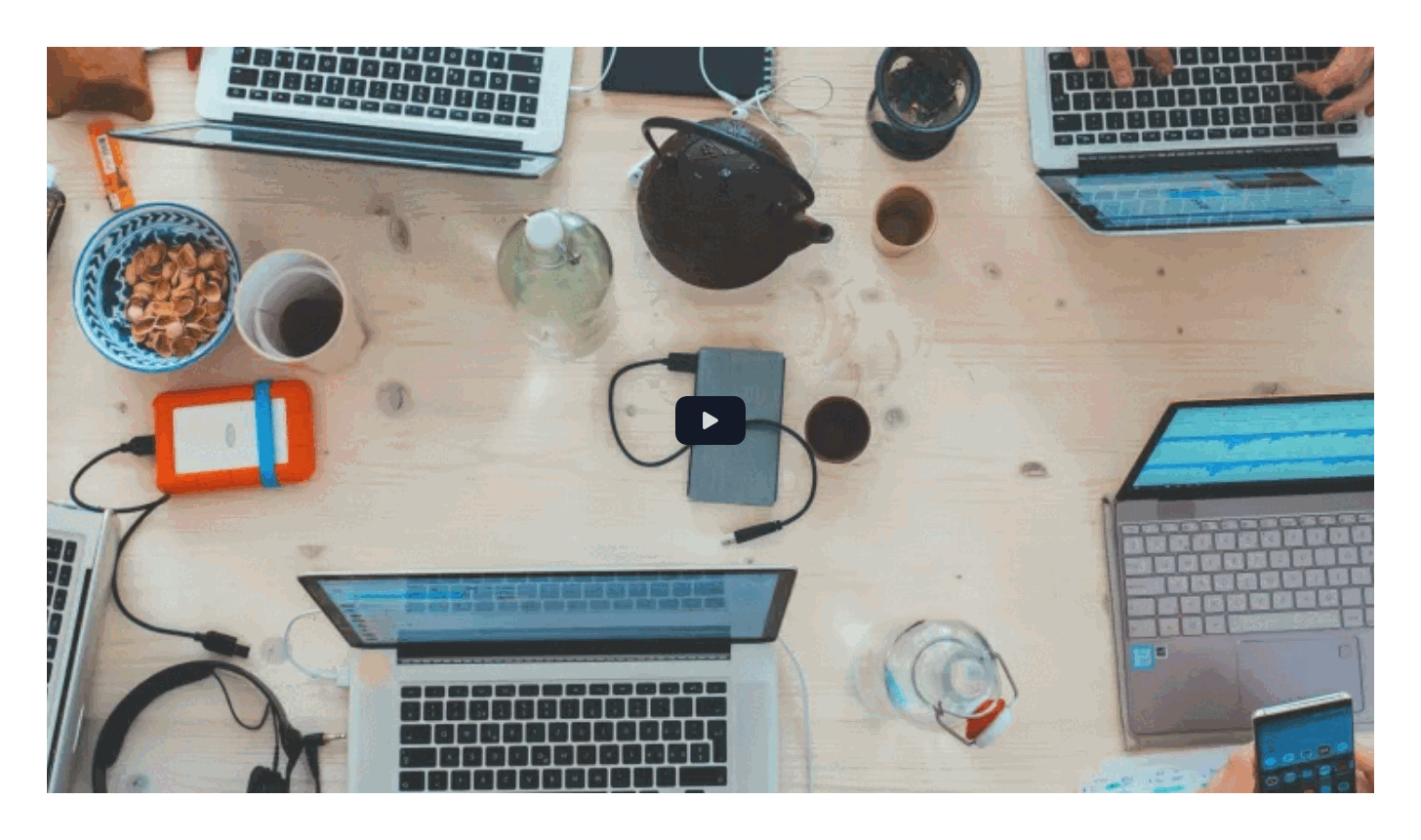
Add a video
Open your page while logged in: the builder controls appear when you hover the content area. Your first page shows the basics.
- Hover the column and click + in its control bar, or click Add Elements on an empty page. Open the Content tab and click Video. It lands at the top of the column and its settings dialog opens.
- Paste or type a YouTube or Vimeo URL into Video link.
- Under Image, click Select Image to open the Media browser. To find a photo, type part of its name and click Apply filters. Tick the photo and click Insert selected. It becomes the cover image.
- Choose whether to show the Themed play button on top of the cover image. It is off by default. Here it is on.
- Click Save in the dialog. Then click Save in the toolbar at the top of the content area to store the page.
What you see
Your video appears in a 16:9 frame across the column. In the video, the cover photo fills the frame and the themed play button sits on top. The YouTube player loads only when someone clicks the photo or the button. Visitors see it once you save the page and it is published.
Set up your video
Hover the element and open More > Settings in its control bar. Options:
- Video link: the YouTube or Vimeo URL. Standard, short and embed links all work.
- Video width: a CSS width such as
100%or800px. The default is100%. - Image: a cover image shown before the video plays. With an image set, the YouTube or Vimeo player loads only when the visitor clicks, so the page loads faster.
- Themed play button: a play button in your theme's primary colour, shown over the video or the image. It is off by default. A click on it, or on the image, starts the video without sound.
If you don't see it
- Video is not in the Content tab. Your user profile hides it. Ask an administrator to enable it in User Profiles.
- It is gone after you reload. The page was not saved. Add it again and click Save in the toolbar at the top of the content area.
- A blank space appears instead of the player. The Video link field is empty or holds a URL that is not from YouTube or Vimeo. Hover the element and open More > Settings, then paste a valid YouTube or Vimeo URL.
- The player shows an error instead of the video. The video is private, or its owner does not allow embedding. Make it public or unlisted and allow embedding on YouTube or Vimeo, or link another video.
- The video is too wide or too narrow for the column. Video width holds a fixed size, such as
800px. Set it to100%to fill the column.
What's next?
Style tab to change spacing and background for your video.
Something wrong or missing on this page?
Report it
or edit the page.