Configure the builder for your site
You set up DXPR Builder for the whole site on seven tabs under DXPR Studio > DXPR Builder. There you enter your product key, see what counts towards your licence, and decide which templates and tools editors get. Find your task in the table, then open its page.
| I want to ... | Use | Needs |
|---|---|---|
| enter the product key, pick a media browser or load Bootstrap | General settings | Administer DXPR Builder configuration |
| switch AI features on and pick the default model | AI configuration | Administer DXPR Builder configuration |
| see which pages count towards my content items limit | Content items | Administer DXPR Builder configuration |
| add or change the layouts editors start a page from | Page templates | Administer site configuration |
| see who holds a licence, or free one up | User licences | Administer DXPR Builder configuration |
| limit the elements, blocks and buttons a role sees | User profiles | Administer dxpr builder profile |
| share, fix or remove sections that editors saved | User templates | Administer site configuration |
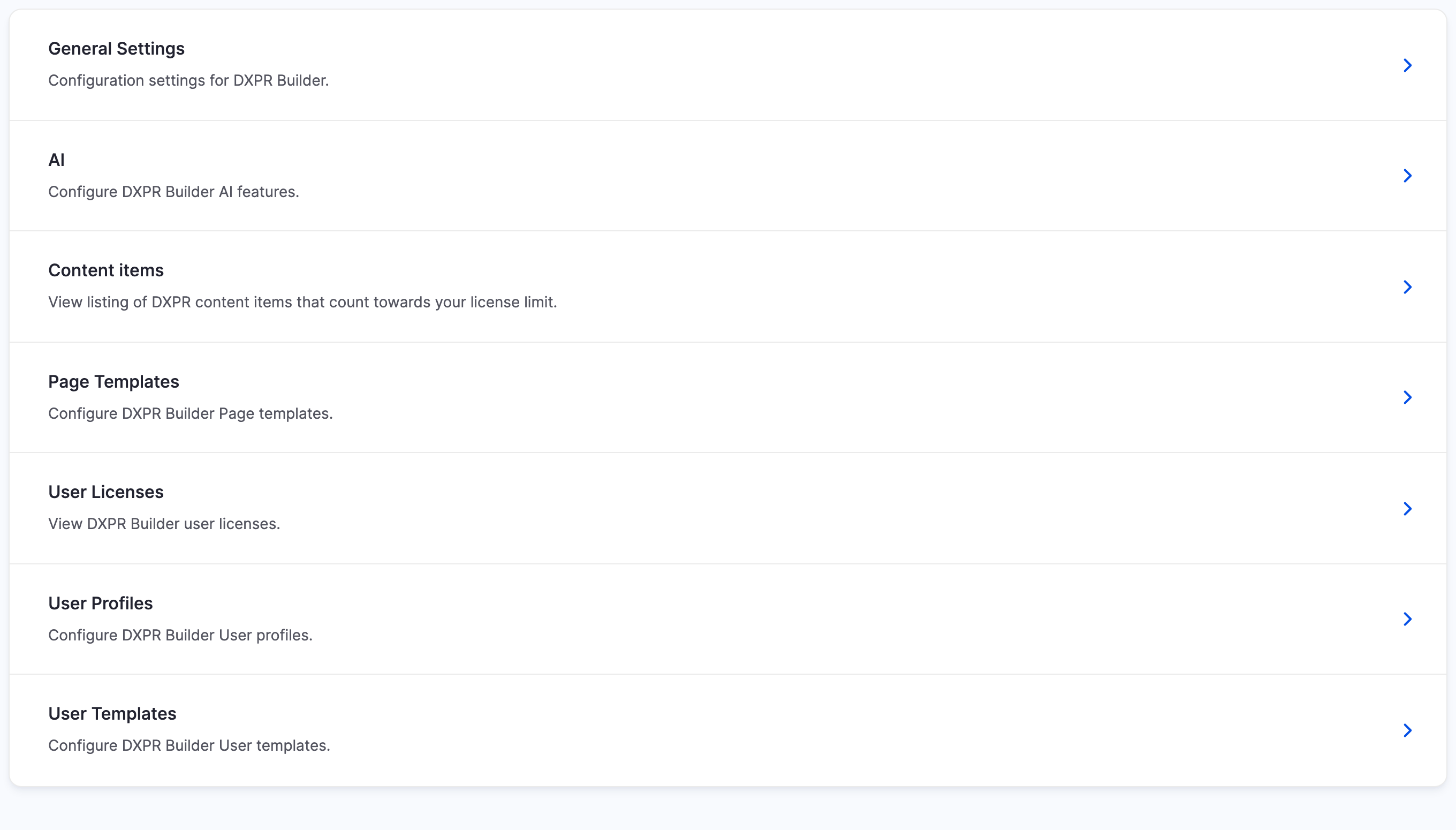
Find the admin pages
- In the admin toolbar, click DXPR Studio.
- Click DXPR Builder.
- Click the link for your task.
Each of these pages shows the seven tabs at the top, so you can switch between them. General Settings is also under Configuration > Content authoring > DXPR Builder.
Before you start
You grant the permissions from the table at People >
Permissions (/admin/people/permissions). Drupal marks
Administer DXPR Builder configuration as restricted, so give it to
trusted roles only. The DXPR Studio menu also needs that
permission. The permissions reference
lists what each permission unlocks.
What's next?
Enter your product key and site-wide settings to start configuring the builder.
In this section
- General settings: Enter your product key and choose site-wide settings: control bars, text styles, Bootstrap, media browser and editor files
- Content items: See how many content items count towards your subscription limit, and which ones
- Page templates admin: Add, change, hide and remove the full-page layouts editors pick under Choose a template
- User templates admin: Share, hand over, fix or remove the sections editors saved as templates