AI configuration
This page lists every setting on the DXPR Builder AI Settings page and what it changes in the editor. The API key and the models live on the DXPR AI provider's own page; see Models and providers.
The video adds a tone of voice that editors can pick in the editor.
Go to DXPR Studio > DXPR Builder > AI (/admin/dxpr_studio/dxpr_builder/ai_settings). You need the Administer DXPR Builder configuration permission. Click Save settings at the bottom to keep your changes.
Usage and Credits
Credits remaining shows the balance of your DXPR account. The row below it shows the credits used this month. The link your subscription page opens dxpr.com, where you top up. The balance belongs to the product key under General Settings. When the balance cannot load, the section reads "Unable to load usage data. Check your connection and refresh the page."
AI Features
All three switches are on by default.
| Setting | What it shows in the editor |
|---|---|
| Enable text editing assistant | The AI Agent and Tone of voice buttons in the text editor toolbar, and AI settings in the builder toolbar's More menu |
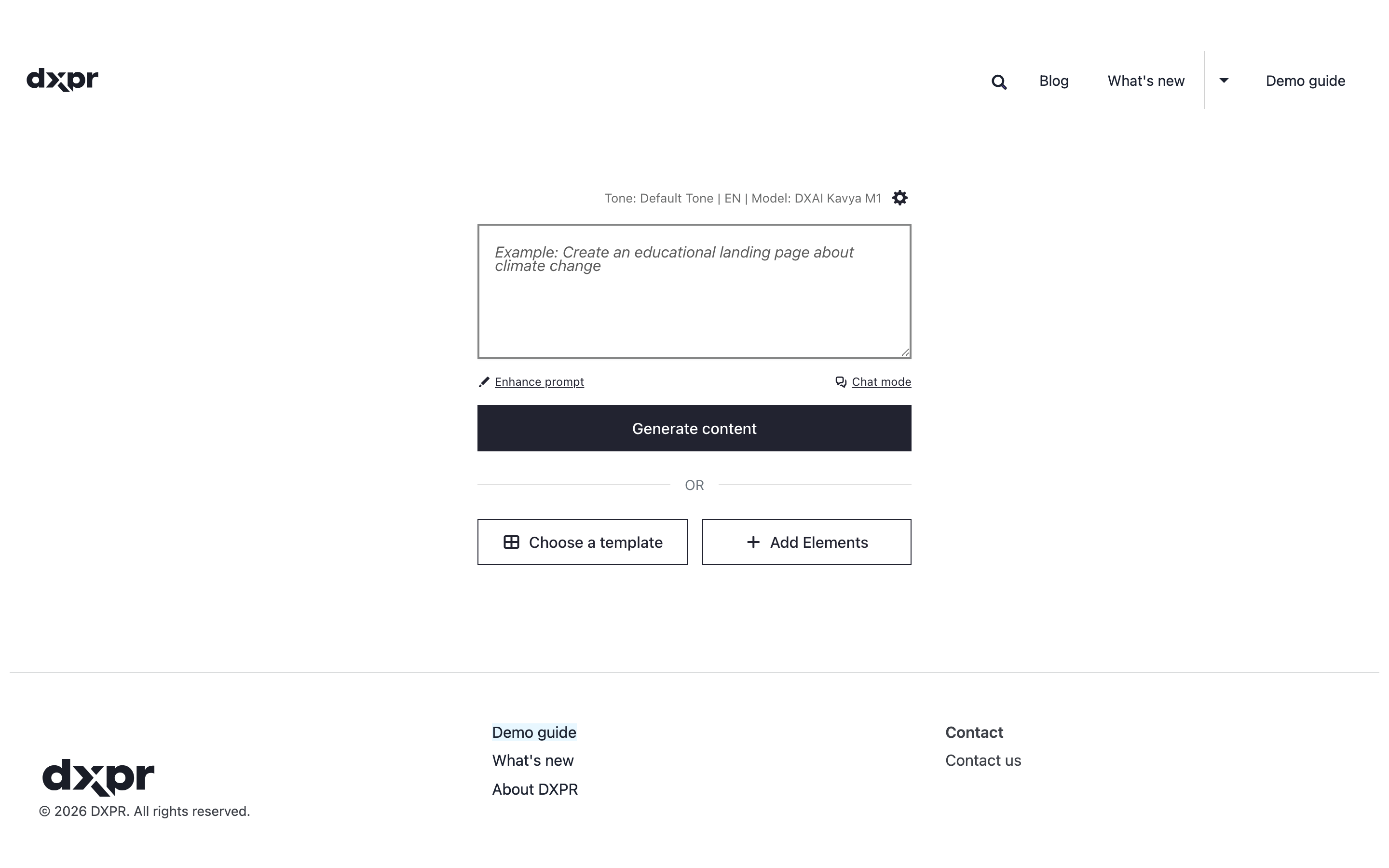
| Enable page creation assistant | The prompt box on an empty page, the AI Agent button on the builder toolbar and Edit with AI in each element's More menu |
| Enable image generation | Edit with AI on Image elements, and the AI Image Generation button under Background image in the Style panel |
With Enable page creation assistant on, an empty page opens with the AI prompt box.
Tone and Commands
Both lists are Drupal taxonomy vocabularies. DXPR Builder creates them on install: AI Tone of Voice and AI Edit Commands.
- Tone of voice vocabulary: the tones editors pick under Tone of voice. Each term is one tone. Its description holds the instruction the AI follows, for example "Write in a friendly and accessible manner". A term without a description is not listed. The Manage tones link opens the term list.
- Commands vocabulary: the commands in the AI Agent menu. Top-level terms are the group titles, such as Edit or review. Their child terms are the commands. Each command's description is the instruction sent to the AI. The Manage commands link opens the term list.
The default tones and commands are listed on Rewrite text with AI.
Add a tone of voice
- Go to DXPR Studio > DXPR Builder > AI (
/admin/dxpr_studio/dxpr_builder/ai_settings). - Under Tone and Commands, click Manage tones. The list of tones opens in a new tab.
- Click Add term.
- Type the tone in Name, for example
Warm and welcoming. - In Description, write the instruction the AI follows, for example "Write warmly, as if you welcome a guest in person."
- Click Save.
The new tone appears under Tone of voice in the text toolbar and in the AI Settings dialog, the next time an editor opens a page.
AI Output Filtering
These settings decide which HTML and which outside links may appear in text the AI writes.
| Setting | What it does | Default |
|---|---|---|
| Filter AI output | When unticked, every tag and every outside link is allowed | Ticked |
| Allowed domains | Outside domains allowed in links and images, one per line. Wildcards such as *.wikipedia.org work. Leave it empty to block all outside links. Keep promptahuman.com: placeholder images come from there |
Unsplash, Pexels, Pixabay and promptahuman.com |
| Blocked tags | Tags removed together with everything inside them | script and style |
| Allowed HTML tags | Tags kept in AI output. Other tags are removed, but their text stays | Common text, list, table, link and image tags |
Write tag names without angle brackets, one per line, letters and digits only.
Model and service providers
Most sites use the DXPR AI provider module. Then this page only shows a Configure AI service providers link under Service providers. You set the model and the provider order on the provider's page; see Models and providers.
Without that module, this page has three more settings:
- Default model: DXAI Kavya M1, DXAI Kavya M1 EU or DXAI Kavya M1 Fast.
- Allow users to choose model: lets editors pick another model in the editor's AI Settings dialog.
- Service providers: Automatic or Manual priority. It only shows for DXAI Kavya M1.
What's next?
- Models and providers: the API key, the models and the provider order.
- AI API reference: the routes these settings protect.
- AI troubleshooting: what to check when an AI button is missing.