Let AI write your alt text
Alt text describes a photo for screen readers and search engines. When you upload a photo through an Image element, the AI can write it for you: one click while the photo is still in the upload form. DXPR Builder then copies the text into the image's Alt attribute. The video uploads a campus photo and lets the AI describe it.
Before you start
- AI is switched on as described in Turn on AI in DXPR Builder.
- The AI Image Alt Text module is enabled. DXPR CMS enables it for you.
- Your role has the Generate AI Alt Tags permission. DXPR CMS gives it to content editors, content administrators and site builders.
Set up
- Add an Image element to the page. Its settings dialog opens.
- Click Select Image.
- Under Add file, click Choose File and pick your photo.
- Click Generate with AI below the Alternative text field.
- Click Save to add the photo to the media library.
- Click Insert selected.
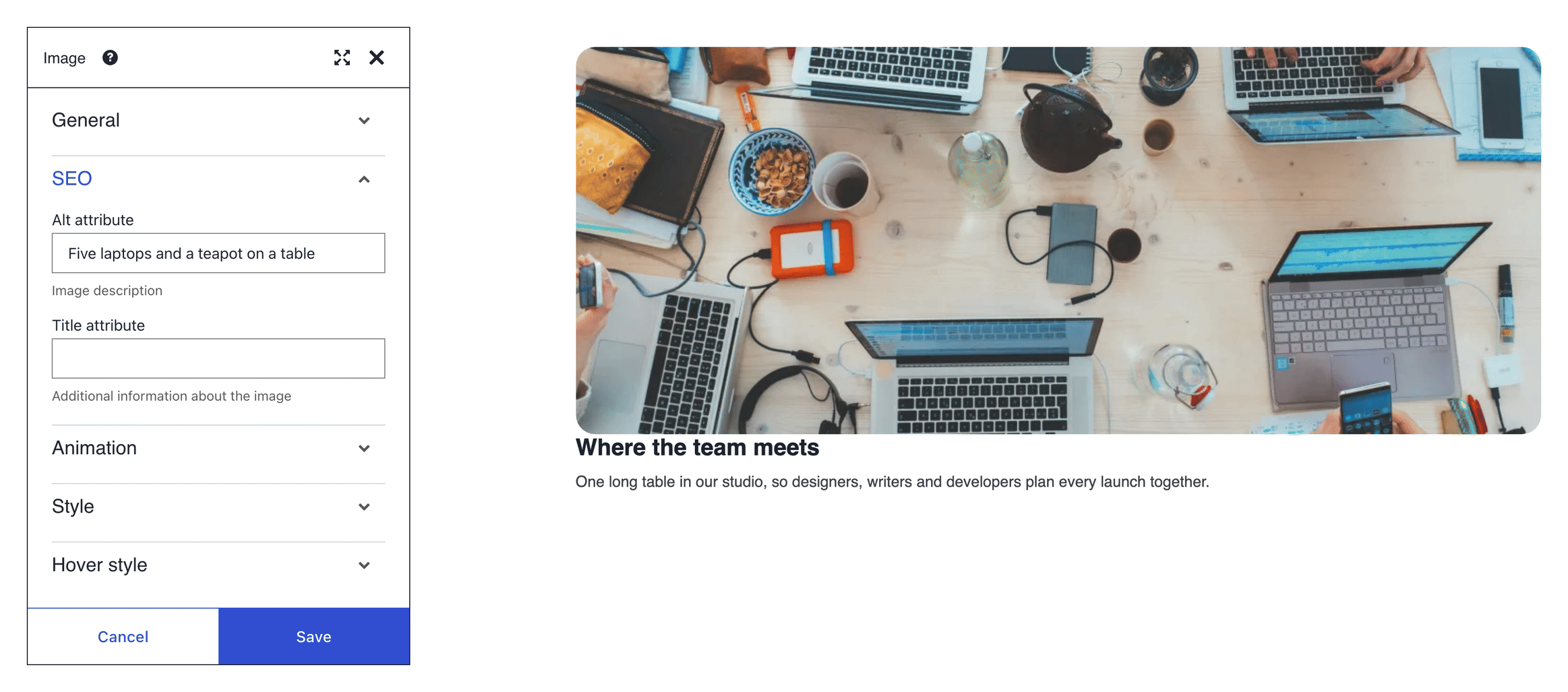
- Open SEO: the Alt attribute holds the AI's description.
- Click Save in the dialog.
For an image that is already on the page, open its settings with More > Settings and start at step 2. If your site asks "Transfer image and meta data to chosen AI service?", accept it: the photo is sent to the AI service to be described.
What you see
While the AI looks at the photo, "Generating alt text..." shows below the field. Then Alternative text fills with a one-sentence description. It is stored with the photo in the media library, so every page that uses the photo gets it. In the Image element, Alt attribute under SEO shows the same text; change it there for this page only.
Where alt text comes from
| Source | What ends up in Alt attribute |
|---|---|
| A photo picked from the media library | The photo's alternative text from the library, if it has one |
| An image generated or edited with AI | Your description or instruction; shorten it to a plain description |
| Typed by hand | Whatever you type under SEO > Alt attribute |
The Image carousel element has the same SEO fields. Its Alt attribute describes the topic of the whole carousel.
When Alt attribute is empty, the image has no alt text at all, and screen readers may read the file name. For a purely decorative picture, use a section or column background image instead: backgrounds need no alt text.
Settings
The AI Image Alt Text settings are at Configuration > AI > AI Image Alt Text settings (/admin/config/ai/ai_image_alt_text).
| Setting | What it does | Default |
|---|---|---|
| Alt text generation prompt | The instruction the AI follows | A prompt with rules for good alt text |
| Image style | Scales the photo down before it is sent, which costs fewer credits | The module's own style |
| AI provider/model | The model that describes the photo | Use Default Image Vision Model: DXPR, when you saved the DXPR provider first |
| Autogenerate on upload | Writes the alt text as soon as a photo is uploaded, without a click | Off |
| Hide button | Hides Generate with AI when alt text is written on upload | Off |
Writing good alt text
- Describe what the photo shows in one or two sentences.
- Include the detail that matters on this page.
- Do not start with "image of" or "picture of".
- Be specific rather than generic.
| Photo | Poor alt text | Good alt text |
|---|---|---|
| Team photo | "Image" | "Five team members in the office lobby" |
| Open Day | "Event" | "Students touring the new library on Open Day" |
| Chart | "Graph" | "Bar chart showing 40% more applications in 2026" |
If you don't see the alt text
- There is no Generate with AI button below Alternative text. The photo is not uploaded yet, your role lacks Generate AI Alt Tags, or no AI model can read images. Upload the photo first, check the permission at
/admin/people/permissions, and save the DXPR provider form as described in Turn on AI in DXPR Builder. - "We could not create an Alt Text, please try again later." appears. The AI service did not answer. Wait a moment and click Generate with AI again.
- Alt attribute stays empty after Insert selected. The photo was inserted before the alt text was saved with it. Type the text under SEO > Alt attribute, or remove the photo and pick it again from the library.
What's next?
- Generate an image with AI: create a photo, then describe it.
- Accessibility: more ways to make pages work for everyone.
- Models and providers: which model describes your photos.