Adding a Link
You make a whole group of elements, such as a card with a title and text, open one page with a single click. Use it for teaser cards, banners and navigation tiles where the whole area should be clickable.
Add a link
Open your page while logged in: the builder controls appear when you hover the content area. Your first page shows the basics.
- Hover the column and click + in its control bar, or click Add Elements on an empty page. Open the Content tab and click Link. It lands at the top of the column and its settings dialog opens.
- Type the destination URL in Link.
- Choose where the page opens in Link target. Here we pick New window.
- Open the SEO section lower in the same dialog and type a Title attribute for screen readers and tooltips.
- Click Save in the dialog.
- The empty link shows a +. Click it and add a Card, because a link is a container. Set its Header and Title as in Card.
- Click + inside the card, add Text and type a short description in its dialog. Click Save in that dialog. Then click Save in the toolbar at the top of the content area to store the page.
What you see
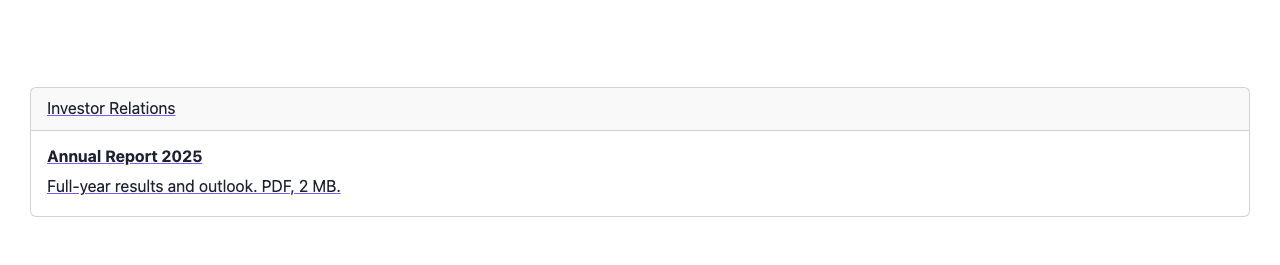
The card and its text now form one link: a click anywhere on the card opens the page you entered. In the video, it opens an annual report in a new window.
To test the click, choose Preview in the toolbar's eye menu, or open the saved page, and click the card. Visitors see it once you save the page and it is published.
Set up your link
Hover the element and open More > Settings in its control bar. Options:
- Link: the destination. Type a URL, or start typing a content title to pick a page of your site.
- Link target: where the page opens: Same window or New window.
- Title attribute: in the SEO section. Browsers show it as a tooltip, and some screen readers read it.
- Tell search engines not to follow: in the SEO section. Adds
rel="nofollow", so search engines do not follow the link.
The link is a container. Add or drag images, text or a card inside it to make them one clickable unit.
If you don't see it
- Link is not in the Content tab. Your user profile hides it. Ask an administrator to enable it in User Profiles.
- It is gone after you reload. The page was not saved. Add it again and click Save in the toolbar at the top of the content area.
- Clicking the area does nothing. The Link field is empty. Hover the element and open More > Settings, then type a URL or pick a page.
- Only part of the content is clickable. The card was added next to the link, not inside it. Drag the card into the link.
- There is no Link target option. It stays hidden until Link has a value. Type the URL first, then choose the target.
What's next?
Style tab to change spacing and background for your link.