Make your pages accessible
You give every image a description, keep headings in order and make text readable over colour, so screen reader and keyboard users can use your pages. This page lists what DXPR Builder does for you, what you add yourself, and how you check the result before you publish.
What the builder does for you
- Real text structure. The Text element uses CKEditor 5 with real headings (Heading 1 to Heading 6), paragraphs and lists.
- ARIA on interactive elements. Tabs carry
role="tablist"androle="tab". Progress bars and circle counters carryrole="progressbar"with their minimum, maximum and current value. Collapse panel titles are buttons that report whether their panel is open. - Accessible editor dialogs. Every settings dialog is a
role="dialog"witharia-modaland a title. - Keyboard access in the editor. Enter opens an element's settings, Escape closes a panel or deselects the element, and Ctrl (Cmd on a Mac) with an arrow key moves elements. See the keyboard shortcuts reference.
Layout elements (sections, rows and columns) are plain div
elements. The structure a screen reader announces comes from your
headings.
Add alt text to an image
- Point at the image and click More > Settings.
- Open the SEO panel.
- Type a description in Alt attribute: what the image shows and why it is on the page, in one or two sentences, without "image of".
- Click Save in the dialog, then Save on the container bar.
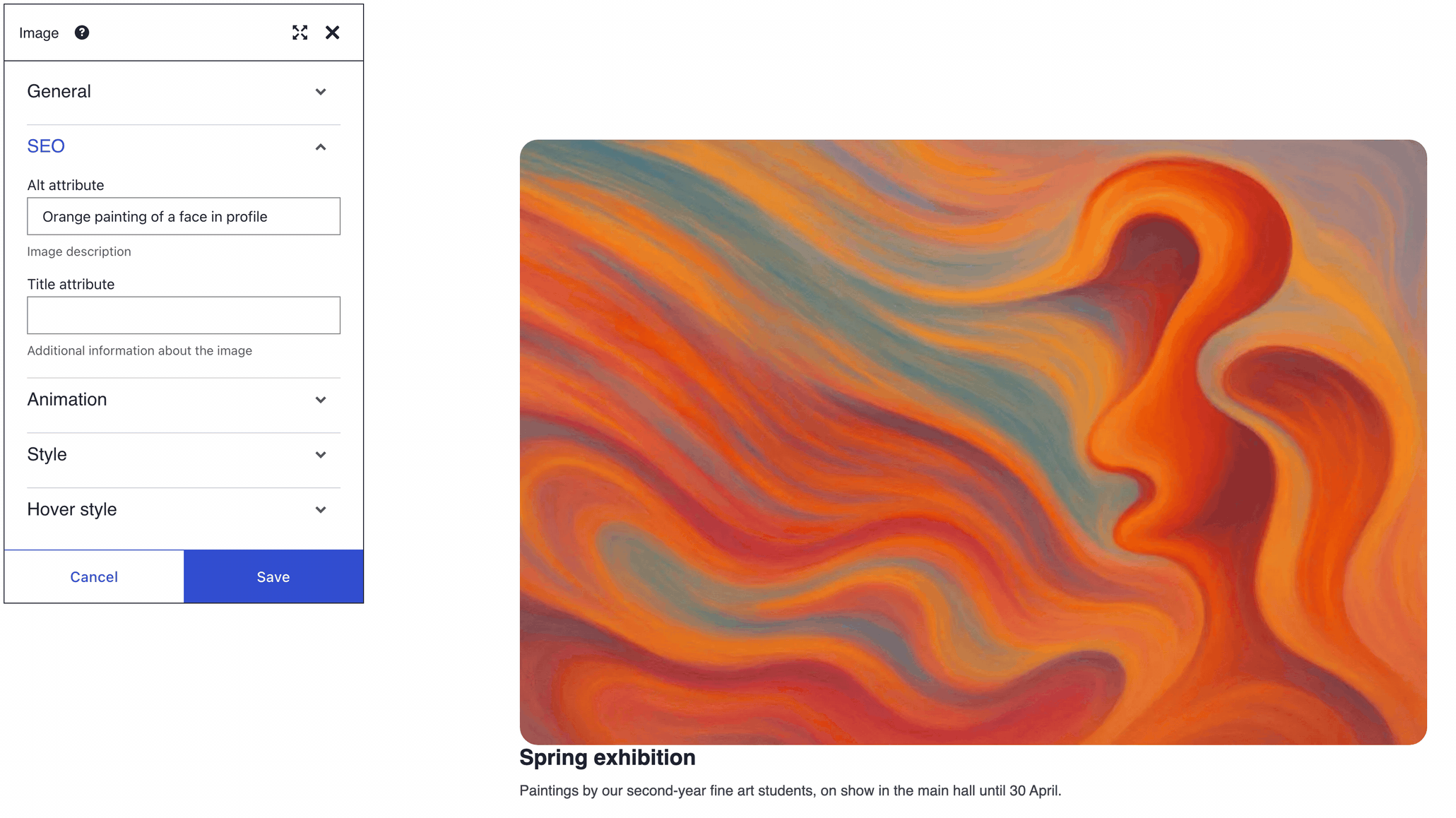
When Alt attribute is empty, the Image element writes no alt
at all, and screen readers may read out the file name. For a purely
decorative picture, use a section Background image in the
Style panel instead; screen readers skip backgrounds. The Image
carousel uses one Alt attribute for all its images, so describe
the set.
AI-generated images start with your prompt as their alt text. Edit it so it describes the result rather than the request. See image alt text.
Keep headings in order
- Give the page one Heading 1. Most themes show the page title as Heading 1, so do not add a second one in the builder. On DXPR CMS you can hide that title on one page instead: on its edit form, open DXPR Theme Settings and tick Page Title under DXPR Hide Regions.
- In the Text element toolbar, use the heading list to mark section titles as Heading 2 and sub-sections as Heading 3. Do not skip levels.
- Use the toolbar's list buttons for lists rather than typed dashes.
Three elements fix their heading level. The Jumbotron Title is always Heading 1, the Card Title is always Heading 5, and each Toggle title of a Collapse panel is a Heading 2.
Check colour contrast
The colour pickers offer your theme's palette but do not measure contrast, so check it yourself:
| Text | Minimum ratio (WCAG AA) |
|---|---|
| Body text | 4.5:1 |
| Large text (24 px, or about 19 px bold) | 3:1 |
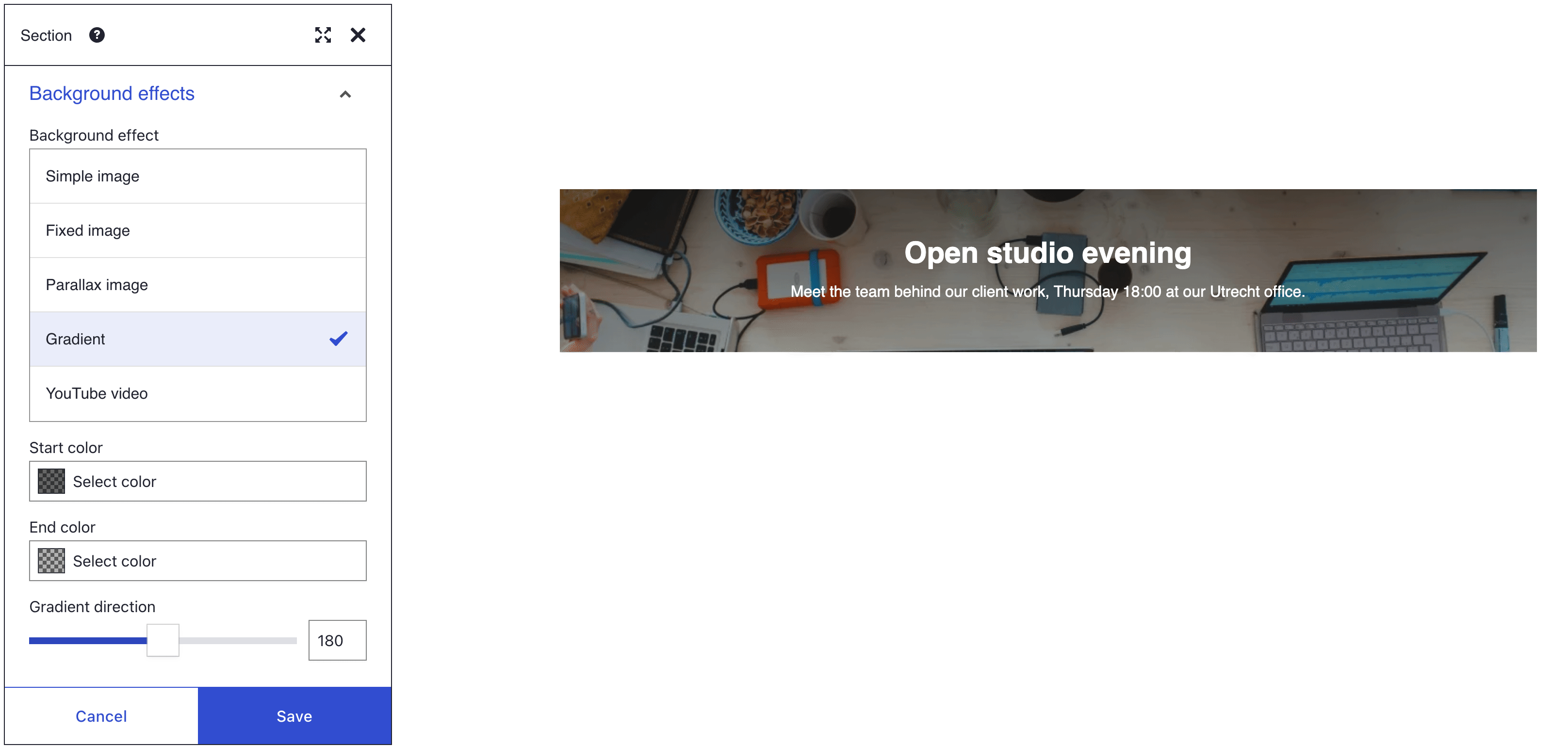
For text over a photo, darken the photo so the ratio holds across the whole image. In the section's Background effects panel, set Background effect to Gradient with semi-transparent dark Start color and End color. Backgrounds shows the steps.
Use descriptive links and buttons
The Button and Link elements show the text you type as the link text. Write what the link does ("Register for Open Day"), not "click here". The Link element also has a Title attribute in its SEO panel for a longer description.
What you see
- Set View mode on the container bar to Preview, so no editor controls are in the way.
- Press Tab to move through the page. Every button, link and tab is reachable and shows a visible focus ring.
- An automated checker, such as the browser's accessibility audit or the axe extension, reports no errors for the builder content on the published page.
If you don't see a clean report
- The checker reports an image without alt text. The Image element's Alt attribute is empty. Fill it in, or move a decorative picture to a section background.
- The checker reports two Heading 1s. A Jumbotron Title is always Heading 1, next to the page title of your theme. Use a Text element with a Heading 2 instead.
- The checker reports a skipped heading level. A Card Title is always Heading 5. Leave it empty and start the card with a Text element heading at the right level.
- The checker reports low contrast on text over a photo. Add the gradient described above, or pick a darker text background.
What's next?
- Keyboard shortcuts for the full editor shortcut list.
- Firewall and data residency for the other compliance topics.