Draft a page with AI
Describe the page you need in one or two sentences and the AI builds a first draft: sections, headings, text and buttons. You then edit it like any other page. Use this for a new page; to change one paragraph, see Rewrite text with AI. The video drafts a programme page for a nursing degree.
Before you start
- AI is switched on, with Enable page creation assistant ticked. See Turn on AI in DXPR Builder.
- You have a new, empty page that uses DXPR Builder.
Set up
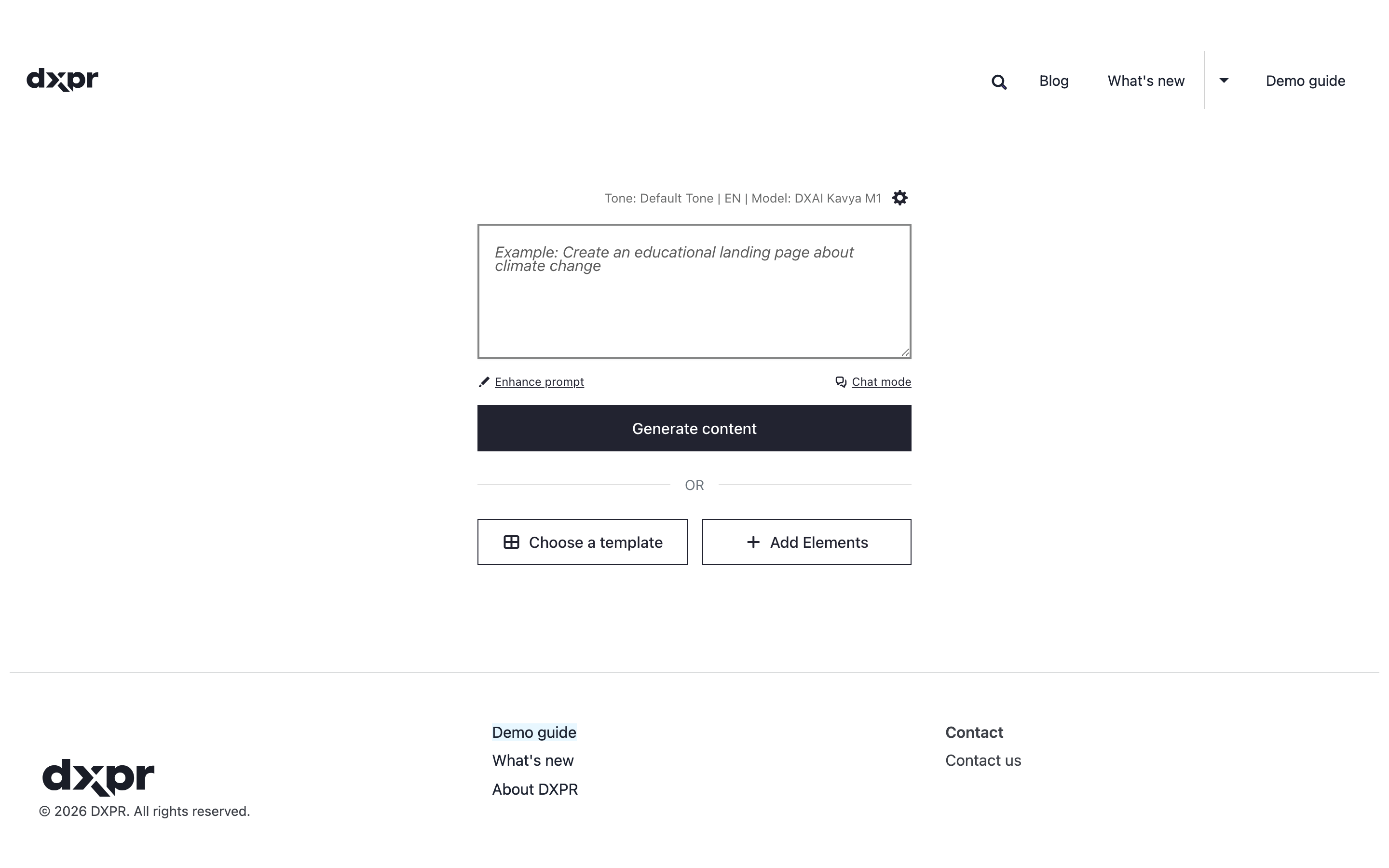
- Click in the prompt box above Generate content.
- Describe the page: what it is for, who reads it and which sections it needs.
- Click Generate content.
- Wait while the AI adds the sections.
- Click Save on the builder toolbar.
A good brief names the purpose, the reader and the sections. For example:
- "Programme page for our Bachelor of Nursing, for school leavers: a hero with an Apply button, three reasons to study with us, a student quote and the key dates."
What you see
While the AI works, a status line tells you what it is doing; Cancel generation (or Esc) stops it. Then the sections appear on the page. The result uses normal builder elements, so you edit the text in place, drag elements and change their settings. Where a photo belongs, the draft holds a placeholder picture that describes the photo to use; replace it with your own photo or generate one. Check every fact before you publish: the AI does not know your dates, prices or names.
More ways to prompt
- Enhance prompt under the box rewrites a short brief into a detailed one before you generate. Read it and change what is wrong.
- Chat mode opens a chat panel on the side. Ask for changes one at a time, for example "Add a section with three testimonials".
- On a page that already has content, click AI Agent on the builder toolbar, or press Ctrl+. (Cmd+. on a Mac). The same prompt opens for the whole page. To change one section or element, use its Edit with AI instead, see Change a section with AI.
- The line above the box shows the tone and the model. Click the gear icon to change them for your next request.
If you don't see the generated page
- The prompt box is greyed out, and a message says no AI provider is configured. The DXPR key is missing. Follow Turn on AI in DXPR Builder.
- The empty page shows Choose a template and Add Elements, but no prompt box. Enable page creation assistant is off. Tick it at
/admin/dxpr_studio/dxpr_builder/ai_settings. - A message says "Please enter a prompt to generate content." The box was empty. Type your brief first.
- A message says "The AI service ran into a problem processing this request." DXPR could not finish the request, for example because the account has run out of credits. Check Credits remaining at
/admin/dxpr_studio/dxpr_builder/ai_settings, top up at dxpr.com/user/me/subscription/credits and try again. - Links or images in the draft are missing. AI Output Filtering removed outside links that are not on Allowed domains. See AI configuration.
What's next?
- Generate an image with AI: give the draft its own photos.
- Rewrite text with AI: adjust the tone of single paragraphs.
- Save and publish: publish the page when it is ready.