Adding a Collapsible Panel
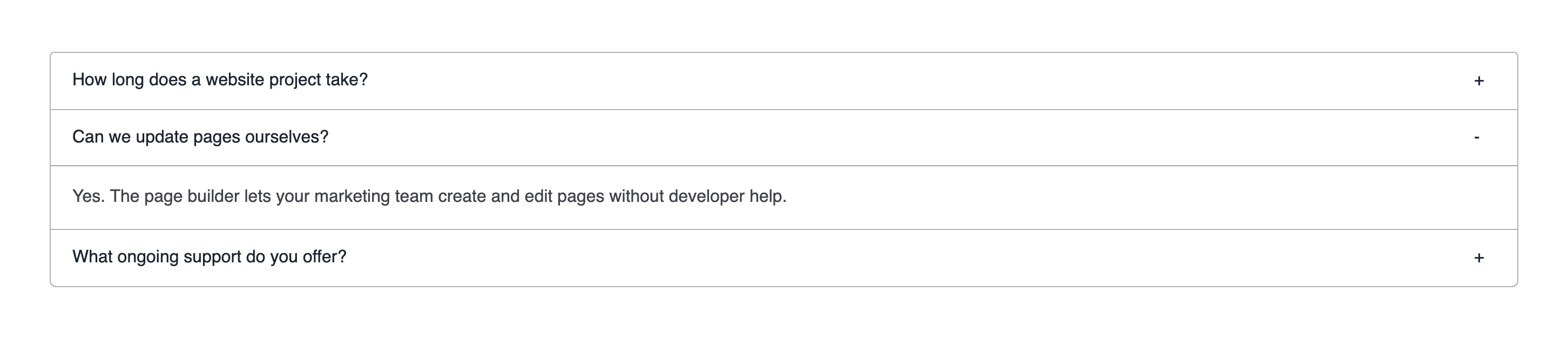
Use a collapse panel, also known as an accordion, when you want a list of headings that visitors open one at a time. It suits FAQs, feature lists and long content that reads better in parts. You end up with a stack of questions whose answers open on a click. The example builds three questions for an agency FAQ page.
Add a collapsible panel
- Click + on a section and pick Collapse panel from the Layout tab. It arrives with one toggle.
- Open the panel's settings from its More menu. Choose with Collapse whether every toggle starts closed. Here it is on. Pick an Expand icon and click Save.
- Hover the toggle, open its More menu and choose Settings. Type the question as the Toggle title and click Save.
- Click the question to open the toggle. Click + inside it, pick Text and type the answer.
- Click Add toggle on the panel's control bar for the next question. New toggles land at the top, so add the last question first.
- Click Save on the toolbar. In Preview, click a question to check that its answer opens.
What you see
Each question is a header with the chosen expand icon. A click opens its answer underneath, and the answer that was open closes. With Collapse off, the first answer is open when the page loads. The answers stay in the page HTML while closed, so search engines can still read them.
Set up your collapsible panel
The Collapse panel element has two settings, under More > Settings in its control bar.
| Setting | What it does | Default |
|---|---|---|
| Collapse | On: every toggle starts closed. Off: the first toggle starts open | Off |
| Expand icon | The icon next to each title: None, + (plus and minus) or ﹀ (an arrow) | None |
Each toggle has one setting, Toggle title: the question or heading visitors click.
Manage toggles
- Reorder: drag a toggle by Toggle in its control bar and drop it above or below another.
- Rename: hover the toggle, open More > Settings, change Toggle title and click Save.
- Remove: hover the toggle, open More and choose Delete. The answer inside goes with it.
A toggle holds any elements: text, images, buttons or a row with columns. Keep each answer short. If an answer needs a page of its own, link to that page instead.
If you don't see it
- The new question appears at the top. Add toggle always inserts at the top of the panel. Drag the toggle by Toggle in its control bar to the place you want.
- The settings show only Toggle title. You opened the settings of one toggle. Hover the top edge of the panel so the Collapse panel control bar shows, then open More > Settings there.
- The first answer is open when the page loads. Collapse is off. Switch it on in the Collapse panel settings so every answer starts closed.
- Collapse panel is missing from the Layout tab of the picker. Your DXPR Builder user profile leaves it out. An administrator ticks Accordion under Elements in your profile at
/admin/dxpr_studio/dxpr_builder/profile.
What's next?
- Adding a Tabs Panel: show related content side by side instead of stacked.
- FAQ page tutorial: build a whole FAQ page around a collapse panel.
- Nesting: put rows and columns inside a toggle.