Adding a Map
You show visitors where to find you with a Google Map of any address. Use it on contact, event and directions pages.
Add a map
Open your page while logged in: the builder controls appear when you hover the content area. Your first page shows the basics.
- Hover the column and click + in its control bar, or click Add Elements on an empty page. Open the Content tab and click Map. It lands at the top of the column and its settings dialog opens.
- In the dialog, type the Address with the city and country.
- Set the Map height if you want a different one. The default is
400px, and a plain number such as 360 counts as pixels. - Click Save in the dialog. Then click Save in the toolbar at the top of the content area to store the page.
What you see
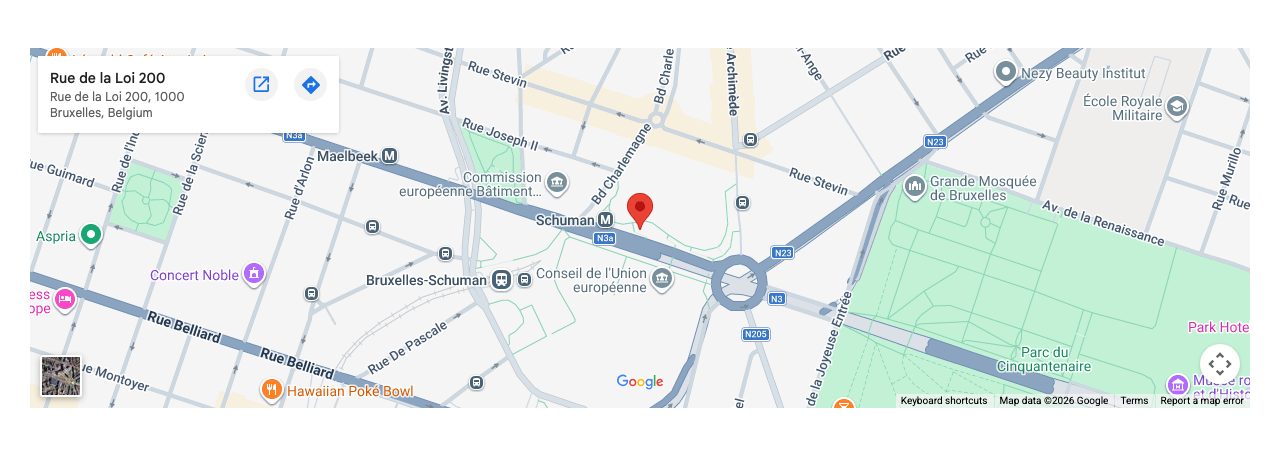
A Google Map centred on the address you typed fills the column, and visitors can zoom and drag it. In the video, it shows Rue de la Loi 200 in Brussels at 360 pixels high. Visitors see it once you save the page and it is published.
Set up your map
Hover the element and open More > Settings in its control bar. Options:
- Address: the place to show. It goes to Google Maps as a search, so type it as you would in Google Maps.
- Map width:
100%by default, which fills the column. A plain number counts as pixels, and CSS values such as600pxalso work. - Map height:
400pxby default. A plain number counts as pixels.
The map needs no Google API key.
If you don't see it
- Map is not in the Content tab. Your user profile hides it. Ask an administrator to enable it in User Profiles.
- It is gone after you reload. The page was not saved. Add it again and click Save in the toolbar at the top of the content area.
- The map box is empty, grey or shows a connection error. The map loads in a frame from maps.google.com, and something blocks that frame: a browser privacy extension, a cookie-consent tool or your site's security policy. Allow maps.google.com, or check the page in another browser.
- The map shows the wrong place. Google matched a different place to the Address. Add the street number, city and country.
- The map is too small. Map width or Map height is set low. Hover the element and open More > Settings, then try
100%and400px.
What's next?
Style tab to change spacing and background for your map.
Something wrong or missing on this page?
Report it
or edit the page.