Redirects
Send visitors from an old address to a new one, on your site or on several sites at once.
Needs Sites Redirect
Part of Sites Redirect.
Every redirect belongs to one site and answers on that site's address only. Hydrion and Torqline can each send /about-us to their own About page.
Before you start
- Administer individual URL redirections on the site.
Add a redirect to your site
On the site's dashboard, open Redirects in the Search and metadata group.
Go to Configuration > Search and metadata > URL redirects.
- Click Add redirect.
- Under Source, enter the old address in Path, like
x5. The site's address stands in front of it. - Under Destination, enter To: a path like
/node/5, or the title of a page to pick it, like Hydrion X5 circulation pump. - Choose the Redirect status and the Language where needed.
- Click Save.
On the hub, the form also offers a Site under Destination, for a new address on another site; left empty, the redirect leads to your site. The list shows the site's redirects; the Operations of a row edit or delete one.
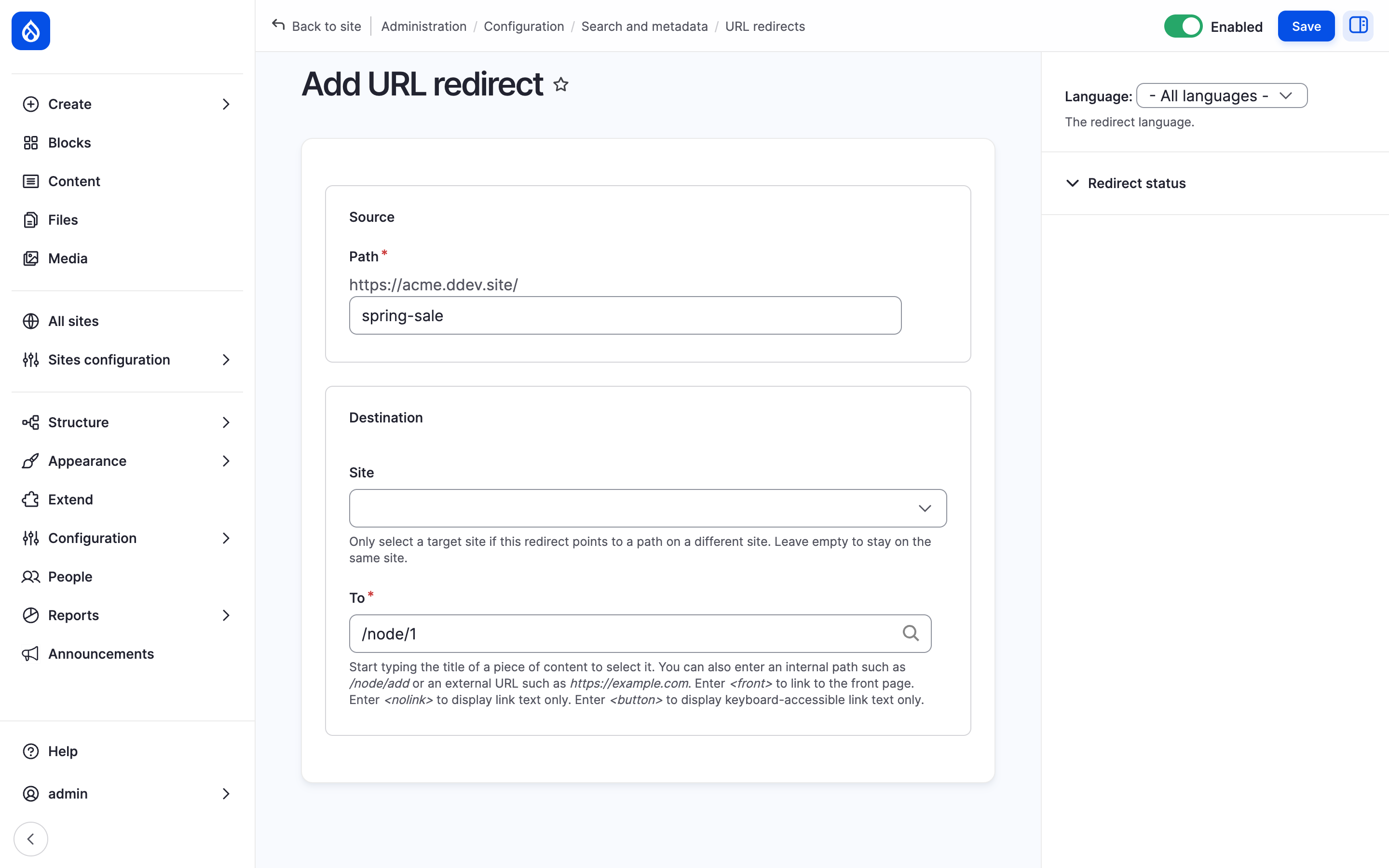
Hydrion's add redirect form sending x5 to the X5 page.
The URL redirects section in the sidebar of a content item's edit form lists the redirects to it. Add URL redirect opens the same form in a new tab, with the content as destination and its origin site as the site.
Add a redirect for several sites
- Go to Configuration > Search and metadata > URL redirects and click Add redirect.
- Under Source, select the sites in Site. + Add all selects every site you manage redirects on.
- Fill in the rest as above and click Save.
Each selected site gets a redirect of its own, which you change or delete separately. With redirects on one site only, URL redirects leads to that site's section instead.
Automatic redirects
When a URL alias changes, the old alias redirects to the content, on the alias's site. A deleted alias does the same, unless the content itself is deleted. A new alias removes a redirect from the same path on its site. These redirects follow the platform's redirect settings (Sites Redirect).
Last updated 2026-10-16