Menus
Keep your site's own links in a shared menu and give the menu its own label on your site.
Needs Sites menu
Part of Sites menu.
A menu like the main navigation exists once. A site that has its own version of it keeps its own links there: its visitors see the site's links, other sites keep theirs. Hydrion's main navigation links About Hydrion, the X5 page and Contact; Valtora's links About Valtora, Careers and the group's press release. A menu without site versions shows the same links on every site, and only a platform administrator changes it. The site's Per-site menus setting lists the menus it has its own version of (Content on sites).
A site type can let its sites inherit a menu (Setting layers): the site then shows the links of the site it inherits from, Hydrion's main navigation on Hydrion UK, and keeps none of its own. Its Menus list names the menu as inherited from that site, without operations. Where the type lets the site replace the inherited value, the site's Per-site menus setting decides between its own version and the inherited one.
Before you start
- Administer menus and menu links on the site.
Open the site's menus
On the site's dashboard, click Menus under Structure. Structure > Menus leads there as well, after you choose the site if you work on several.
Go to Structure > Menus. It lists the site's menus.
Next to a menu, click Edit menu. The page lists the site's links in it.
Add a link
- On the site's menu, click Add link.
- Enter the Menu link title and the Link.
- Choose the Parent link. It offers this site's links only.
- Click Save.
To link content from its own form:
The Menu settings of the content form hold the link of the origin site and offer that site's menus only. The other sites set their links on their own edit forms.
The Menu settings of the content form add the link to the site's menu. They offer the site's own menus; the shared menus stay with the platform's menu administrators.
For content another site owns, your site's link is part of its override, like Hydrion UK's link to the X5 page (Adjust content for one site).
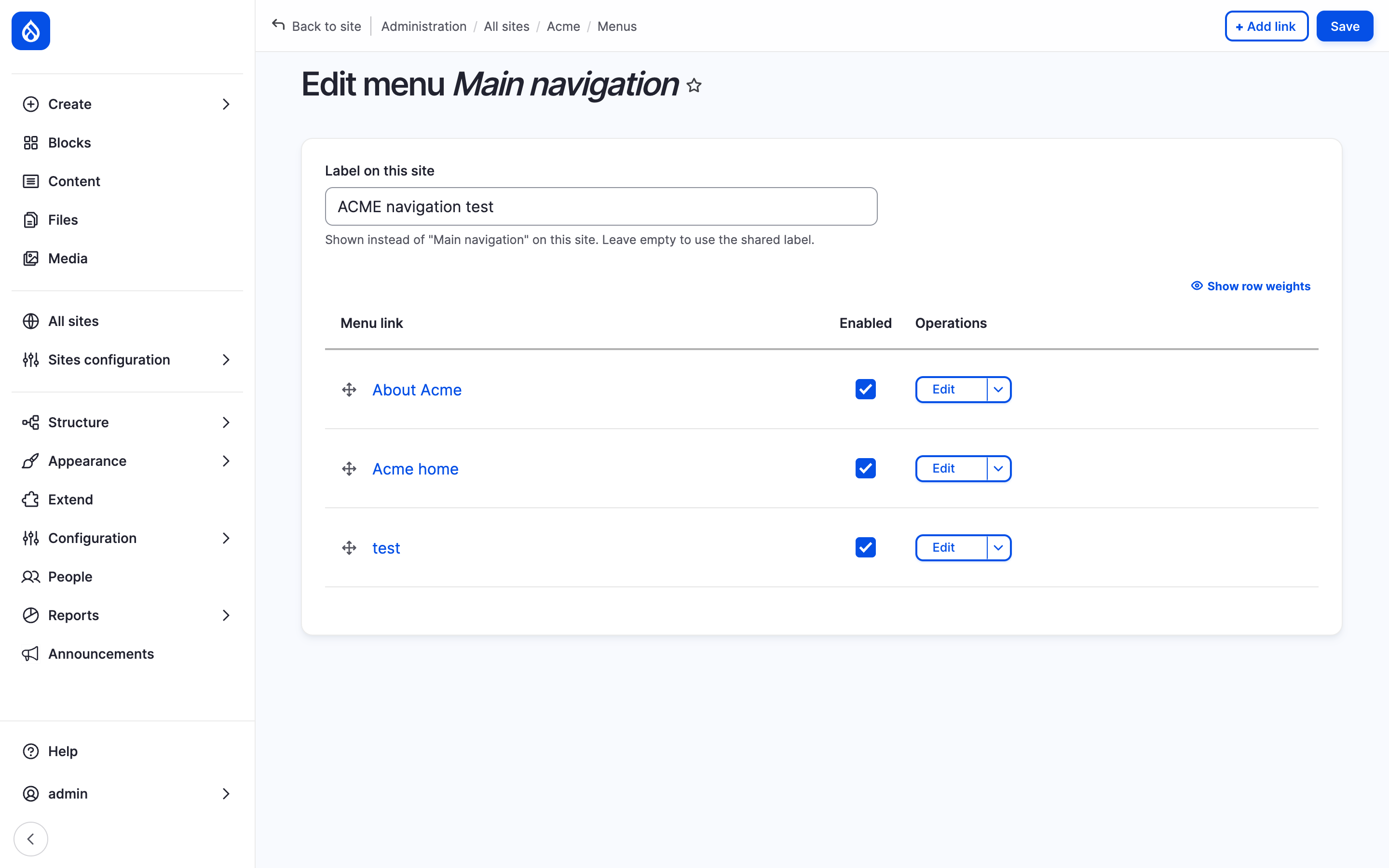
Hydrion's main menu with the Label on this site field and the site's links.
Name the menu on your site
- On the site's menu, enter the Label on this site. Leave it empty to use the shared label.
- Click Save.
The site's Menus list shows the label next to the shared one. The menu's other settings are shared: this page does not offer them, and a menu cannot be deleted here.
Last updated 2026-10-17