Members and roles
Add people to your site, grant them the roles it offers, and see who works on it.
Needs Sites UI
Part of Sites UI.
Before you start
- Manage site members on the site.
- To add people, Add existing users to a site on the site as well; Add content to a site includes it (Roles and permissions).
The People page
Open People in the People group of the site's dashboard. It lists everyone who belongs to the site or holds a role on it:
- Membership: Member for an account that belongs to the site, Role only for one that only holds a role there.
- One column per role the site offers. A ticked, locked box is a role the account holds on the platform; a locked column is a role you may not grant.
- Filter by username narrows the list.
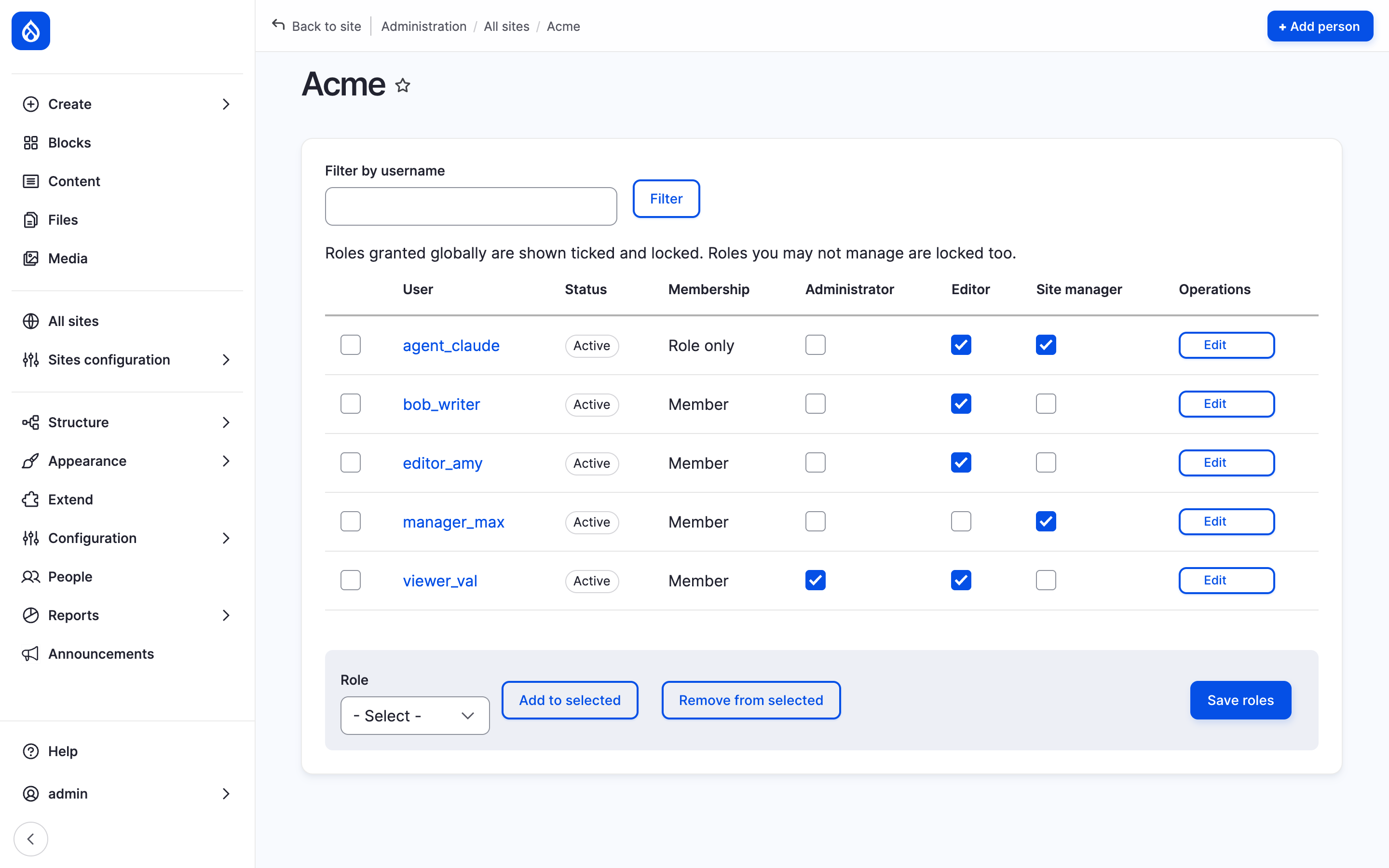
Hydrion's People page with a column for each of its two roles.
Add people
- Click Add person.
- In Users, type a username, like
jonas, and pick the account. Separate several accounts with commas. - Click Add to site.
Add person shows where the site type takes users as content. It finds the platform's active accounts; new accounts come from a platform administrator.
Grant and revoke roles
- Tick or clear the role boxes in a person's row.
- Click Save roles.
For many people at once, tick their rows, choose the Role below the table, and click Add to selected or Remove from selected.
Administrator roles and roles with restricted permissions stay locked; a platform administrator grants them. Which roles the site offers is set in Assignable roles, where the site type allows (Site settings).
Remove people
- In the person's row, click Remove from and the site's name, like Remove from Hydrion, among the operations.
- Click Remove in the dialog.
The person leaves the site with the roles held on it; the account, its platform roles and its other sites stay. When the site was the account's origin site, another of its sites becomes the origin site. The operation is not offered for yourself, nor for someone holding a role you may not grant.
With Manage site members you see the profiles of the site's members and role holders, no other accounts. Edit in a row shows only to those who may edit the account.
Sub-sites run by the main site's people
On a sub-site set to Run by the main site's people, the main site's members and role holders work with their roles from there, where the sub-site offers them (Delegate a site): with Hydrion UK set that way, Mara works on it with her roles on Hydrion. The sub-site's People page does not list them; a message above its table links the main site's People page. The Access report lists them. Hydrion UK's People page lists Priya, whose role is on Hydrion UK alone.
Last updated 2026-10-16