Revisions per site
See each site's override revisions beside the content's own, and compare a site's version with the original.
Needs Sites Diff
Part of Sites Diff. It works with the Diff module and Content overrides, and covers content items only.
A site that adjusts shared content keeps the revisions of its own version, like Hydrion UK's version of the Hydrion X5 page with its UK delivery note.
Before you start
- For the Revisions tab: the permission to view the content's revisions, like Article: View revisions.
- For Versions per site: Override site content.
Revisions grouped by site
- Open the content's Revisions tab.
- Below the content's revisions, find the table of the site, under its name. It lists the revisions of the site's own version, newest first: date, author, log message and moderation state, with View. You see a site's table only where you may override the content on that site, or with Administer sites.
- Choose one revision under Source revision and one under Target revision, from any of the tables.
- Click Compare selected revisions.
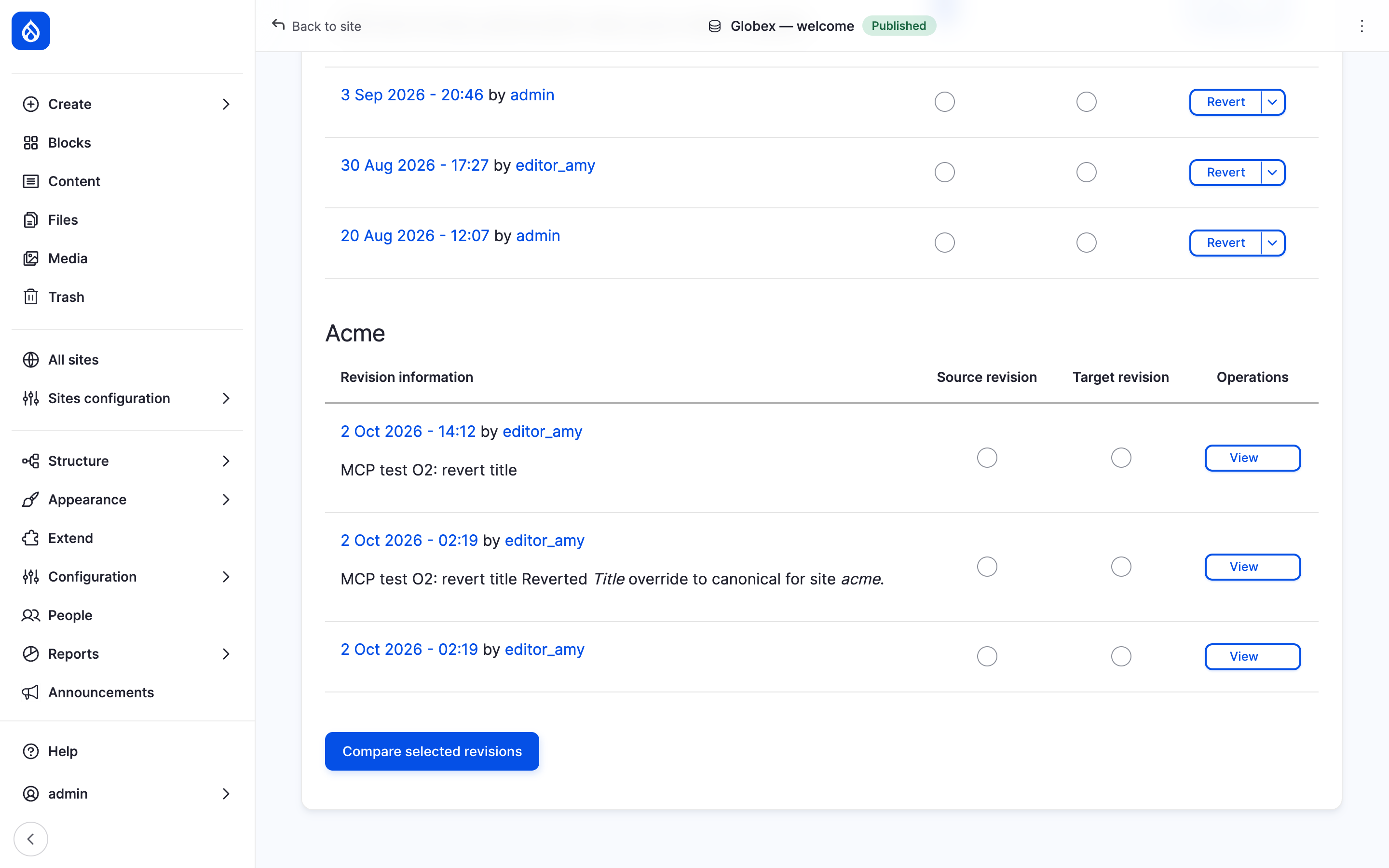
Hydrion UK's revisions below the revisions of the X5 page.
Compare a site's own version with the original
- On the hub, open the content's Versions per site tab.
- On the row of a site whose Status reads Own version, like Hydrion UK on the X5 page, click Compare with the original.
The comparison shows the latest revision of the original and the site's latest revision, field by field.
To restore an older revision of a site's own version, use the site's revision history (Adjust content for one site).
Last updated 2026-10-24