Share content between sites
Show content on more sites, take it off a site, and hand it to another origin site.
Needs Sites content
Part of Sites content.
Every site that holds an item shows the same version; to change it for one site, adjust it there. The group's press release, for example, belongs to Valtora, and Hydrion and Torqline show it as well.
Before you start
- Add content to a site on the sites you add to, Remove content from a site on the sites you take content off, or their versions for one type.
- An item of a type the site type limits to one site moves only by changing its origin site (Content on sites).
Add content to more sites
- On Content, click Add existing content item (Add existing media item on Media).
- Choose the Site, like Hydrion UK.
- Under Entity, type the titles, separated by commas, like "Service intervals for X-series pumps".
- Click Add to site.
For one item, the Sites tab of its form does the same (The Sites section of the form).
- On Content, click Add existing content item (Add existing media item on Media).
- Under Entity, type the titles, separated by commas.
- Click Add to this site.
Take content off a site
- In the content's operations, click Remove from and the site's name, like Remove from Torqline (Remove from site on a site's address).
- Click Confirm.
The other sites keep the content: when Torqline lets go of the press release, Hydrion keeps showing it. A site cannot let go of the content it is the origin site of: delete it or change its origin site.
Change the origin site
Changing the origin site hands over the right to edit the content.
- On the hub, in the content's operations, click Change origin site.
- Choose the Origin site.
- Click Change origin site.
The previous site keeps showing what it showed: when the new origin site had its own version, the previous site keeps the original as its own version where the two differ, and reverts it like any override. A new origin site with Overrides on the original keeps its own version as it is, and the original stays as it was. An item limited to one site moves.
Many items at once
- Check the items on the Content or Media overview.
- Under Action, choose Add to site, Remove from site or Set origin site.
- Click Apply to selected items.
- Choose the Site. The site chosen in the Sites filter comes preselected.
- Click Add to site, Remove from site or Set origin site.
Set origin site also adds the site to an item that is not on it. The message names the items left unchanged, and why.
- Check the items on the Content or Media overview.
- Under Action, choose Remove from site, then click Apply to selected items.
- Click Remove from site.
The message names the items the site is the origin site of; they stay.
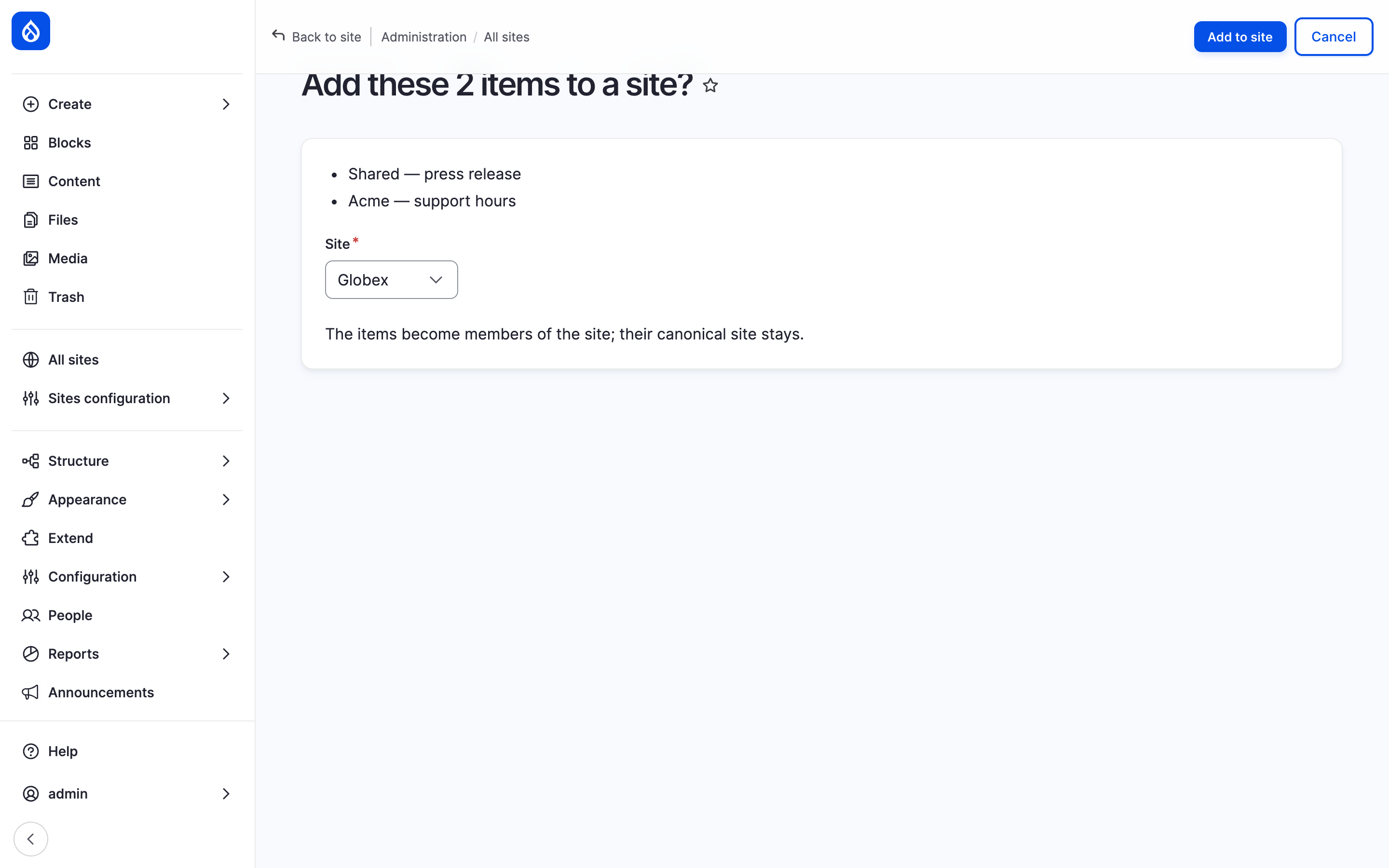
Adding two of Hydrion's articles to Valtora: the confirmation with its Site select.
Last updated 2026-11-02