Adjust content for one site
Change shared content for your site alone, in its fields, layout or moderation state, and return it to the original.
Needs Sites content overrides
Part of Sites content overrides.
Your site's own version is what your visitors see; every other site keeps the original, and fields you leave alone keep following it. Hydrion UK, for example, gives the Hydrion X5 page a body with its UK delivery note: Hydrion and Hydrion US keep the shared text, and the title on Hydrion UK still follows Hydrion's. A platform administrator decides which fields a site may change (Content overrides).
Before you start
- Override site content on the site, and the content shows for you. Your roles on the site must also allow editing content of that type; the original itself stays with its origin site.
- The content belongs to your site, and another site is its origin site.
Open your site's own version
- Click Manage versions per site in the item's operations in the content overview, or Versions per site under More actions in the top bar of its edit form. Both show only when you may give a site its own version of the item.
- In the row of your site, click Create own version or Edit own version.
In a preview of your site, the top bar offers the buttons it shows on the site.
The top bar of a content page shows its state for the site: Own version, Follows Valtora (the origin site) or Original. Click Create own version, or Edit own version once the site has one. The content overview offers both among the item's operations.
Change it
- Change the fields marked (Follows the original); they then read (Own value). Fields marked (same on all sites) belong to every site; this form does not change them.
- With content moderation, choose the state under Change to. Your site keeps showing its current version until you publish the new one. Where your site does not override the state, there is nothing to choose: your version takes the state of the original and is published with it.
- Click Create own version or Save own version.
The form also holds your site's menu link, URL alias and sitemap settings for the content, where the site has them.
Where the content type allows a layout per item, Layout under Own version (Torqline) in the top bar's More actions, or in the Versions per site list, opens Layout Builder for your site. It also takes a layout permission.
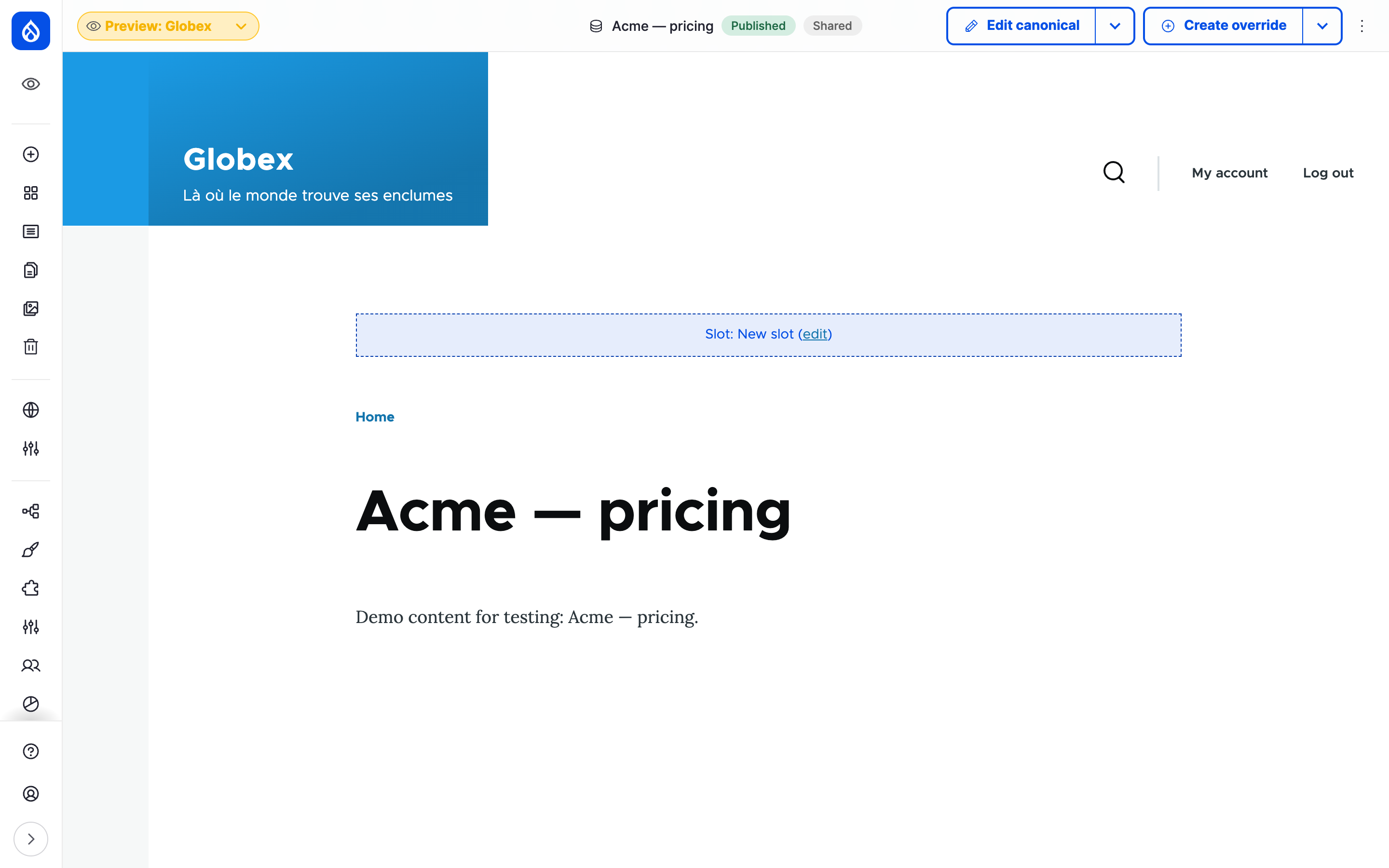
Torqline follows Valtora, with no version of its own yet: the top bar offers Create own version.
Revert to the original
- Click Revert to the original on your site's own version, in the Versions per site list or among the item's operations in your site's content overview.
- Under Revert for this site, untick what to keep: fields, the layout, Menu link, URL alias, Sitemap settings.
- Click Confirm.
The revert touches the current language only. On the layout page, Revert to the original reverts the layout alone.
Own version revisions
Revisions under Own version (Torqline) in the top bar's More actions, or in the Versions per site list, shows the revisions of your site's own version. Restore writes a new revision from an older one; Delete removes an older one.
The origin site
The origin site has no own version, and the Versions per site list leaves it out: its people change the original on the content's edit form, like Valtora's people for the press release.
A site builder can switch on Overrides on the original for a site (Content overrides). The site then appears in the Versions per site list with Original and gets an own version like any other site. On such a site, saving the original on its edit form needs Edit the original on its origin site; without it, your save writes the site's own version. The fields the original shares with every site stay with the people who hold the permission.
Last updated 2026-11-03