Find content without a site
List the content that belongs to no site and give each item a site.
Content without a site shows on no site, and nobody but the holders of View unassigned content or Administer sites in a platform role sees it on the hub. The forms and the API refuse to create it, so it comes from the paths that bypass them: an import or migration that brings no memberships, a site deleted in code, a membership removed in code. User accounts count too, except the administrator account created at installation (user 1), which needs no site.
Content of a type no site takes is not unassigned: it is global content, shown on every site (Content on sites).
Before you start
- View unassigned content in a platform role. A per-site role does not open the report.
- Add content to a site on the site you assign the content to.
Assign content to a site
- Go to
/admin/sites/reports/unassigned-content. With Administer sites configuration, the report is also under Sites configuration > Reports > Unassigned content. - Find the type in the table. Unassigned counts its items without a site.
- Click Review.
- On the item's row, click Assign to site.
- Choose the Site, like Hydrion, when you work on more than one. The item is already filled in under Entity.
- Click Add to site.
The item leaves the report and shows on the site. You return to the report, on the page you were on.
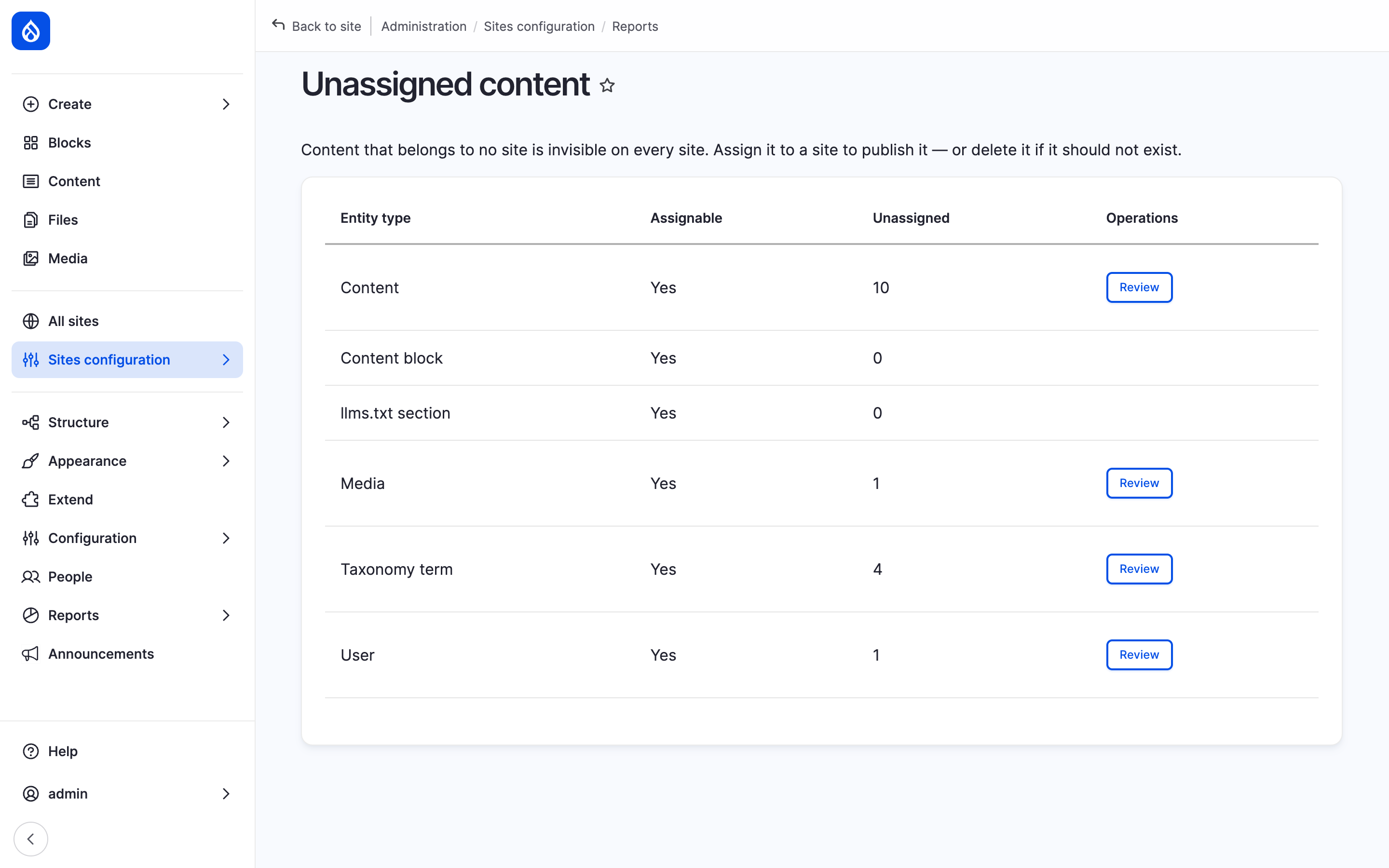
The Unassigned content report with the Review buttons.
Many items at once
- A content listing with the Sites filter set to No site shows the items of one type; select them and run the bulk action Add to site (Share content).
- For a large backlog, or a type without a listing,
drush sites:assign-unassigned --to=hydrionputs every item without a site on Hydrion.--type=taxonomy_termand--bundle=tagsnarrow it. Items of a type Hydrion does not take are skipped and reported; global content is never touched (Drush).
Types no site takes
A type whose Assignable column reads No site accepts this type has no site to go to. A platform administrator adds it to a site type's Assignable content (Site types).
Remove instead
An item that should not exist: click its title to open its edit form, and delete it there (Delete and restore content).
Last updated 2026-10-18