Create content
Create content for one of your sites and choose the other sites that show it.
Needs Sites content
Part of Sites content.
Before you start
- Add content to a site on the site, or its version for one type, like Add Content: Article content to a site.
- The type's create permission, like Article: Create new content.
Create the content
- On the Content overview, click Add content and choose the content type.
- In the dialog, like Create Article, choose the Origin site: the site the content belongs to, like Hydrion for a new pump.
- Choose Additional sites that show the content too, if any, like Hydrion UK and Hydrion US.
- Click Continue.
- Fill in the form and click Save.
Content that belongs to one site only, like taxonomy terms, asks for the Site alone. Sites that take new content of the type by default (Auto-assigned content) come preselected in the dialog.
- On the site's address, open the content type's form with Add content on the Content overview.
- Fill in the form and click Save.
The content belongs to that site, and the form has no Sites section. To show it on more sites, share it from the hub.
The Sites section of the form
On the hub, the form's sidebar has a Sites tab. For content on several sites, it names the Origin site: and the Other site(s):; sites you do not manage show only with View foreign site assignments.
When you work on more than one site:
- Click Change the sites of this content item.
- Change Additional sites. The Origin site stays fixed (change it).
- Click Continue.
- Click Save on the form.
With Sites Tagify, the site lists are tag fields: type part of a site's name and pick it.
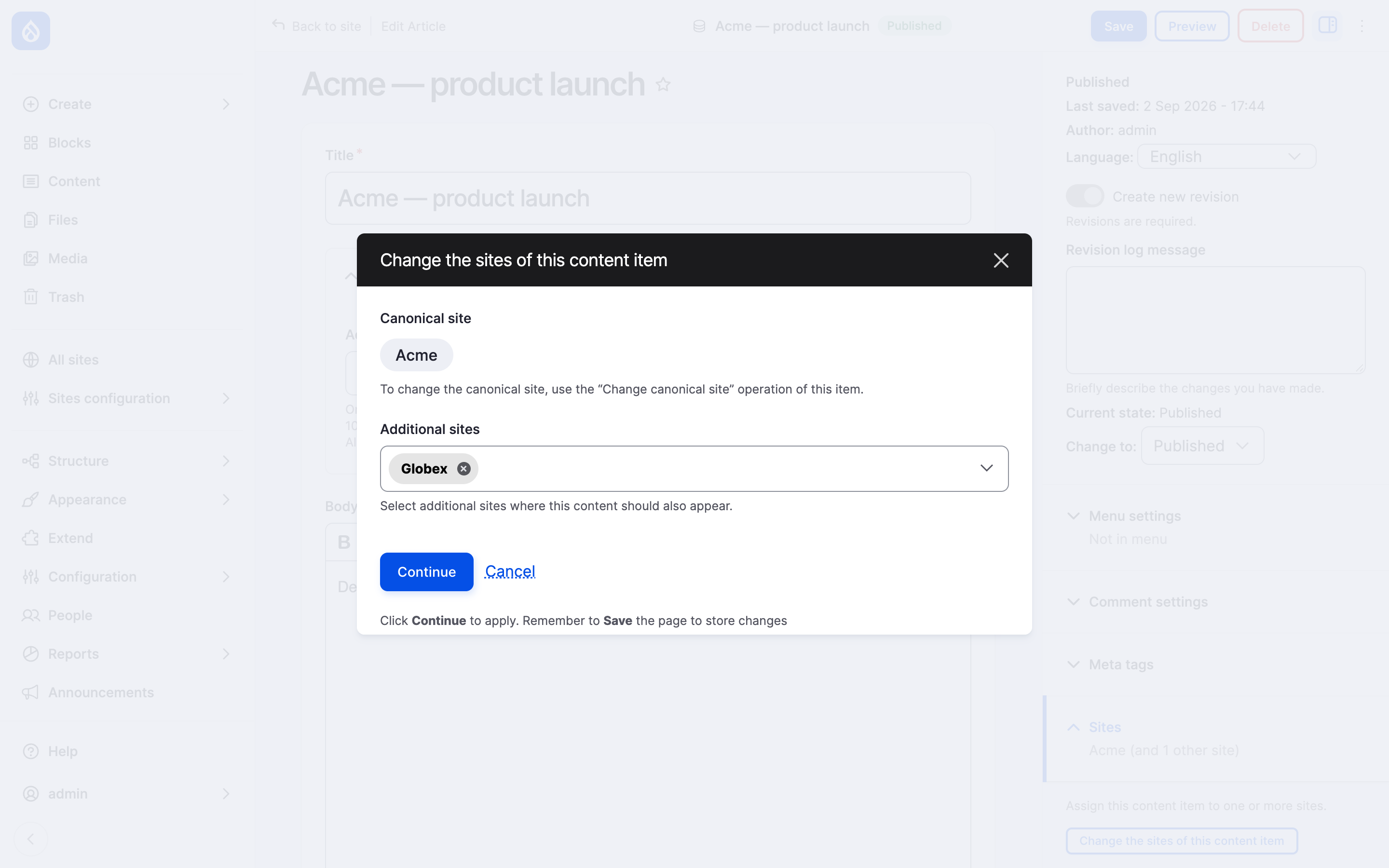
The site assignment dialog of the group's press release.
References and links
A reference field, like related content or tags, offers the content of the sites you take part in. Content that belongs to no site shows only with View unassigned content.
With Sites Linkit, the text editor's link dialog suggests the content of your sites as you type. Each suggestion names its site, like [Valtora], and the link leads to the content on that site. Start the search with a site's ID or part of its name in brackets, like [valtora], to search that site only. The name matches in any case: [valt] finds Valtora.
A reference field offers the site's own content when the site or the field filters references (Site filtering).
With Sites Linkit, the text editor's link dialog suggests that site's content as you type.
Last updated 2026-10-16