Delete and restore content
Delete your site's content, see what your sites hold in the trash, and restore or purge it.
Who deletes content
The people of the content's origin site delete it, on the hub or on that site's address. A site that only shows the content, like Hydrion UK for the Hydrion X5 page, cannot delete it; take it off that site instead.
Delete shared content
- In the content's operations, click Delete.
- Read the warning "This content belongs to more than one site. Deleting it removes it from all of them." The content's sites are listed below it, like Hydrion, Hydrion UK and Hydrion US for the X5 page.
- To take the content off one site only, click Remove from and that site's name, like Remove from Hydrion US.
- To delete it on every site, click Delete.
Deleting several items from an overview says how many of them belong to more than one site.
The trash
Needs Sites Trash
Part of Sites Trash.
With Trash, Delete moves the content to the trash. There it keeps its sites and shows on none of them. Site dashboards and the Unassigned content report leave it out.
The trash is the Trash tab of the Content overview and takes View trash bin. On the hub it lists the content of your sites, with the Sites column and filter of the content overview (Getting around). On a site's address it lists that site's content.
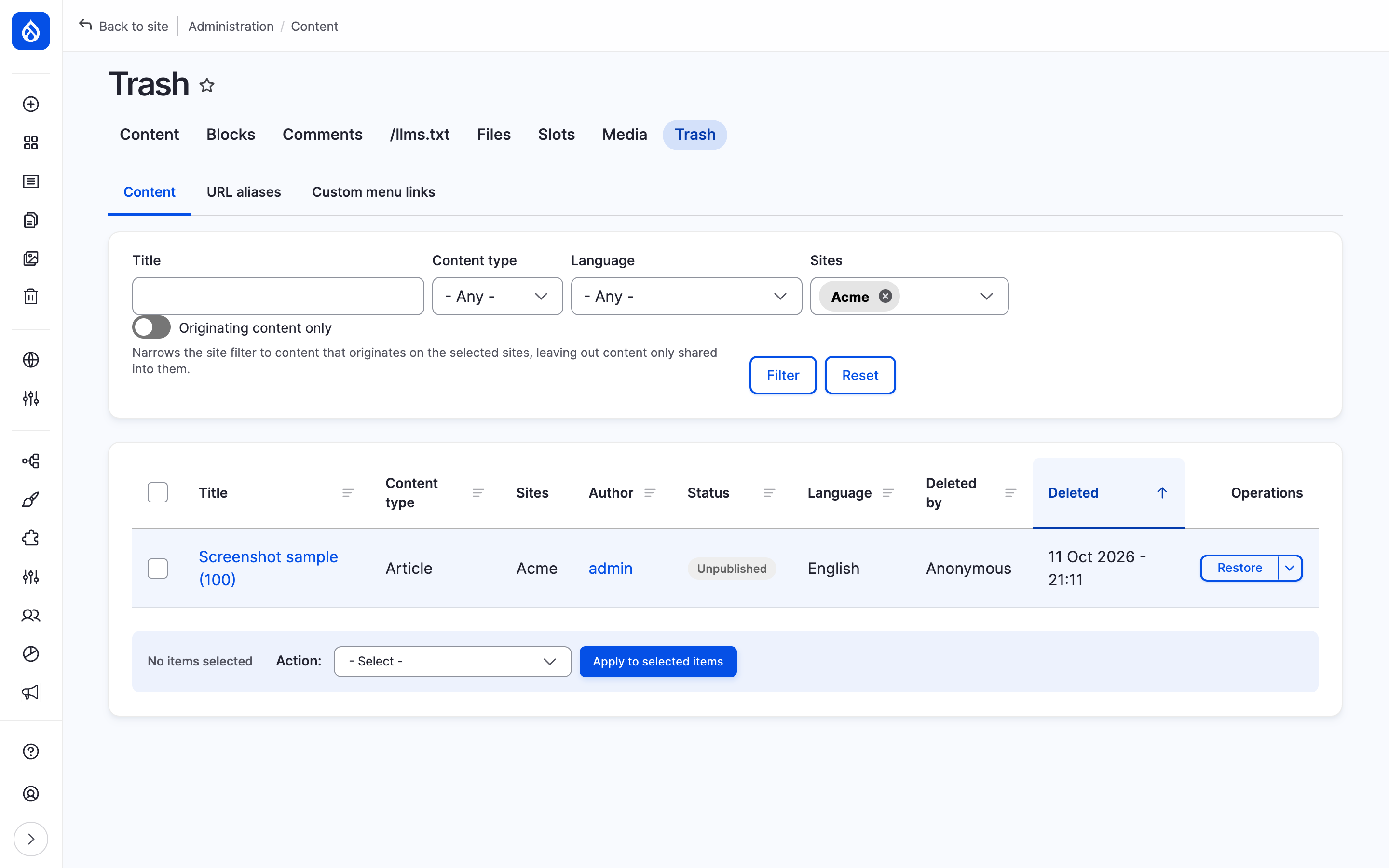
The trash on the hub, filtered to Hydrion, with the Sites filter and column.
Restore or purge
- In the trash, open the item's operations.
- Click Restore to bring the content back on all its sites, or Purge to delete it for good.
- Click Confirm.
The people of the origin site restore and purge, with Restore Content entities from the trash bin and Purge Content entities from the trash bin. Purging shared content shows the warning "This content belongs to more than one site. Purging it removes it from all of them for good."
Deleting a site can purge its content, the trash included (Disable and delete a site).
Last updated 2026-10-16