Setting Up an Image Style
Goal
Add an image style and use it to display images on Vendor pages.
Prerequisite knowledge
Site prerequisites
- Vendor and Recipe content types must exist. See Adding a Content Type.
- Main image fields must exist for both content types. See Adding Basic Fields to a Content Type.
- Content items must exist for both content types. See Adding a Content Type, Adding Basic Fields to a Content Type, and Creating a Content Item.
Steps
- In the Manage administrative menu, navigate to Configuration > Media > Image styles (admin/config/media/image-styles).
- Click Add image style.
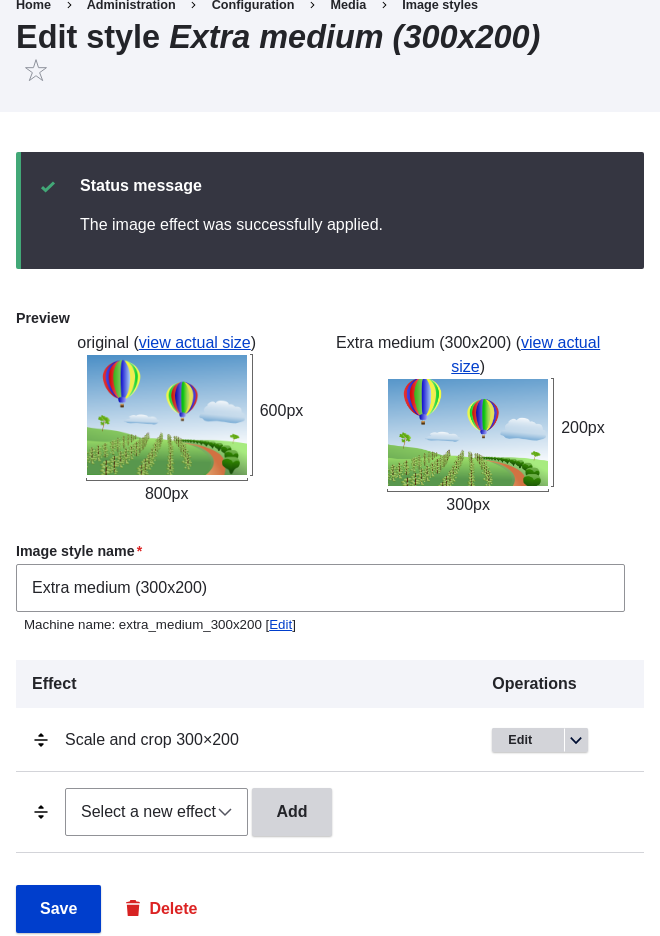
- Enter the name Extra medium (300x200)
- Click Create new style. The page Edit style Extra medium (300x200) appears.
- In the Effect table, select Scale and crop. Click Add.
- Fill in the fields as shown below.
Field name Value Width 300 Height 200 - Click Add effect. The image style is saved with the chosen effects.
- In the Manage administrative menu, navigate to Structure > Content types (admin/structure/types).
- Click Manage display in the Operations dropdown for the Vendor content type. The Manage display page (admin/structure/types/manage/vendor/display) appears.
- Ensure that the secondary tab Default is selected.
- Click the gear wheel for the Main image field, to open the configuration options.
-
Fill in the fields as shown below.
Field name Explanation Example value Image style Which image style to use Extra medium (300x200) Link image to Page to visit if image is clicked Nothing 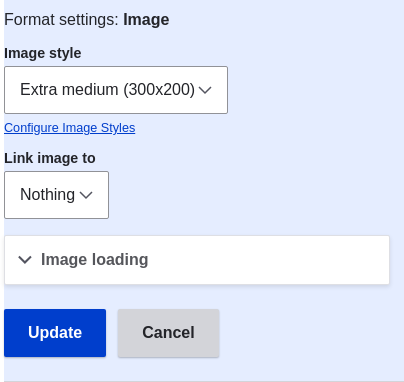
-
Click Update.
- Click Save. The new image style will be used while displaying Vendor content.
- Open a Vendor content item and verify that it now shows up with the scaled-down image. See Editing a Content Item for information on how to locate an existing content item.
- Repeat steps 8-15 for the Recipe content type.
Related concepts
Videos
Additional resources
Drupal.org community documentation page "Working with images"
Attributions
Adapted and edited by Boris Doesborg, and Jojy Alphonso at Red Crackle from "Working with images", copyright 2000-2026 by the individual contributors to the Drupal Community Documentation.