Translating Content
Goal
Translate the home page to Spanish.
Prerequisite knowledge
Concept: User Interface, Configuration, and Content translation
Site prerequisites
- The Home content item must exist. See Creating a Content Item.
- The core Content Translation module must be installed, and your site must have at least two languages. See Adding a Language.
- The Basic page content type must be configured to be translatable. See Configuring Content Translation.
Steps
- In the Manage administrative menu, navigate to Content (admin/content).
- Locate the home page. You can search for it by entering "Home" in the title field.
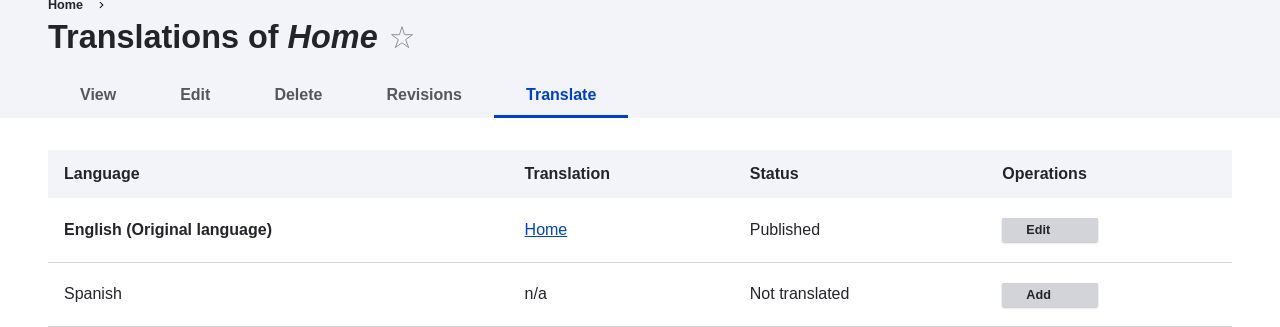
- Select Translate from the dropdown button in the row of the Home content item. The page Translations of Home appears.
- Click Add in the row Spanish.
- Note that the user interface has switched to Spanish. To switch it back to English, remove the first instance of es in the browser's URL. For example, if your URL looks like example.com/es/node/5/translations/add/en/es, remove the es that comes immediately after example.com.
- Fill in the fields as shown below.
Field name Explanation Value Title Translated title of the page Página principal Body Translated body of the page URL alias > URL alias Translated address of the webpage pagina-principal - Click Save (this translation).
- Go to your site's home page to view the newly translated page.
Expand your understanding
- Follow the steps above to translate more content on your site.
- Translating Configuration
Videos
Attributions
Written by Boris Doesborg.