Updating a Module
Goal
Update a contributed module and run the Database updates script.
Prerequisite knowledge
Site prerequisites
- A contributed module has been installed and there is an update available for it. See Downloading and Installing a Module from Drupal.org and Keeping Track of Updates.
- If your site is live, you should test this process in a development environment before running it on your production site. See Making a Development Site.
- You have created a full-site backup. See Concept: Data Backups.
- If you want to use the user interface to check for updates, the core Update Manager module must be installed. See Installing a Module for instructions on installing core modules.
Steps
Before you start, check for module-specific update instructions. Read and understand all module-specific requirements before proceeding with the updates. To find instructions, check the module's project page Read Documentation link.
To view further instructions, after downloading the updated files, look for README.txt, INSTALL.txt, and UPGRADE.txt that come with the module. Also, review the release notes on the project page by clicking the version number you're downloading.
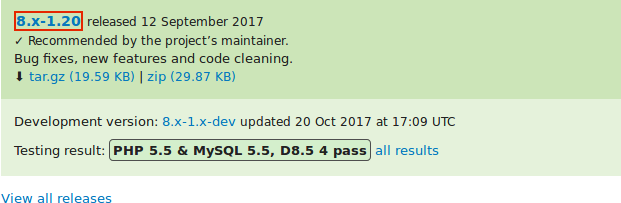
Updating a module requires first putting your site into maintenance mode, then obtaining the new code files and applying any required database updates, then finally taking the site out of maintenance mode.
You can update the code for a contributed module using Composer. If you are updating a custom module rather than a contributed module, obtain the new module files, then continue with instructions for running the database updates via the administrative interface below.
This assumes that you are using Composer to manage the files in your site; see Using Composer to Download and Update Files.
Update a contributed module with Composer
- Put your site in maintenance mode. See Enabling and Disabling Maintenance Mode.
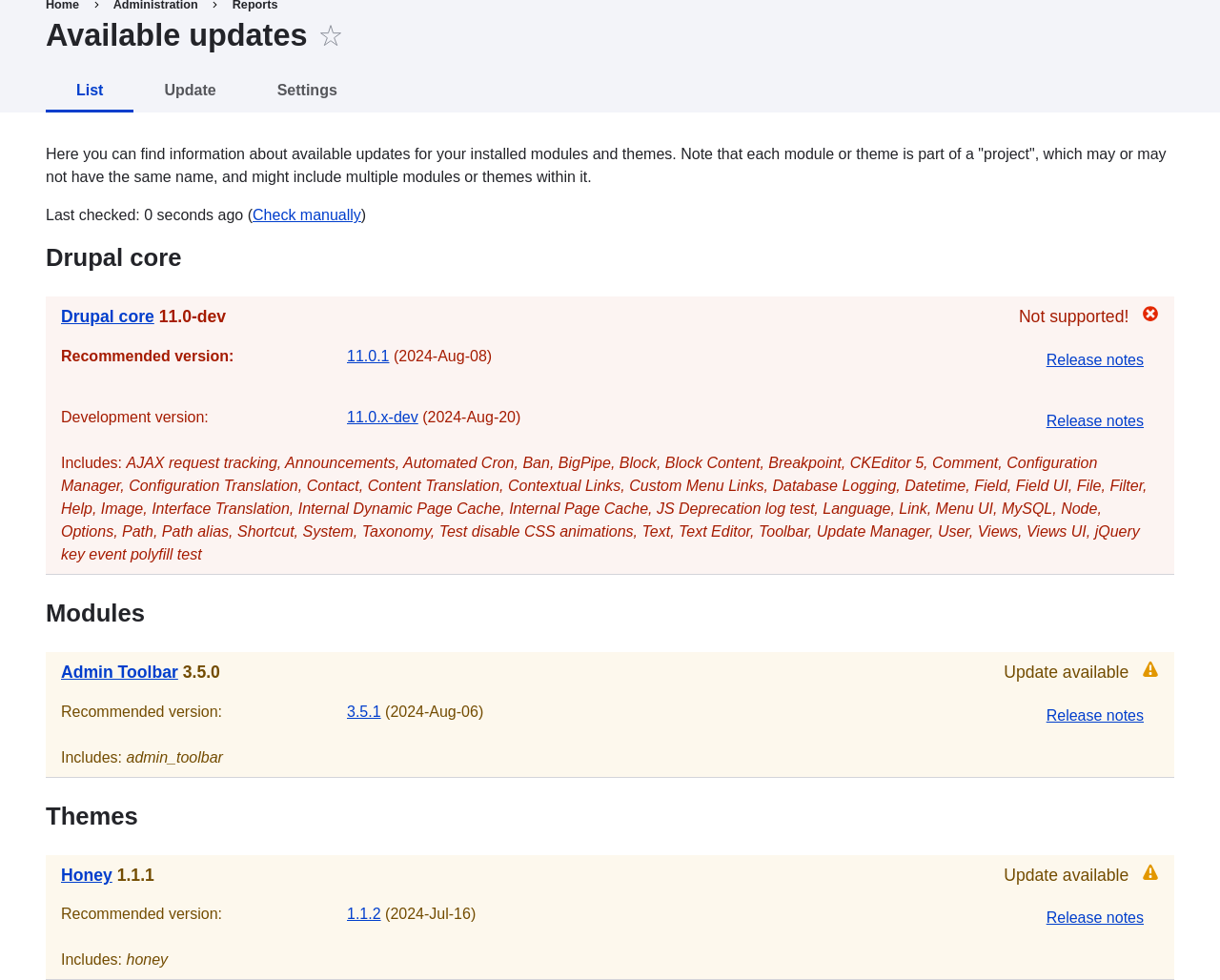
- In the Manage administrative menu, navigate to Reports > Available updates > Update (admin/reports/updates).
- Find and check the module in the list. Click Download these updates for the
module.
- Determine the short name of the project you want to update. For contributed
modules and themes, it is the last part of the URL of the project page; for
example, the Geofield module, at https://www.drupal.org/project/geofield, has
short name
geofield. -
If you want to update to the latest stable release, use the following command, substituting the short name of the project to be updated for
geofield:To learn how to download specific versions see Using Composer to Download and Update Files.
-
After obtaining the new module files run any database updates page by typing the URL example.com/update.php in your browser.
- Click Continue to run the updates. The database update scripts will be executed.
- Click Administration pages to return to the administration section of your site.
- Take your site out of maintenance mode. See Enabling and Disabling Maintenance Mode.
- Clear the Drupal cache (refer to Clearing the Cache).
Expand your understanding
- Review the site log (refer to Concept: Log) once the updates are complete to check for errors.
- Updating a Theme
Videos
Attributions
Adapted by Boris Doesborgh, and Sarah German at Advomatic, and Joe Shindelar at Drupalize.Me from "Update modules", copyright 2000-2026 by the individual contributors to the Drupal Community Documentation.