Configuring User Account Settings
Goal
Turn off the ability for people to register user accounts on the site. Also, review and/or edit the email messages generated by the site for events related to user accounts.
Prerequisite knowledge
Concept: Administrative Overview
Steps
- In the Manage administrative menu, navigate to Configuration > People > Account settings (admin/config/people/accounts).
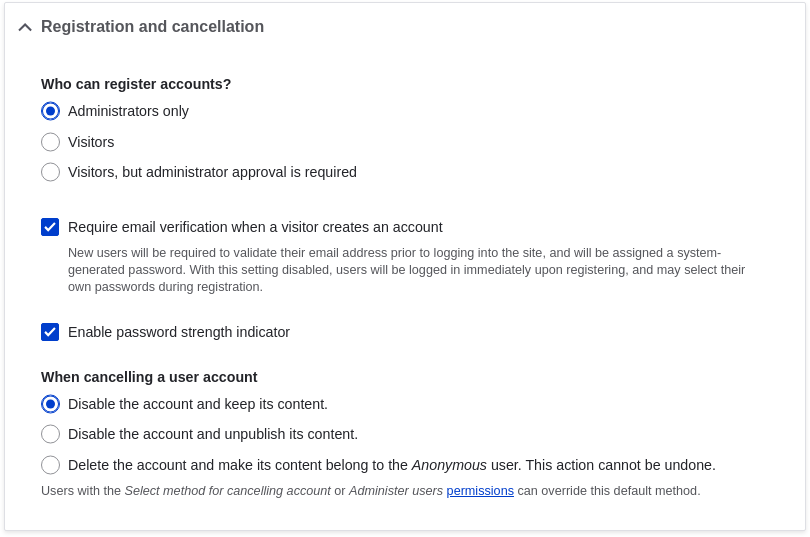
- Under Registration and cancellation, select Administrators only as the
people with permissions to register user accounts. You can check Require email
verification when a visitor creates an account in case you want to change the
settings for account registration later on.
- Optionally, change the default email address from which user account
notifications from the farmers market website will be sent. This will help you
maintain a separate email address from the one used for the website in
general. For example, this email address for user account notifications will be
useful for a staff member(s) communicating with vendors.

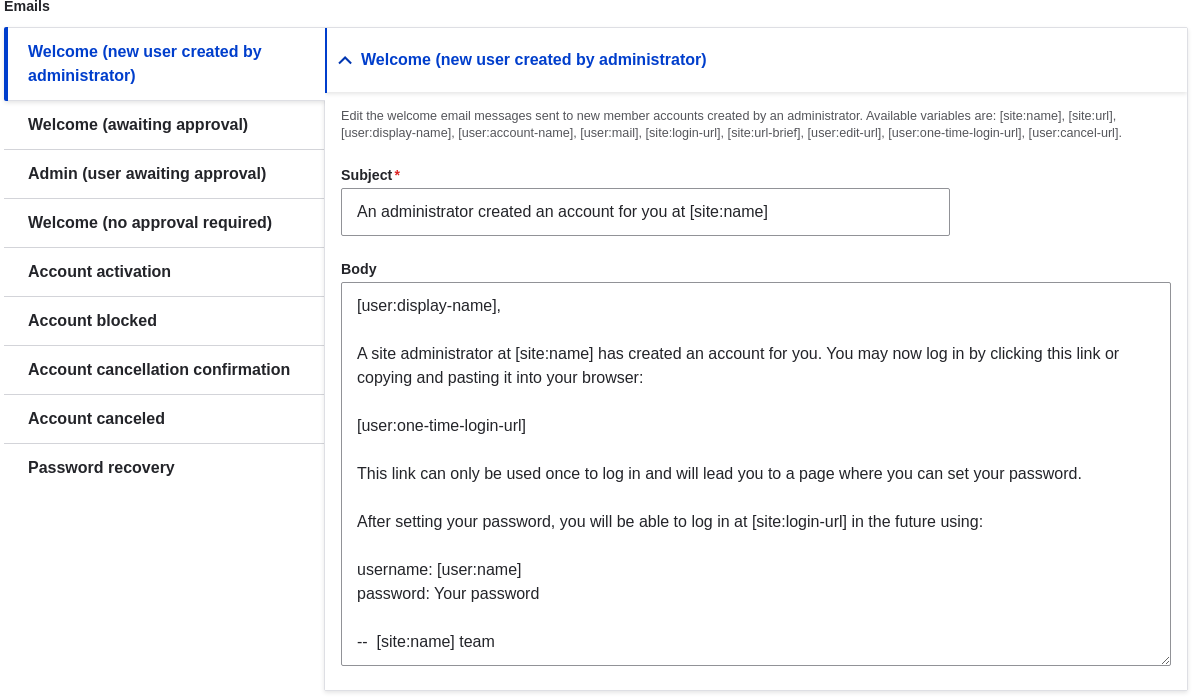
- Optionally, edit the email templates under Emails to customize
automated emails. There are several email templates provided by the core
software. They are meant for different user-specific occasions. All of them can
be personalized and three can be disabled via checkboxes: activation, blocking,
and cancellation.
You can send out your own text (for example, welcoming the new vendors for whom
accounts were just created) by editing the Welcome (new user created by
administrator) template.
- Click Save configuration to save the changes.
Expand your understanding
Related concepts
See Drupal User Guide for more information about user accounts and permissions.
Videos
Additional resources
Securing your site can help you with a more safety-focused approach to configuration.
Attributions
Written and edited by Laura Vass at Pronovix, and Jojy Alphonso at Red Crackle.