Installing a Module
Goal
Install a core module, or a contributed module whose files have already been uploaded to the site, through the administrative interface or using Drush.
Prerequisite knowledge
Concept: Modules Using Composer to Download and Update Files
Site prerequisites
If you want to use Drush to install modules, Drush must be installed. See Concept: Additional Tools.
Steps
You can use the administrative interface or Drush to install modules.
Contributed modules are not included with the core software must first be downloaded using Composer. See Using Composer to Download and Update Files for more information.
Using the administrative interface
- In the Manage administrative menu, navigate to Extend (admin/modules). The Extend page appears showing all the available modules in your site.
- Check the boxes for the module or modules you want to install. For example,
check the box for the core Ban module.
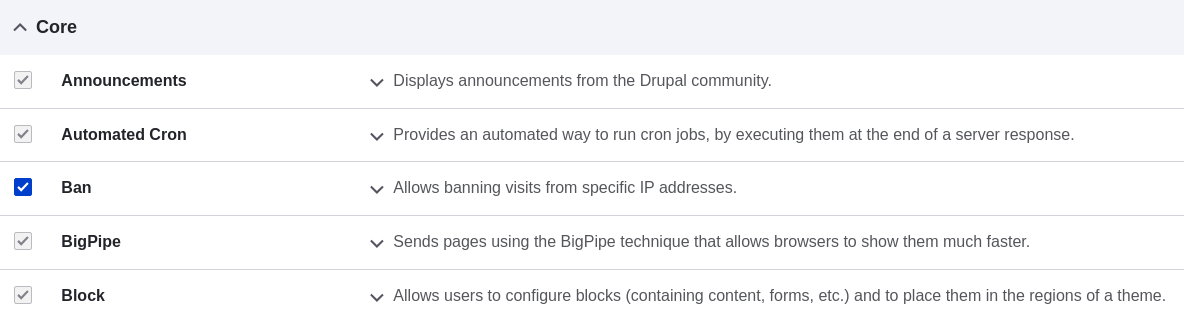
- Click Install. The checked modules will be installed.
Using Drush
- In the Manage administrative menu, navigate to Extend (admin/modules). The Extend page appears showing all the available modules in your site.
- Find the machine name of the module you want to install, by expanding the information area for the module. For instance, the core Ban module's machine name is ban.
- Run the following Drush command to install the module:
Expand your understanding
If you do not see the effect of these changes in your site, you might need to clear the cache. See Clearing the Cache.
Videos
Additional resources
Attributions
Written and edited by Boris Doesborg and Jennifer Hodgdon, and Joe Shindelar at Drupalize.Me.