Manually Installing Module or Theme Files
Goal
Custom modules and themes may not be available via Composer and their files will need to be manually installed.
Prerequisite knowledge
Site prerequisites
Use this approach if you created a custom module/theme or received its files from someone.
When installing or updating the core software, contributed modules, and contributed themes you should use Composer. See Using Composer to Download and Update Files, Downloading and Installing a Module from Drupal.org, and Downloading and Installing a Theme from Drupal.org instead of this topic.
Steps
If you are installing a module or theme from Drupal.org, follow the downloading instructions, and then the uploading/unpacking instructions. If you created the module or theme, skip the downloading step. Instead, create an archive file (that you know how to extract on the server) and proceed with the steps in uploading/unpacking, using whatever method is appropriate for the way you initially created the archive file.
Uploading the files to your site and unpacking them
- If you are adding a new module or theme, create subdirectories in your
top-level modules and themes directories (if they don't already
exist). Typically, people make a contrib subdirectory for contributed modules
and themes that are downloaded from Drupal.org, and a custom subdirectory
for modules and themes that they created. Your modules directory might look
like this:
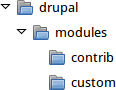
- If you are replacing an existing module or theme with an updated version, put the site into maintenance mode. See Enabling and Disabling Maintenance Mode.
- If you are replacing an existing module or theme with an updated version, find and delete all the existing files and directories for the existing module or theme. Modules are normally located in directories under the top-level modules directory, and themes are normally located in directories under the top-level themes directory.
- Upload the .tar.gz file (or whatever archive you created) to your site. Place it in either the same location from which you deleted the directory (if replacing an existing module or theme) or the appropriate subdirectory of modules or themes (if adding a new module or theme).
- Extract the files from the .tar.gz archive (or whatever archive you created), making a subdirectory in the same location as the archive file. If you do not have terminal access, or your hosting server is not running Linux, your hosting control panel's file manager should provide a way to extract the files. If you have terminal access to your hosting server (running Linux) and you are using a tar.gz file, you can use a command like:
- Delete the compressed file from the server, unless your unpacking method already deleted it.
- Refer to Downloading and Installing a Module from Drupal.org, Downloading and Installing a Theme from Drupal.org, Updating a Module, or Updating a Theme to complete the installation or update of the module or theme. Start at the step after the automatic download has been completed.
Expand your understanding
- If you work with multiple environments (for example, a local development site and a production site) you will have to repeat the steps on each environment, or re-clone the environment. See Making a Development Site.
- If you added a new theme, navigate in the Manage administrative menu to Appearance (admin/appearance) and uninstall the old theme.
Videos
Additional resources
- Drupal.org community documentation page "Updating modules"
- Drupal.org community documentation page "Installing Drupal modules"
- Drupal.org community documentation page "Installing themes"
Attributions
Written and edited by Boris Doesborg, Jennifer Hodgdon, and Marc Isaacson, and Joe Shindelar at Drupalize.Me.