Changing the Order of Navigation
Goal
Reorder the links in a menu.
Prerequisite knowledge
Site prerequisites
Home and About pages must exist in the main navigation menu. See Adding a Page to the Navigation.
Steps
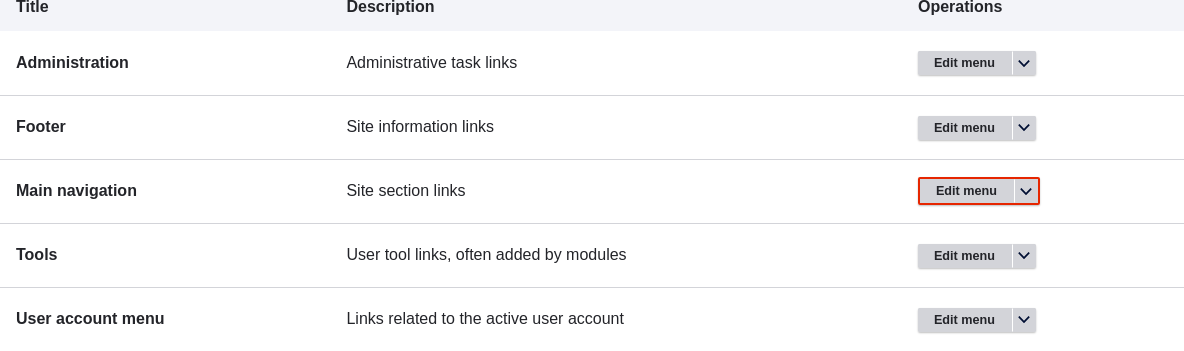
- In the Manage administrative menu, navigate to Structure > Menus
(admin/structure/menu) where all menus on your site are listed. Click Edit
Menu from the Operations dropdown for Main navigation. You can also reach
this page using contextual links (refer to Concept: Administrative Overview) for the
menu. Note that the names and descriptions of the menus that were provided by
your installation profile are shown in English on this page; see
Concept: User Interface, Configuration, and Content translation for an explanation.
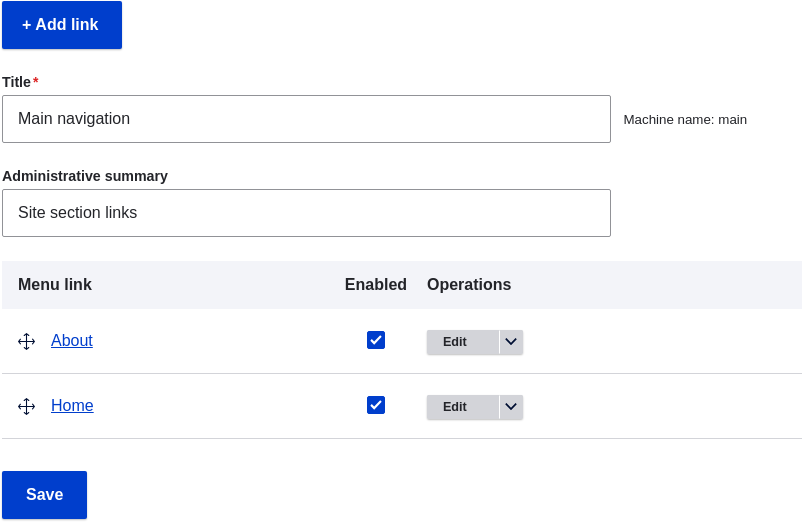
- The Edit menu page will display a list of each link in the menu you
chose (Main navigation).
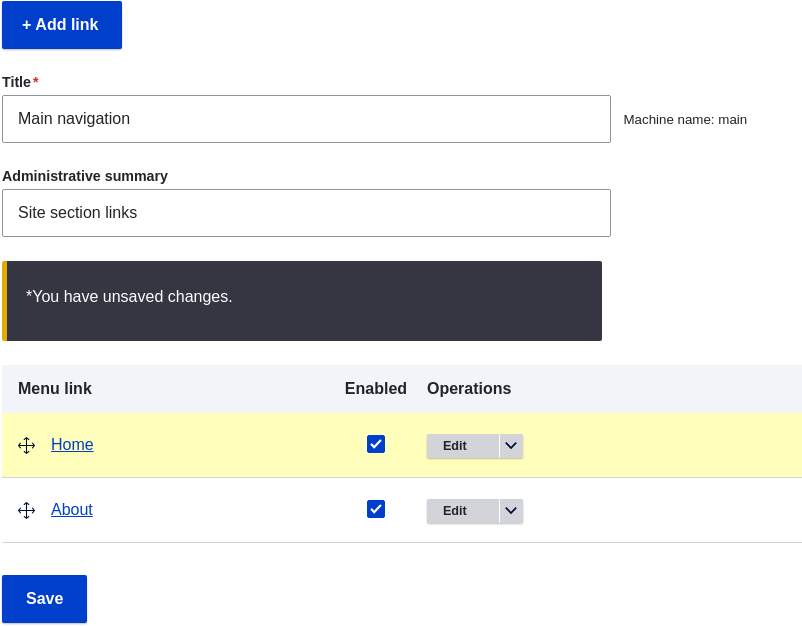
- Drag the cross bar handles of menu links to change their order: Home, then
About. As an alternative to dragging, you can click the Show row weights link
at the top of the table and select numerical weights (menu links with lower or
more negative weights will be shown first).
- Click Save.
- The home page now displays the main navigation with the Home menu
link displayed first.

Expand your understanding
Add a menu link called Contact, leading to the /contact page, to your Main navigation menu. The contact page is provided by the core Contact module; you may want to edit its layout and fields (see Changing Content Entry Forms).
Related concepts
Videos
Attributions
Written by Ann Greazel.