Browser
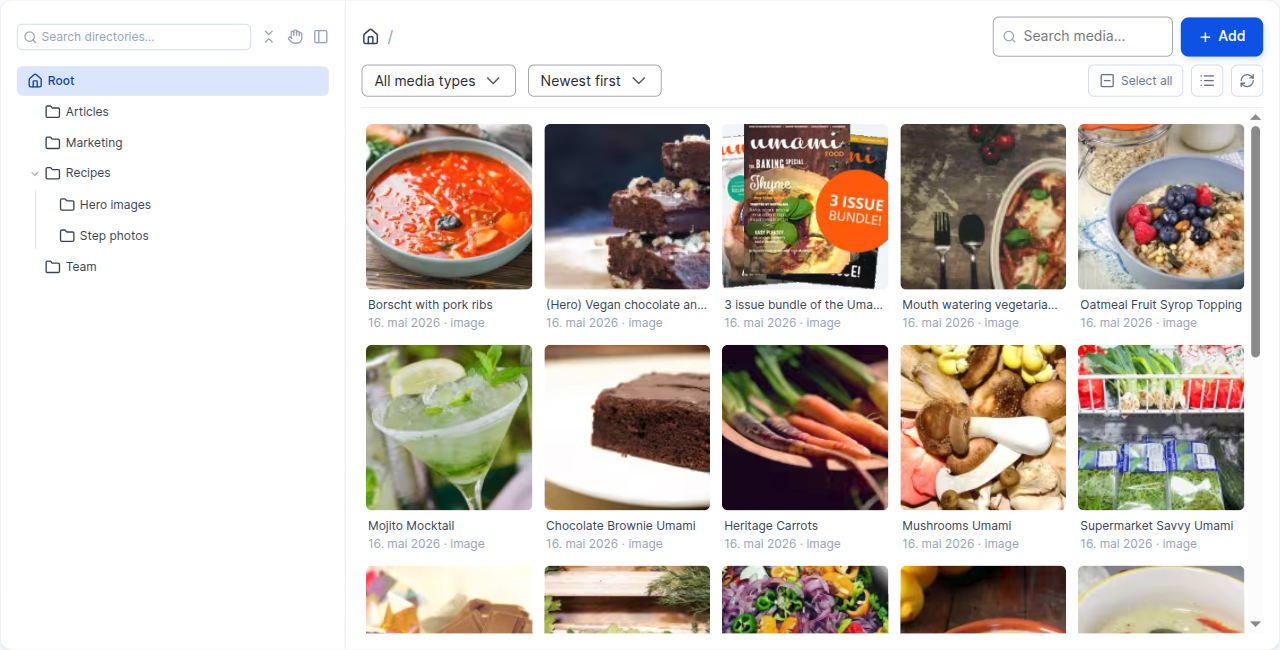
media_directories_browser is the editor experience layer. It ships a Vue.js
media browser, an admin landing page, a field widget that opens the same
browser, and a CKEditor 5 integration that hijacks the Insert media
button so it opens the directories browser instead of core's plain media
library. The Vue.js frontend talks to its own controller endpoints under
/api/media-directories-browser/* — no JSON:API module needed.
Install
Dependencies: media_directories, core media, media_library,
ckeditor5.
Configuration
All browser-specific settings live at
/admin/config/media/media_directories/browser. They're grouped into five
sections.
Display & behaviour
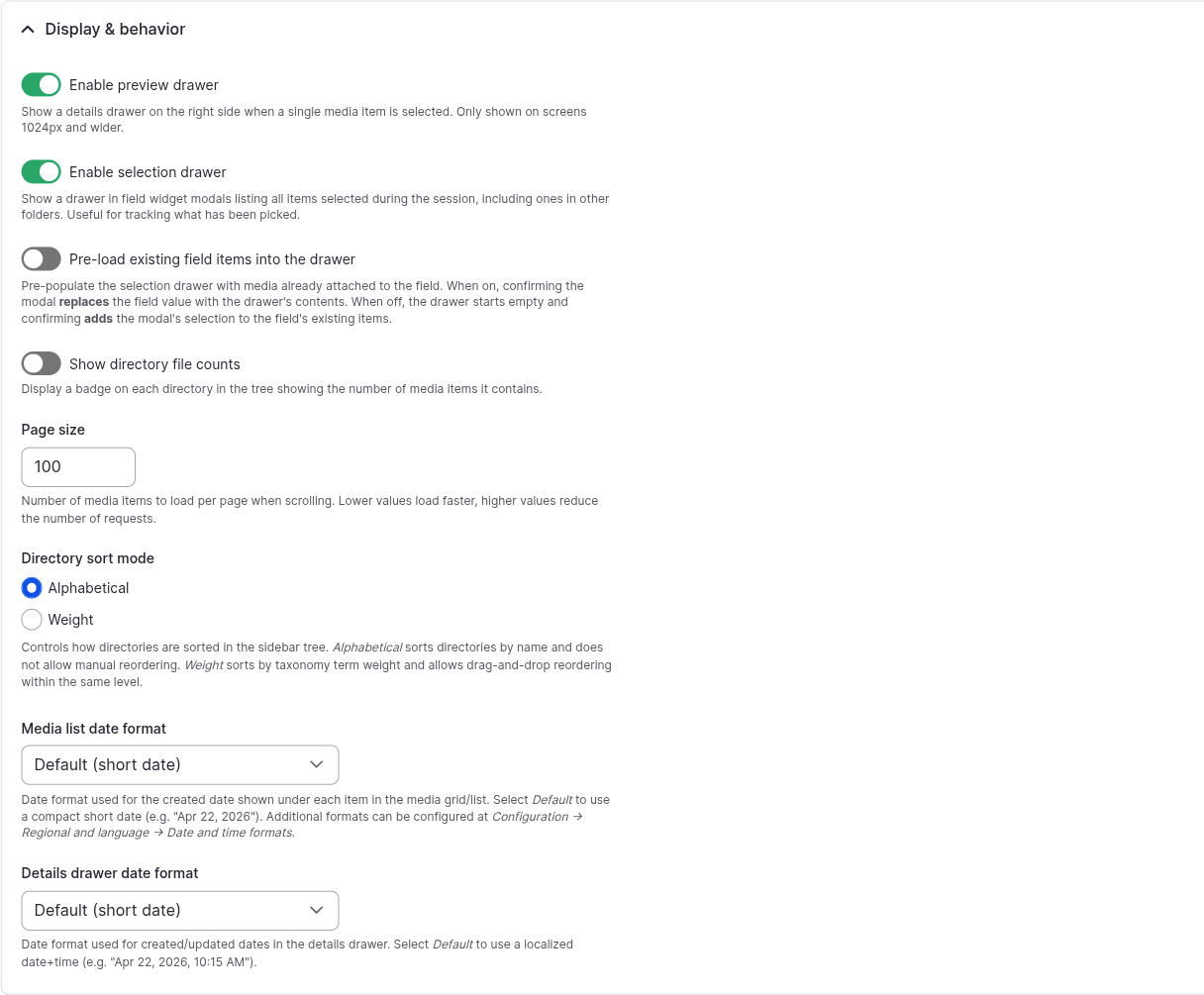
- Enable preview drawer — right-hand panel with a larger preview and metadata, opened by clicking the info button on a media card. Applies to the standalone browser page only — modals are controlled separately below.
- Also show the preview drawer in modals (visible when the preview drawer is on) — off by default. Field widget and CKEditor modals hide the preview drawer so it doesn't fight with the modal chrome and selection drawer. Turn on if your editors want the extra metadata while picking.
- Enable selection drawer — left-hand panel inside field widget modals that lists every item picked during the session, including ones from other folders. Helps editors track multi-item selections across directories.
- Pre-load existing field items into the drawer (visible when the selection drawer is on) — when on, the drawer starts pre-populated with the field's current items and confirming the modal replaces the field value. When off (default) the drawer starts empty and confirming adds to the field's existing items.
- Show directory file counts — adds a badge to each folder showing how many media items it contains. Heavier on very large trees, very useful on smaller ones.
- Page size (10–200, default 100) — how many items the browser fetches per scroll page.
- Directory sort mode — Alphabetical sorts by name and disables manual reordering. Weight sorts by taxonomy term weight and enables drag-and-drop reordering of sibling folders.
- Media list date format and Details drawer date format — pick any non-locked Drupal date format. Add more under Configuration → Regional and language → Date and time formats.
Experimental
Opt-in and still being refined
These options are off by default and their behaviour or appearance may
still change between releases. They only affect the standalone browser
page (/admin/content/media-browser) — the field-widget and CKEditor
modals are never touched, so enabling them can't disrupt content editing.
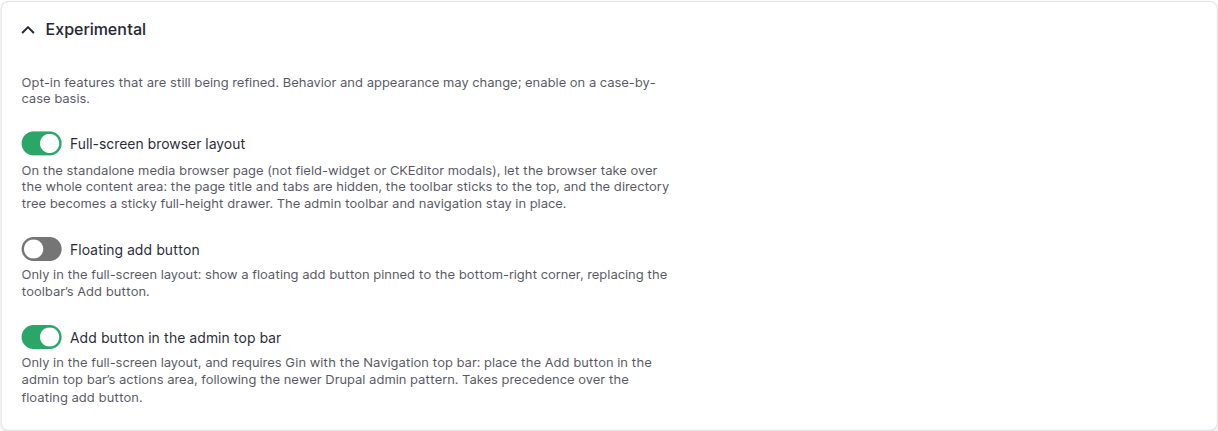
- Full-screen browser layout — turns the standalone page into a canvas-style workspace. The page title and local-task tabs are hidden, the toolbar sticks to the top of the viewport, and the directory tree becomes a full-height, sticky, scrollable drawer while the media grid fills the rest of the content area. The admin toolbar and navigation stay exactly where they are, so you can still move around the site.
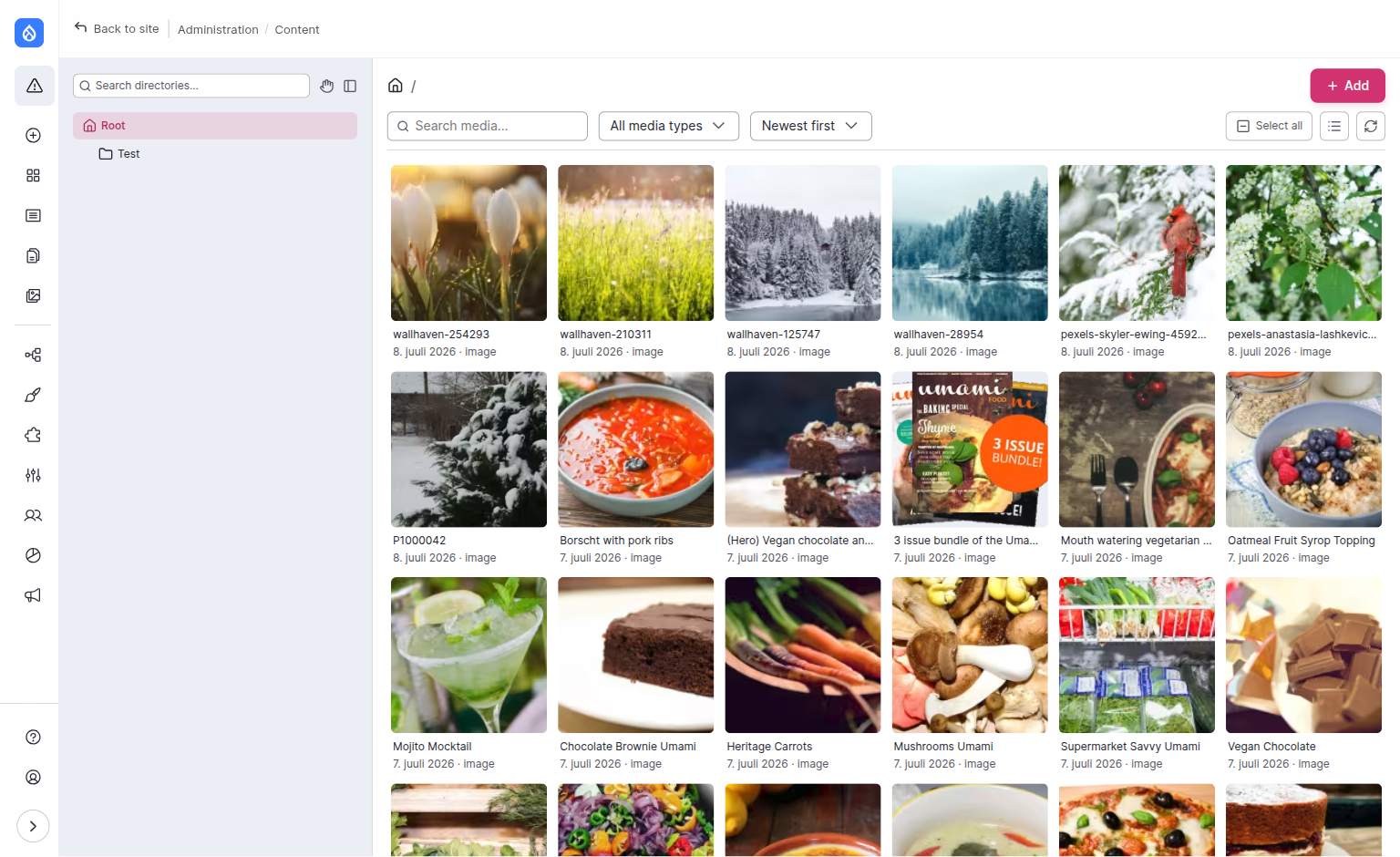
The two Add-button options below only apply while the full-screen layout is on — the form hides them (and won't save them) otherwise.
- Floating add button — replaces the toolbar's Add button with a circular button pinned to the bottom-right corner (a "FAB"). It hides itself while media is selected so it never covers the selection actions.
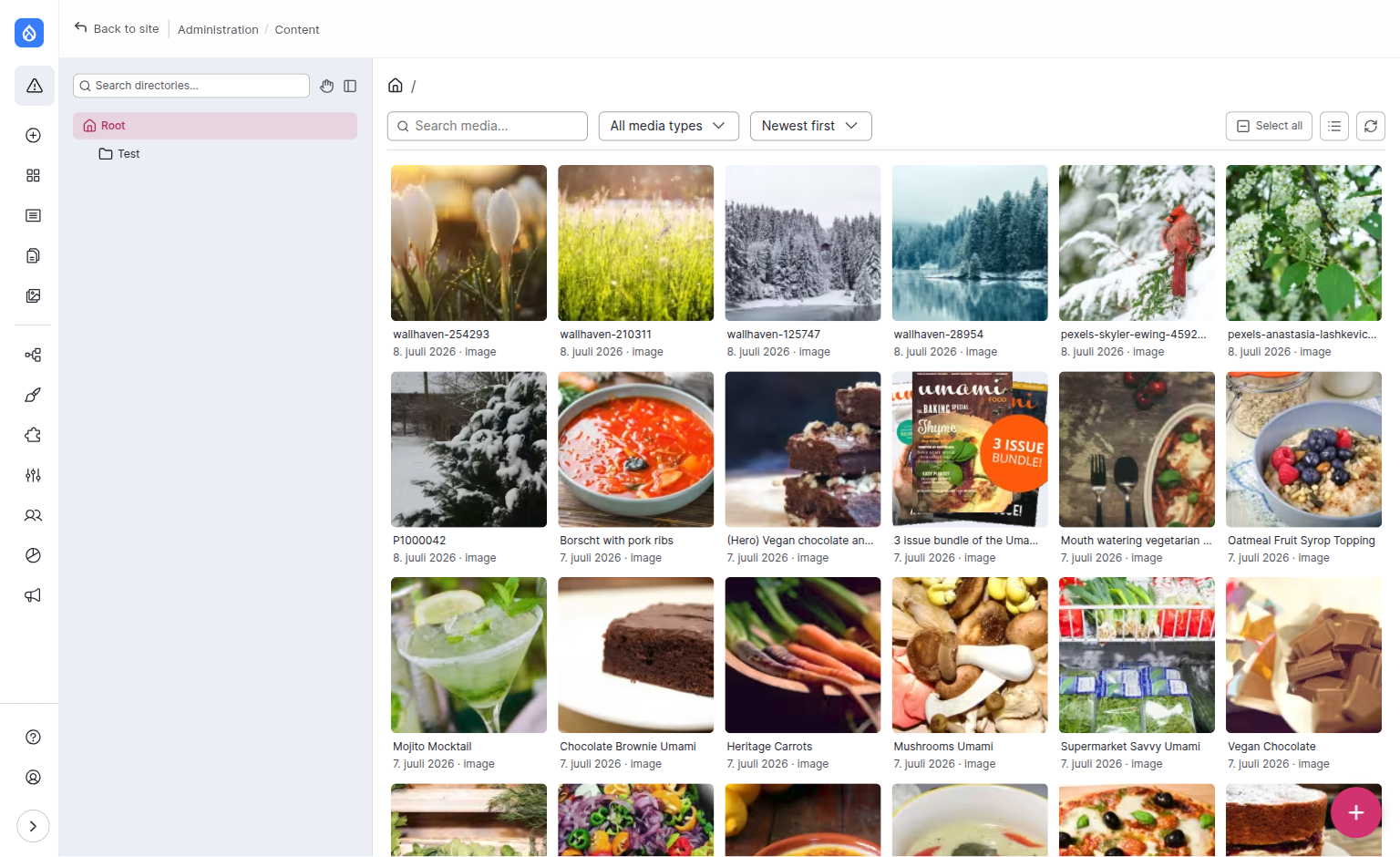
- Add button in the admin top bar — moves the Add action up into the admin top bar's actions area, following the pattern used by newer Drupal admin pages. It needs the core Navigation module's top bar, which is present under Gin and the new Default Admin theme; if no top bar is found it silently falls back to the floating or toolbar button.
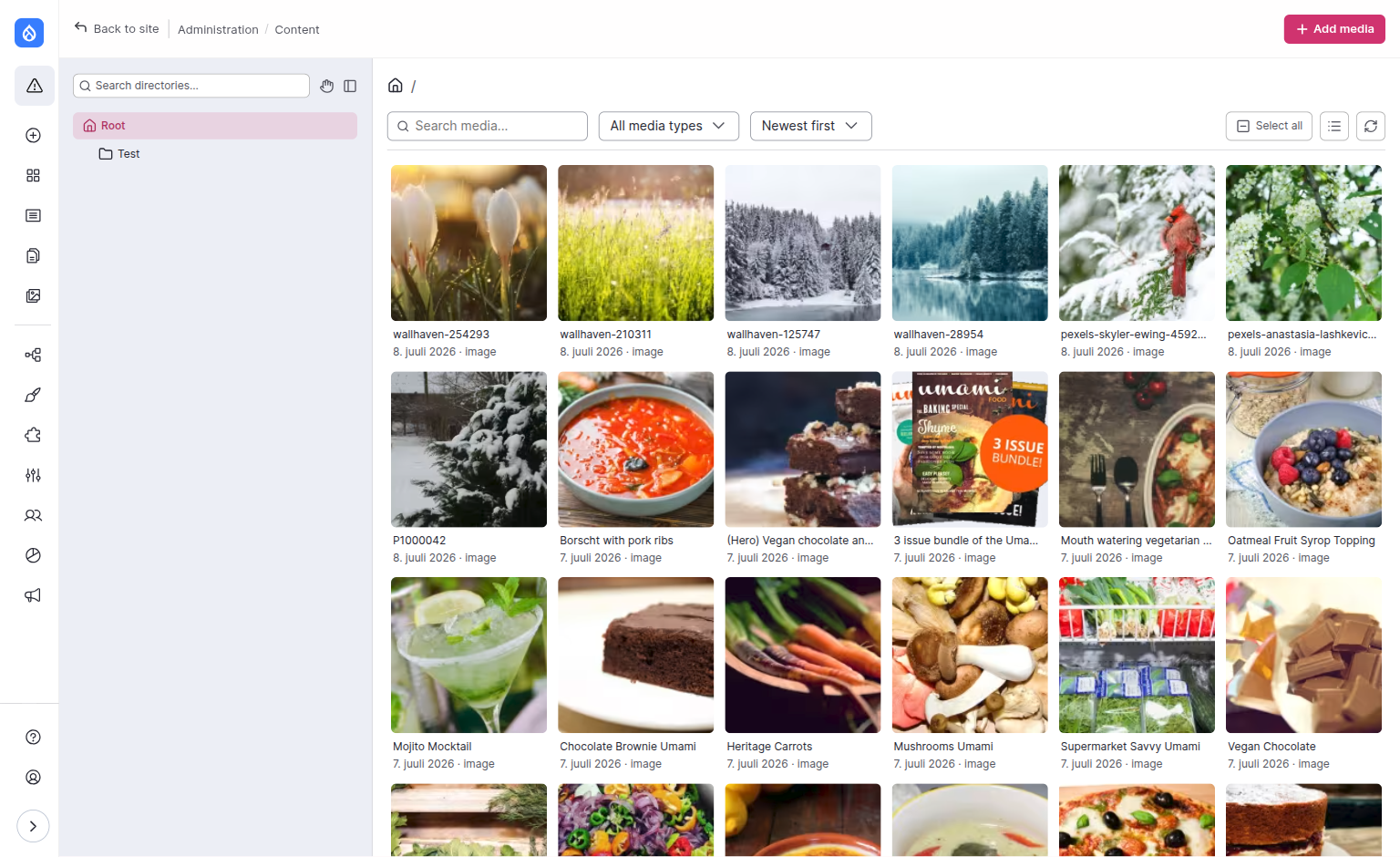
Add-button placement precedence
Only one Add control is shown at a time. When more than one option is enabled the order is top bar → floating button → default toolbar button: the top-bar button wins over the FAB, and the FAB wins over the in-toolbar button.
Saved preferences
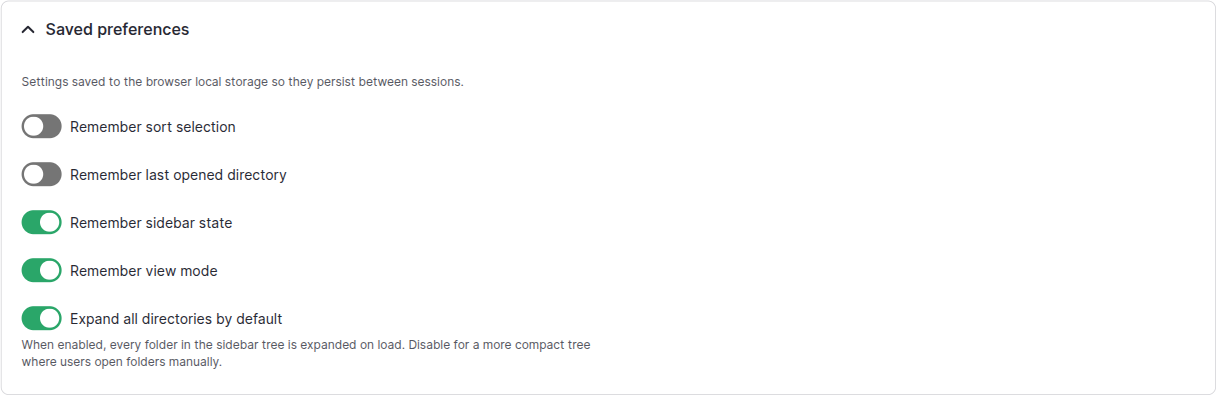
These toggles persist editor state in the browser's local storage so a returning editor lands "where they left off". Turn them all off if you'd rather have a clean slate every session.
- Remember sort selection — keeps the column/sort order.
- Remember last opened directory — re-opens the same folder.
- Remember sidebar state — keeps the sidebar collapsed or expanded.
- Remember view mode — keeps grid vs. list.
- Expand all directories by default — every folder is open on load.
Best for small trees.
- With this off, Remember expanded directories appears: it persists which folders the editor has manually expanded.
Uploads
How editors use these
See Features → Bulk actions and Features → Uploading media for what these options do from the editor's side.
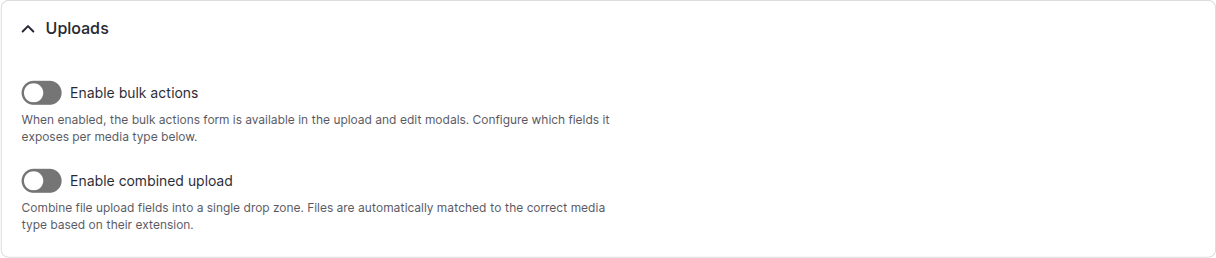
- Enable bulk actions — turns on per-field bulk autofill controls in
the upload and edit modals (e.g. "set this alt text on every selected
item"). Off if you'd rather force editors to fill each item individually.
- When on, Bulk action fields lets you pick which fields appear in the bulk form, per media type.
- Enable combined upload — replaces the per-bundle upload fields with
a single drop zone. Files are routed to the right media type automatically
based on their extension.
- Media types for combined upload — a drag-and-drop table of the file/image-based bundles (others are filtered out). Check a row to include the bundle and drag to set its priority; each row shows the bundle's allowed extensions. When the same extension is accepted by more than one included bundle, files default to the highest-priority match — the form lists these overlaps and names the default — and editors get a per-file "Upload as" select in the upload modal to pick another matching type.
Translations

Only meaningful when core's content_translation module is installed.
Without it, the form disables the translation controls.
- Enable translations — turns on the per-language tab strip in the upload and edit modals.
- Media types with translations — which bundles get the tab strip. Bundles with no translatable fields are skipped automatically.
For how editors translate media in the modals, see Features → Translations & AI assistance. For AI-assisted translation see the AI submodule page.
CKEditor integration

How editors use these
See Features → Using media in content for the embed flow, the display dropdown and file links in action.
- Show file picker in link form (default on) — adds a Select a file button to CKEditor 5's link balloon, so editors can pick a file from the media browser instead of pasting a URL. Turn off to keep file links out of the browser entirely.
- Image styles available in the editor — the display dropdown on an embedded image (the unified control that also exposes view modes and custom dimensions) only offers the image styles you tick here. There is no fall-back to "all styles": leave every box unchecked and the dropdown shows no image-style options at all, just view modes and custom dimensions. Most sites define many image styles that make no sense for inline embeds, so opt in only the handful editors should actually reach for.
View modes are configured per text format, not here
The same display dropdown also lists view modes, but those come from
Drupal core's standard embed configuration rather than this form. To
control them, open the text format (e.g.
/admin/config/content/formats/manage/basic_html) and:
- In the Insert media toolbar button settings, tick Allow the user to override the default view mode.
- The Embed media filter then shows View modes selectable in the 'Edit media' dialog — the multiselect there is the list of view modes offered in the dropdown.
Because each text format has its own list, the same image can offer
different view modes in basic_html vs full_html. Image styles (above)
are global to the editor; view modes are per format.
Additional setup
Configuration alone is not quite enough — three Drupal-level tweaks make the browser actually do its job.
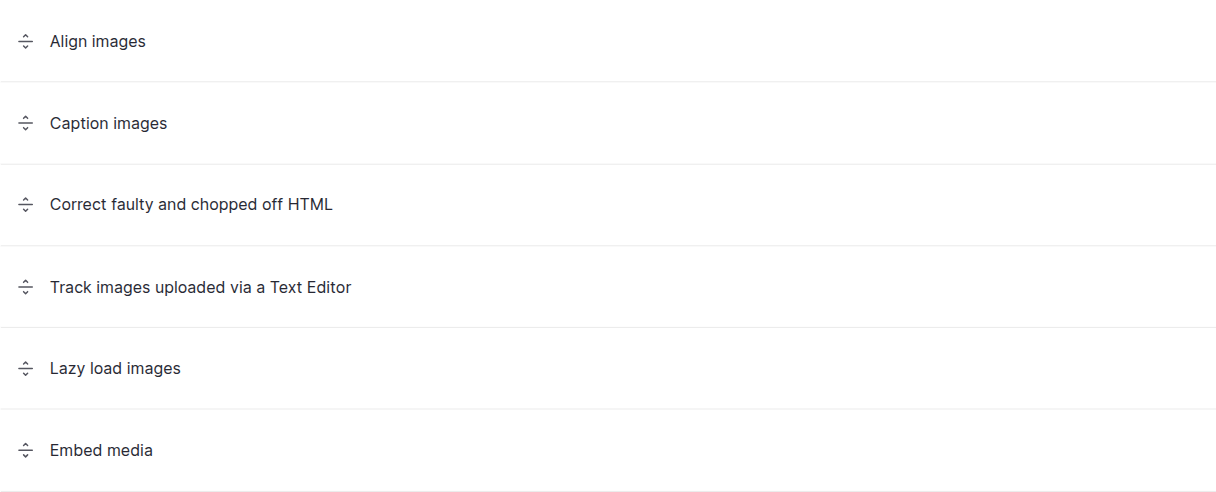
1. Enable the media filters on your text format
Without Embed media and Display embedded entities, embedded media
will render as raw markup. Open the text format you want to embed media in
(e.g. /admin/config/content/formats/manage/full_html) and:
- Tick Embed media under Enabled filters.
- Tick Display embedded entities (Drupal core enables it together with Embed media on most setups).
- In the Filter processing order section, drag Embed media above filters that process its output, and keep alignment/caption filters in their default positions.
2. Make sure the "Insert media" button is in the toolbar
media_directories_browser doesn't add a new toolbar button — instead it
overrides core's drupalMedia button so that clicking it opens the
directories browser. As long as the Insert media button is in the CKEditor 5
toolbar, the directories browser will take over.

If you don't see it, drag Insert media from the Available buttons pool into the Active toolbar on the same page.
3. Swap the field widget on media reference fields
By default media reference fields use core's Media library widget. To open
the directories browser from the field instead, change the widget to Media
Directories Browser Widget on the bundle's Manage form display page
(/admin/structure/types/manage/<bundle>/form-display).

The widget has two optional settings (open the gear icon next to the widget on Manage form display):
- Collapsible — renders the widget inside a
<details>element the editor can expand and collapse, instead of a plain fieldset. - Collapsed by default — when Collapsible is on, the widget starts collapsed on form load. Handy for optional media fields, to keep the form compact until the editor needs them.
- Open when no media is selected — when Collapsed by default is on, overrides it for empty fields: the widget still opens while nothing is selected (so the Add media button stays visible) and only collapses once the field holds media.
To convert many fields at once instead of visiting each Manage form display page, use Switch every field at once below.
Switch every field at once
Editing each Manage form display page by hand gets tedious once a site has
more than a handful of media fields, and most projects want the same widget
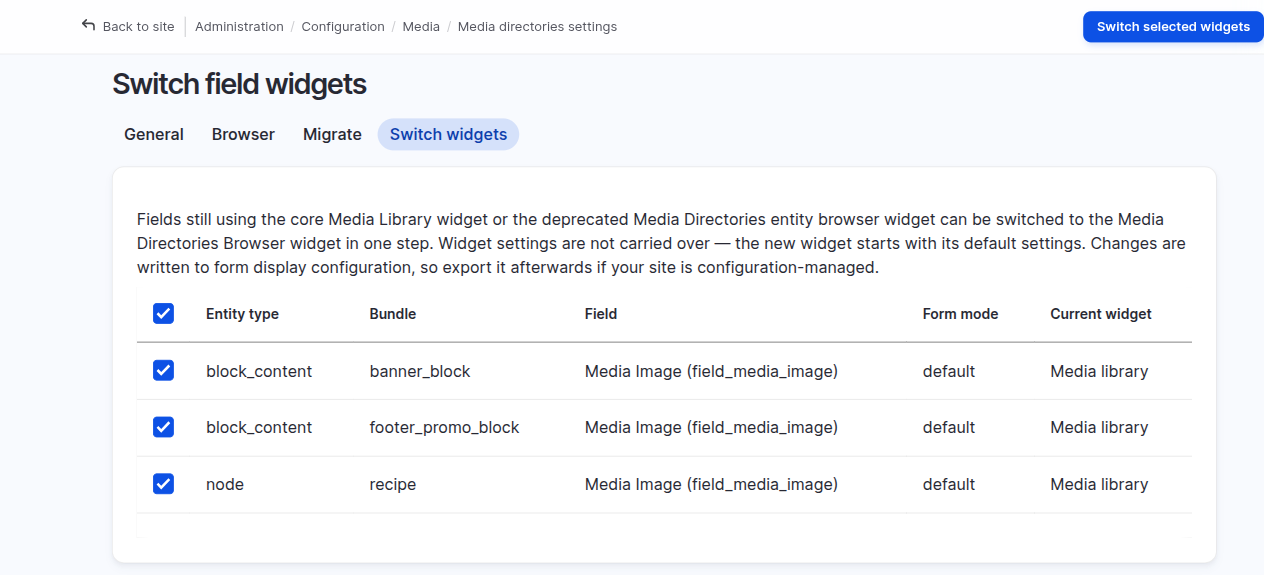
everywhere. The Switch widgets tab
(/admin/config/media/media_directories/switch-widgets) does the whole site in
one go. It sits next to General, Browser and — with
media_directories_tools enabled — Migrate, since it's a one-off maintenance
action rather than a setting.
It lists every field still using a switchable widget — core's Media library widget, or the deprecated Media Directories UI entity-browser widget — with its entity type, bundle, form mode and current widget. All rows start checked; uncheck any field that should keep its current widget, then press Switch selected widgets. Fields you leave unchecked stay listed, so you can come back and convert them later.
What is and isn't carried over
The switch only touches entity_reference fields that point at media.
Each field keeps its position (weight and region) in the form. Widget
settings mostly don't map between widgets, so converted fields otherwise
start with the Browser widget's default settings — adjust
Collapsible / Collapsed by default per field afterwards if you want them.
The one exception is the deprecated entity-browser widget's expand/collapse state, which is carried over: it always wrapped the field in a collapsible container, so converted fields become Collapsible, and its "Show widget details as open by default" setting maps onto Collapsed by default (on → expanded, off → collapsed). Note the old widget also auto-expanded once a field held items; the new widget has no equivalent, so a populated field that previously opened on load now starts collapsed.
It writes form-display configuration
The action edits core.entity_form_display.* config directly. On a
configuration-managed site, export your configuration afterwards
(drush config:export) so the change is captured and doesn't get reverted
on the next import.
Permissions
The browser ships a dedicated permission, Access media directories browser, on top of the standard taxonomy and media permissions. Grant it to any role that should be able to open the browser, then layer the usual administer taxonomy / media edit-delete permissions on top to control what they can change.
That permission grants access to the interface only. Every media operation is additionally checked against the standard media permissions:
| Action in the browser | Also requires |
|---|---|
| Seeing media items | View media |
| Uploading or adding by URL | Create type media (or Create media) |
| Editing fields, alt text, translations, moving between folders | Edit any/own type media |
| Deleting | Delete any/own type media |
Folder operations are checked against the directory vocabulary's taxonomy permissions in the same way. A user without the relevant permission gets a clear error rather than a silent failure, and bulk actions apply to the items the user is allowed to change while reporting the ones they aren't.
Verifying the install
/admin/content/media-browseropens the Vue.js browser.- A CKEditor 5 instance using a text format with Embed media shows the directories browser when you click the Insert media button.
- Media reference fields whose widget is Media Directories Browser Widget now open the browser in a modal.