Organising media in folders
Directories are the whole point of the module. A directory (folder) is a taxonomy term in the vocabulary you picked during base setup; nesting terms gives you nested folders. Everything on this page happens in the directory tree on the left.
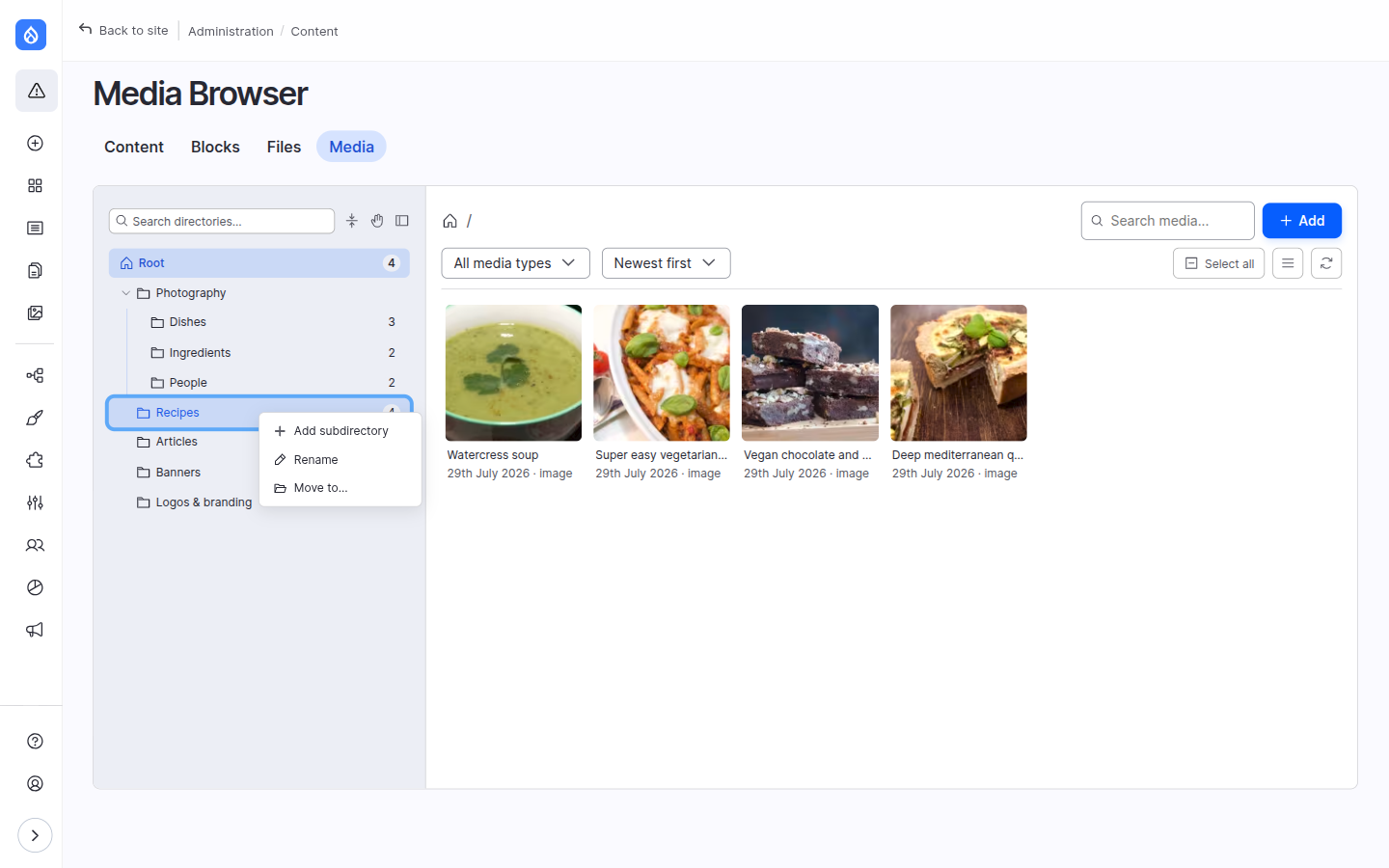
The Root folder
Root sits at the top of the tree. What it shows depends on one base-module setting:
- "Needs filing" inbox (default) — Root lists only media that hasn't been put in a folder yet, so it doubles as a to-do list of unfiled items.
- Browse-everything — Root lists every media item on the site.
This is the Show all files in Root directory option on the base module settings.
Create, rename, move and delete folders
Right-click any folder (or Root) for its context menu:
- Add subdirectory — creates a child folder; you name it inline.
- Rename — rename the folder inline.
- Move to… — opens a picker to choose a new parent (or Root).
- Delete — only offered when the folder has no subfolders and no media anywhere beneath it. If you delete a folder, any media directly in it is moved back to Root rather than deleted.
Permissions apply
Creating, renaming, moving and deleting folders all respect Drupal's taxonomy-term access. An editor who can't administer the directory vocabulary simply won't see those actions.
Find a folder fast
The Search directories box at the top of the tree filters folders by name — useful once the tree grows past a screen. Expand all / Collapse all toggles the whole tree at once.
Folder counts
When directory counts are on, each folder shows a badge with how many media items it holds, and the badge flashes when you drop something in. It's a great at-a-glance overview; on very large trees it does a little more work, so it's optional.
Availability
Contexts: standalone browser · field widget · CKEditor. Turn on with Show directory file counts under Browser settings → Display & behaviour.
Reordering and re-nesting folders
How folders are ordered depends on the directory sort mode:
- Alphabetical — folders sort by name; order is fixed.
- Weight — folders sort by taxonomy weight, which unlocks drag-and-drop reordering of siblings.
Click the hand button in the tree header to turn drag-and-drop on. You can then drag a folder to reorder it among its siblings (weight mode) or drop it onto another folder to re-nest it (either mode). A drop-line shows where it will land, and folders spring open as you hover so you can drill in mid-drag.
Availability
Contexts: standalone browser · field widget · CKEditor. Set the sort mode under Browser settings → Display & behaviour. Reordering (as opposed to re-nesting) requires Weight mode.
Moving folders with the keyboard
Drag-and-drop has a full keyboard equivalent. With drag-and-drop enabled and a folder focused:
| Keys | Action |
|---|---|
| Alt+Up / Alt+Down | Reorder among siblings (weight mode) |
| Alt+Right | Nest into the previous sibling |
| Alt+Left | Un-nest to the grandparent |
Every move is announced to screen readers. In alphabetical mode a reorder attempt tells you it needs weight-based sort. See Keyboard & accessibility.
Moving media between folders
To re-file media, drag its card from the grid onto a folder in the tree.
- Dragging a card that's part of the current selection moves the whole selection — a drag ghost shows the thumbnail and an "N items" count.
- The target folder's count badge flashes when the move lands, with a screen-reader announcement.
You can also drag files from your computer onto a folder row: that opens the upload modal pre-filled with those files and that folder as the destination.
Touch devices
Card dragging is disabled on touch/coarse-pointer devices, where it would fight with scrolling. Use the selection tools instead — see Finding & previewing media.