The browser interface
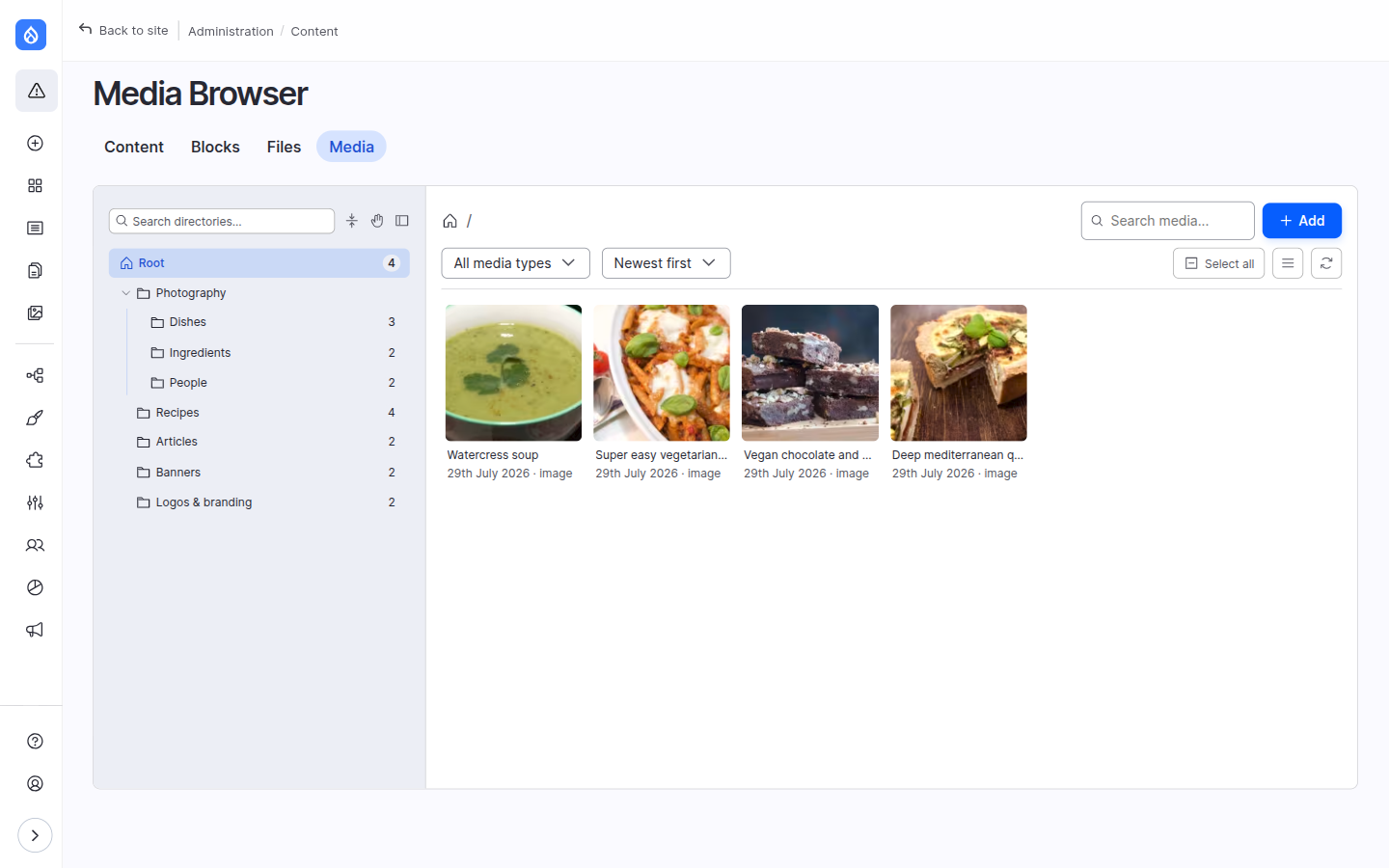
Every context — the standalone page, the field-widget modal and the CKEditor dialog — shares the same layout. Learn it once here; the rest of this section reuses these names.
Anatomy
- Directory tree (left) — your folders, starting from Root. Click a folder to show its media in the grid. See Organising media in folders.
- Toolbar (top of the content area) — the directory breadcrumb, the media search box, the media-type and sort dropdowns, Select all, the grid/list toggle, Refresh, and the Add button.
- Media grid (centre) — the media in the current folder, as cards or rows.
- Preview drawer and selection drawer slide in from the right when you open item details or review a multi-item selection.
Grid view and list view
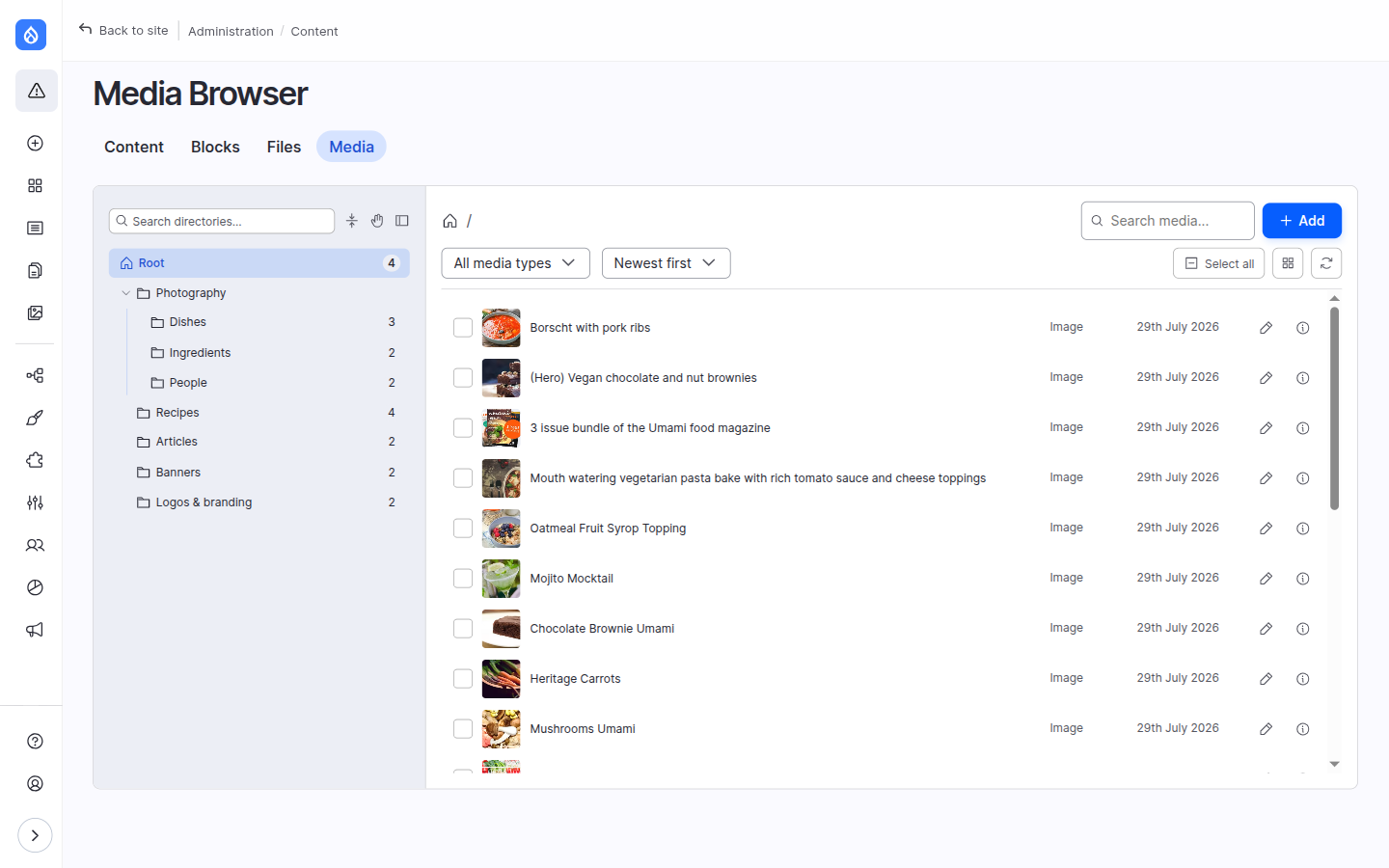
The toolbar's view toggle switches between a thumbnail grid and a compact list. The list shows a checkbox, thumbnail, name, media type and date, with edit and details buttons on the right — handy when names matter more than pictures, or on very large libraries.
Show / hide the directory sidebar
The Hide directories button collapses the tree to give the grid the full width. When it's hidden, the breadcrumb becomes a dropdown folder picker so you can still jump between folders.
The browser remembers where you left off
To keep editors "where they left off", the browser can persist a handful of preferences in your browser's local storage:
- the sort selection,
- the last opened directory,
- whether the sidebar was open,
- grid vs list view mode,
- and which folders you had expanded.
Availability
Contexts: standalone browser · field widget · CKEditor. Each of these is toggled individually under Browser settings → Saved preferences. Turn them all off if you'd rather start every session with a clean slate.
Themes
The browser adopts your admin theme's look — light or dark, and dedicated variants for Claro, Gin and the new Default Admin theme — so it never feels bolted on. There's nothing to configure; it follows the admin theme your site uses.
Custom admin themes can restyle the browser too, with plain CSS — see Theme the browser.
Full-screen workspace (experimental)
On the standalone page only, an experimental full-screen layout turns the browser into a canvas-style workspace: the page title and tabs step aside, the toolbar sticks to the top and the tree becomes a full-height drawer. Two companion options move the Add button into a floating button or the admin top bar. These are opt-in and never touch the field-widget or CKEditor modals.
Availability
Contexts: standalone browser only. Enable under Browser settings → Experimental.