Using media in content
Organising media only pays off when it's easy to use. Media Directories plugs the browser into the places editors reach for media: media reference fields, the CKEditor 5 rich-text editor and — with the optional Canvas submodule — the Drupal Canvas page builder.
Media reference fields (the field widget)
When a media reference field uses the Media Directories Browser Widget, its Add media button opens the browser in a modal instead of core's plain media library.
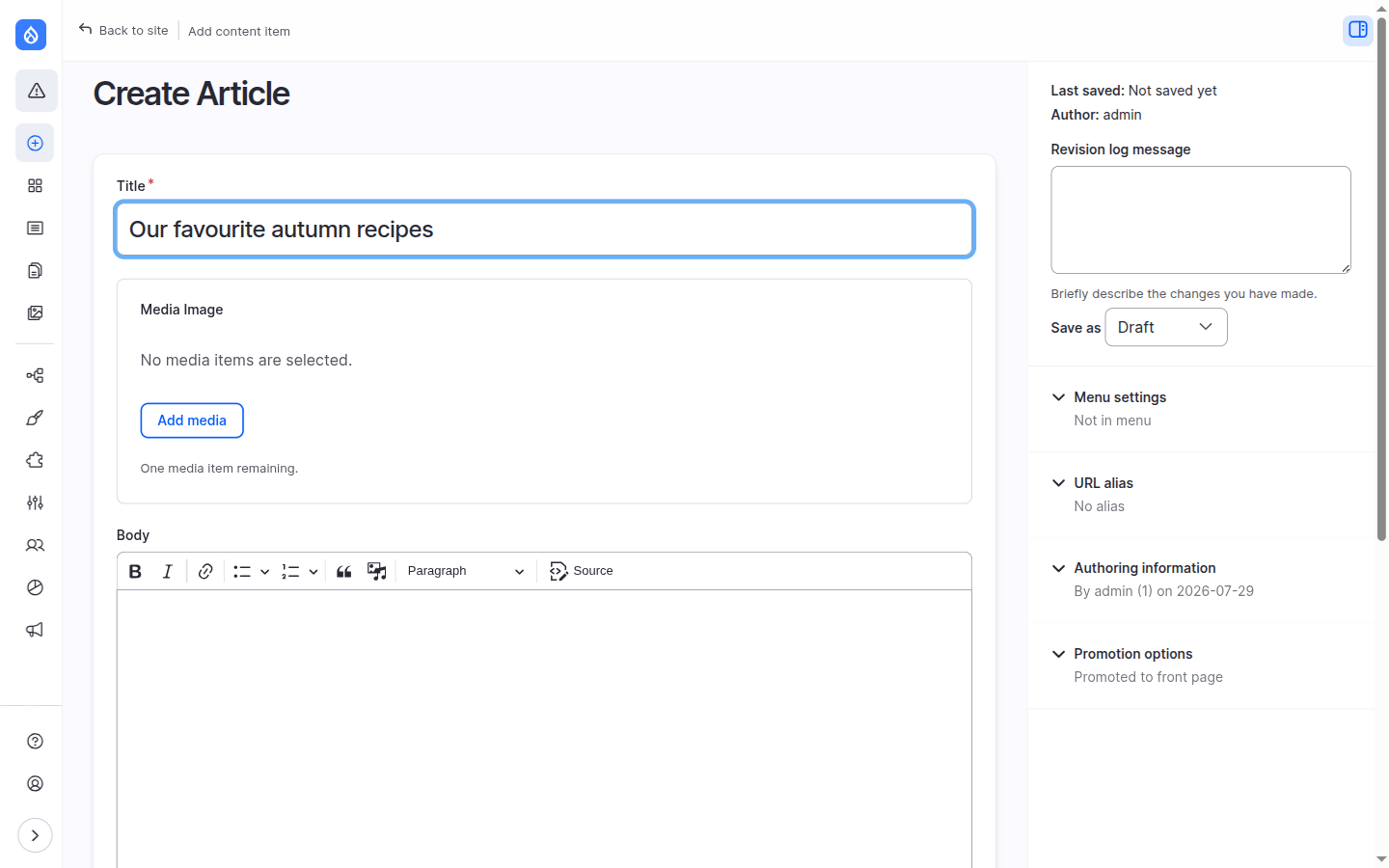
- The widget respects the field's cardinality: it shows how many slots remain ("One media item remaining") and hides Add media once the field is full.
- Only the field's allowed media types are offered.
- Picked items appear as previews with per-item Edit (an off-canvas quick-edit form) and Remove, and you can drag to reorder them.
Add vs Replace
How confirming the modal behaves depends on one setting:
- Add (default) — the browser opens empty and confirming adds your picks to whatever the field already holds.
- Replace — the field's current items are pre-loaded into the selection drawer and confirming replaces the field value. The confirm button's label reflects which mode you're in.
Availability
Switch a field to the browser widget on its Manage form display page, or convert the eligible fields you pick from the Switch widgets tab. The Add/Replace behaviour is the Pre-load existing field items option under Display & behaviour.
Embedding in CKEditor 5
In any text format whose toolbar has the Insert media button, clicking it opens the directories browser — the same tree, search and folders — instead of core's media library.
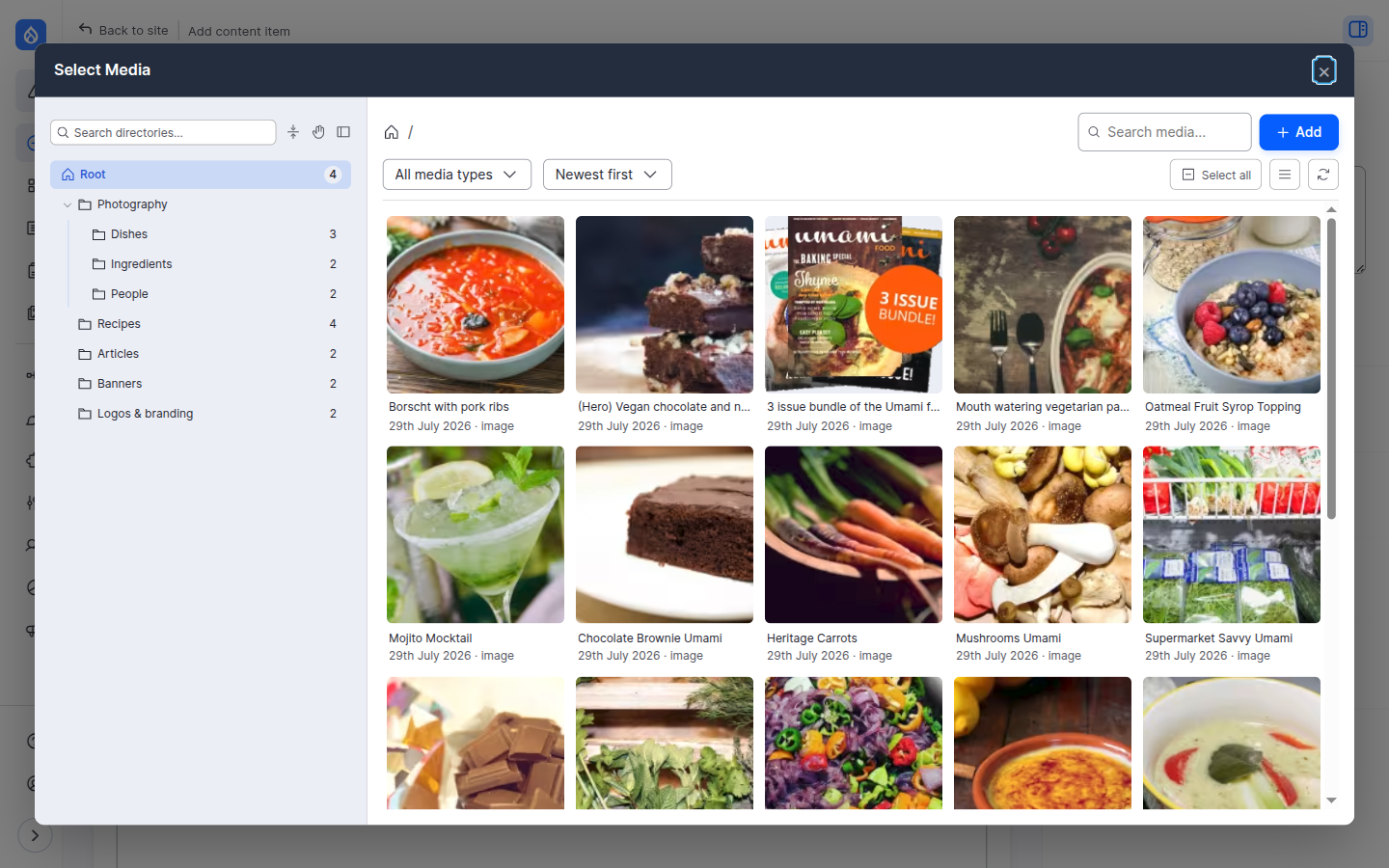
Pick one or more items, confirm, and each is embedded at the cursor. Only the media types your text format allows are shown.
Display options on an embedded image
Select an embedded image and the editor's toolbar gains a display dropdown — one unified control for how that image renders:
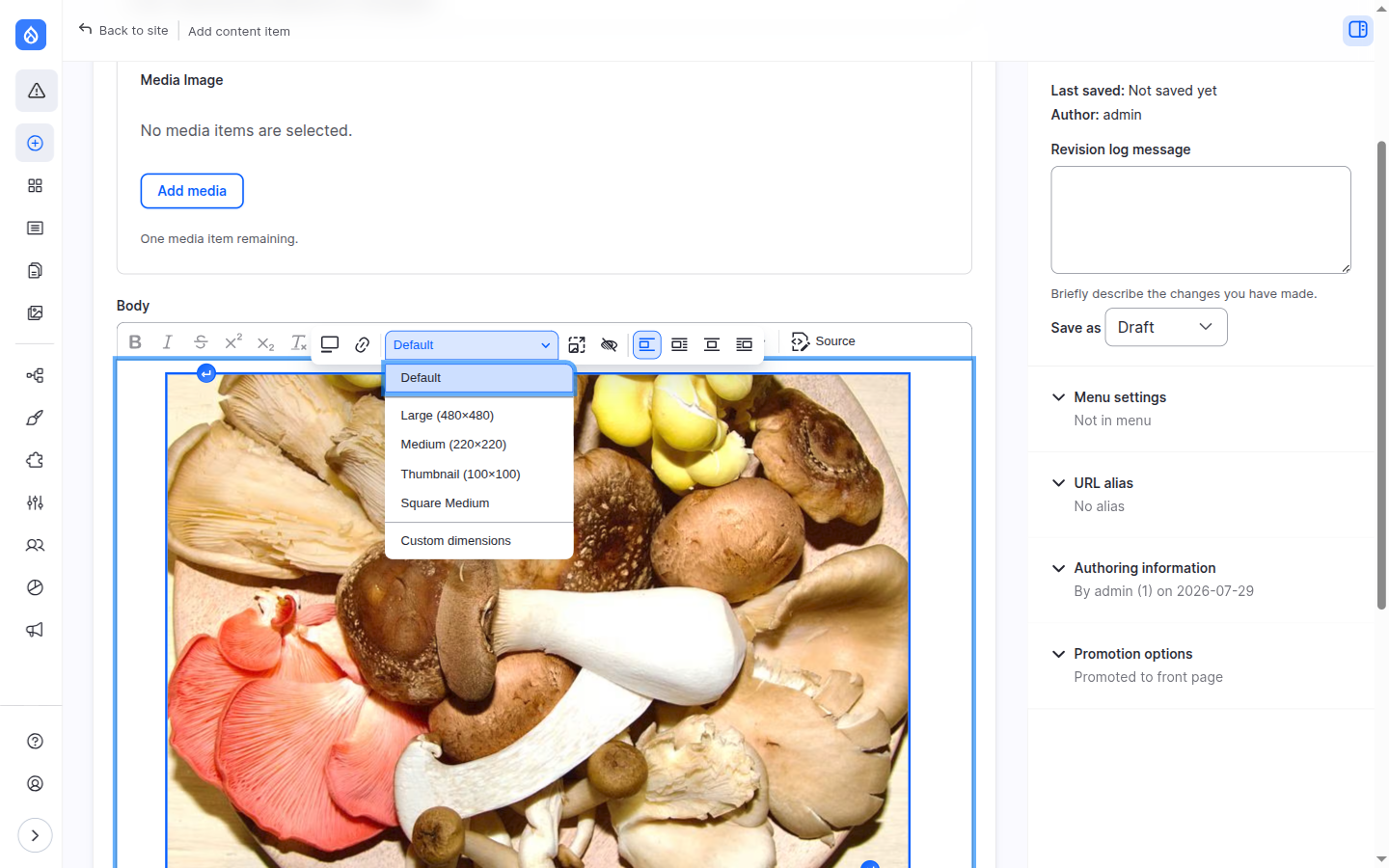
- View mode (Default plus any your text format allows),
- an image style from the shortlist an administrator opted in,
- or Custom dimensions — a width/height dialog with Original / Default / Custom options.
Availability
Contexts: CKEditor 5. The image-style shortlist is configured under Browser settings → CKEditor integration; view modes come from the text format's own Embed media settings. Custom dimensions pair with the Image resize filter, which serves a genuinely resized file rather than a scaled-down full-resolution one.
File download links
Two features let you link to a file (not embed it) from the browser:
- In the link dialog — when you add a link in CKEditor, a Select a file option lets you point it at a media file instead of pasting a URL.
- The Insert file link button — a dedicated toolbar button (from the File link submodule) that inserts a download link with editable link text and an optional file-type icon.
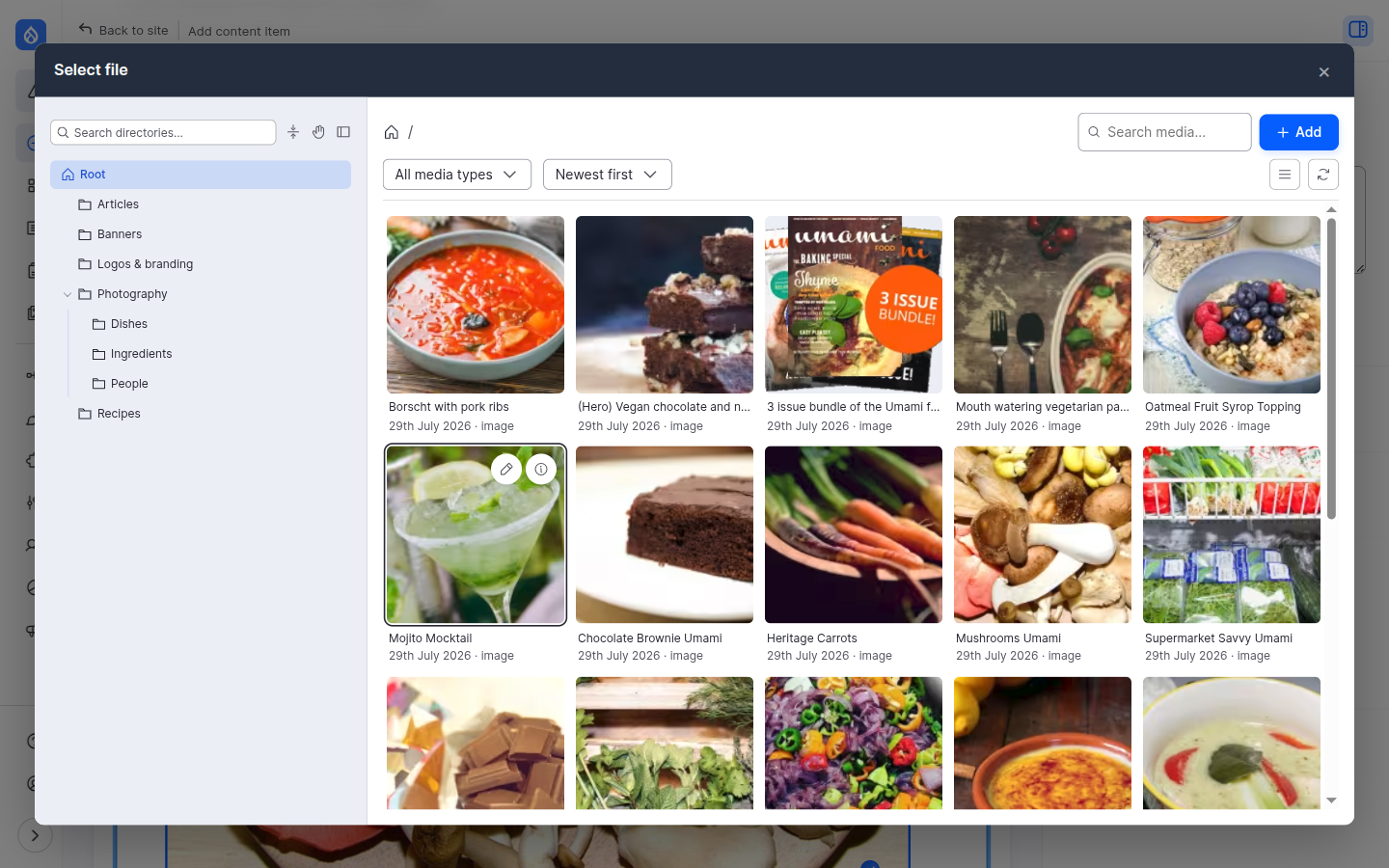
Both open the same directories browser, filtered to file-based media, so editors browse to the document they want just like any other media.
Availability
Contexts: CKEditor 5. The link-dialog file picker is the
Show file picker in link form option under
Browser settings → CKEditor integration.
The standalone button requires the
media_directories_file_link submodule and
its toolbar button + filter.
In the Drupal Canvas page builder
With the Canvas submodule enabled, media selection inside Drupal Canvas opens the directories browser as well:
- Component inputs — image and other media props on components placed in the layout are edited with the browser widget in the Settings panel, and the live preview updates as you pick.
- The "Page data" panel — media reference fields on the entity form next to the layout, such as the SEO image on Canvas pages.
The widget behaves the same as on regular media reference fields: cardinality limits, allowed media types and item previews with Remove all apply.
Availability
Contexts: Drupal Canvas editor. Requires the
media_directories_canvas submodule; no
further configuration is needed.