Uploading media
The Add button (top-right of the toolbar) opens the upload modal. Whatever folder you're in becomes the default destination, so new media lands where you expect.
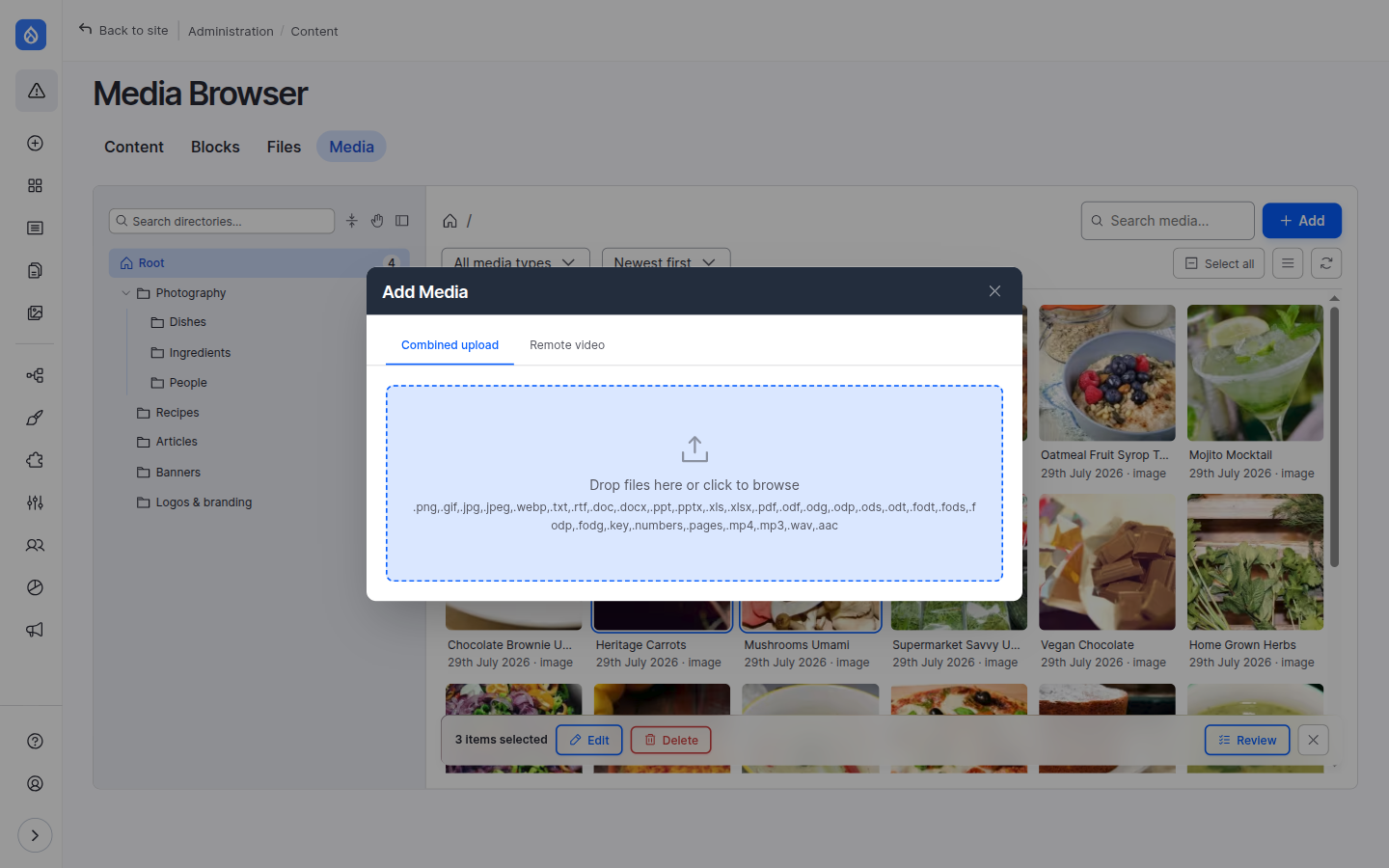
The drop zone
Each media type gets a drag-and-drop drop zone — "Drop files here or click to browse" — that accepts multiple files at once. The zone only accepts the file extensions the media type allows, so it won't let you drop, say, a PDF where an image is expected — files with a disallowed extension are rejected with a message before anything is uploaded.
Every upload is also validated server-side against the media type's source field: allowed extensions, maximum file size and — for image types — that the file really is an image, so a renamed file can't sneak into the wrong type. Rejected files are reported per file; the rest of the batch is still created.
There's also a URL tab for oEmbed-style sources (such as remote video): paste a URL and the browser creates the media from it.
Combined upload
With combined upload enabled, the per-type tabs are replaced by a single drop zone that accepts every participating type's extensions at once. Drop a mix of images, documents and videos together and each file is routed to the right media type automatically, by its extension. Types not covered by combined upload (for example remote video, which comes from a URL) keep their own tab.
Availability
Contexts: standalone browser · field widget · CKEditor. Turn on with Enable combined upload and pick the participating types under Browser settings → Uploads. Only file- and image-based types can take part.
Overlapping extensions
When two participating types accept the same extension (say, both a
Document and an Image type allow png), the file defaults to the
highest-priority matching type — priority is the drag-and-drop order
under Browser settings → Uploads.
Such files are sorted to the top of the pending list and get an
"Upload as" select on their row, so the editor can switch them to any
other matching type before saving. Switching re-seeds the metadata fields
for the new type; values of fields both types share (like the name) are
carried over.
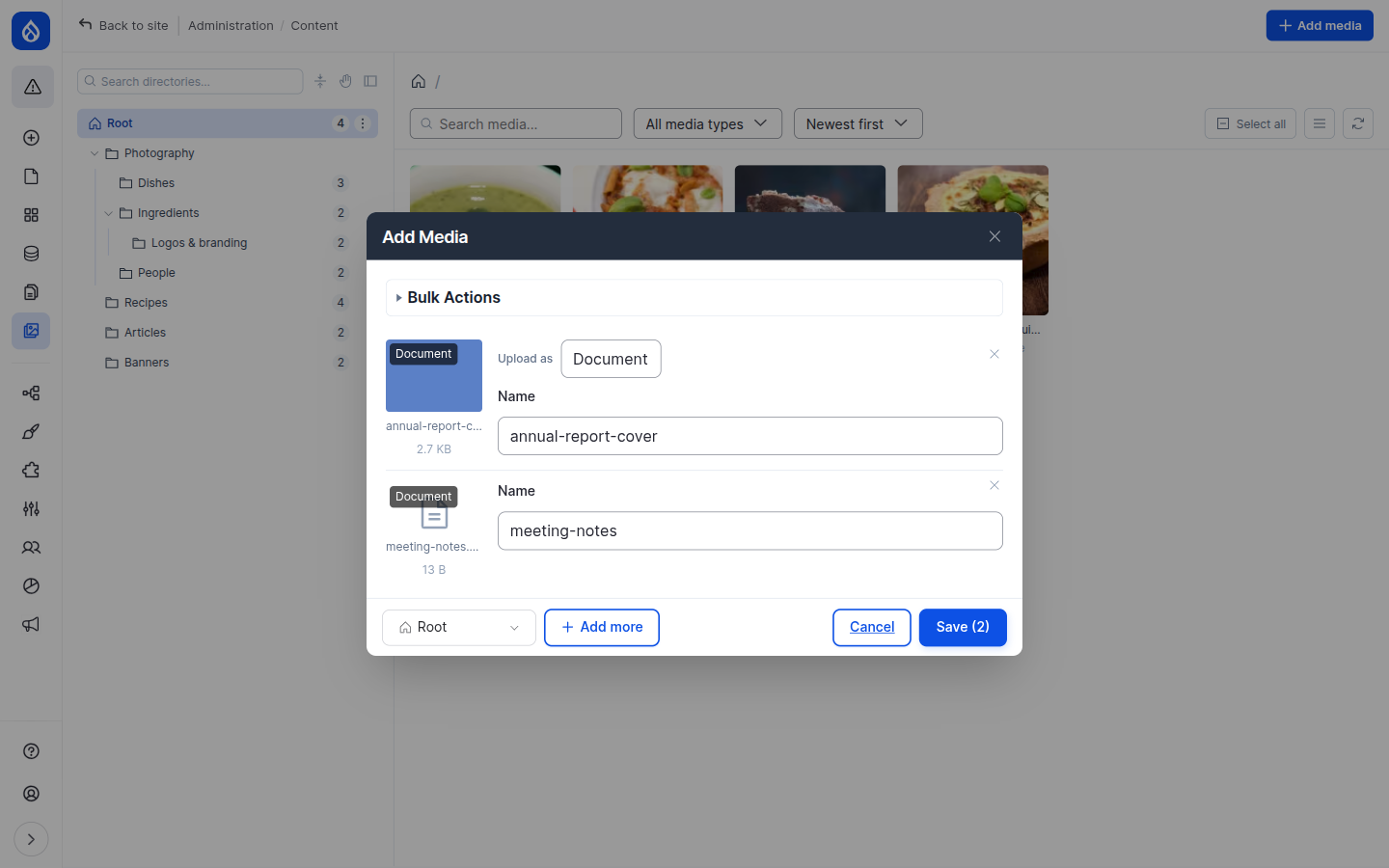
Before you save
Each pending file gets a row where you can:
- see a preview and edit its metadata (the name is pre-filled from the filename),
- set a focal point on images, when the Focal Point module is installed,
- remove the file, or Add more.
If bulk actions or translations are enabled, their controls appear here too, so you can fill a field or translate across every file you're uploading in one go.
Pre-filling metadata programmatically
For developers. A custom module can suggest values for the upload form's fields — for example, derive an image's alternative text from its filename — and have them appear pre-filled, still editable, before anything is saved. See Pre-fill upload form metadata.
Choosing the destination folder
The footer has a directory picker defaulting to the current folder. Change it to file the upload elsewhere without navigating away first.
Upload straight into a folder
You can skip the Add button entirely: drag files from your computer onto a folder in the tree and the upload modal opens pre-filled with those files and that folder selected. See Organising media in folders.
Large uploads
The browser reads your server's PHP limits and handles big batches for you: oversized files are flagged against the max file size, and large sets are split into batches automatically with a "Uploading batch X of Y" progress indicator — so a drop of dozens of files just works.