AI
media_directories_ai adds AI-powered helpers to the upload and edit modals
inside the directories browser: a Generate button on image alt text fields
and AI translate buttons on translatable text fields. Both features use
the AI module under the hood, so they
work with whichever provider you've configured there.
Install
Dependencies: media_directories_browser, ai.
Before any of this does anything useful you also need to configure the AI
module itself — pick a provider, add an API key, choose a default chat
model. That setup lives under /admin/config/ai and is out of scope for
this page; follow the AI module's own docs.
Configuration
All AI-specific options live at /admin/config/media/media_directories/ai.
This tab is only present when media_directories_ai is enabled.
The form has two independent features that you can turn on separately.
AI alt text
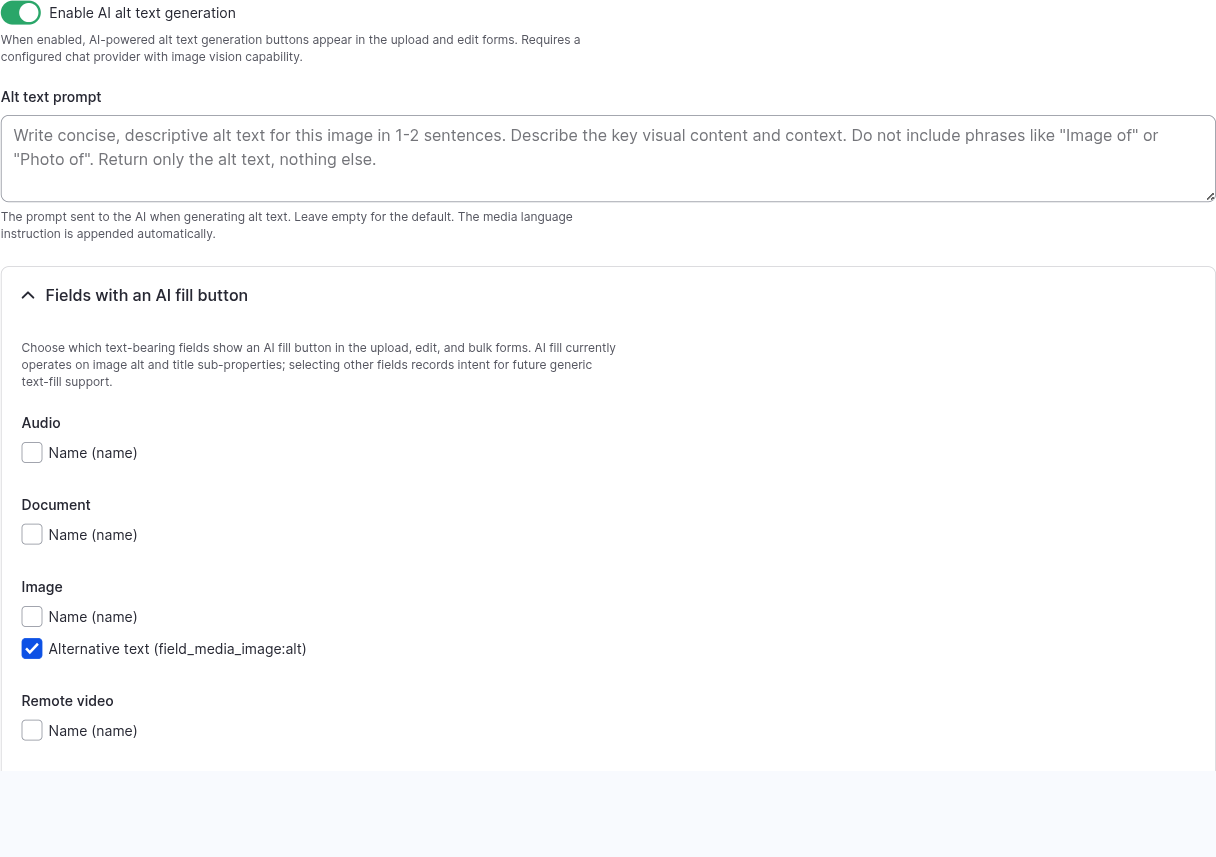
- Enable AI alt text generation — adds a "Generate" button to the alt text field in the upload and edit modals. Clicking it sends the image to the configured provider and fills the field with the response. Requires a chat provider with image vision.
- Alt text prompt — the prompt sent to the model. Leave empty to use the module's default prompt (decent for general imagery). Tweak it for a specific tone or for site-specific vocabulary; the media's language is appended automatically, so you don't need to mention language in the prompt.
- Fields with an AI fill button — per media bundle, which text-bearing fields show the AI fill button. By default the button appears next to image alt sub-properties; you can opt other text fields in here.
AI translations
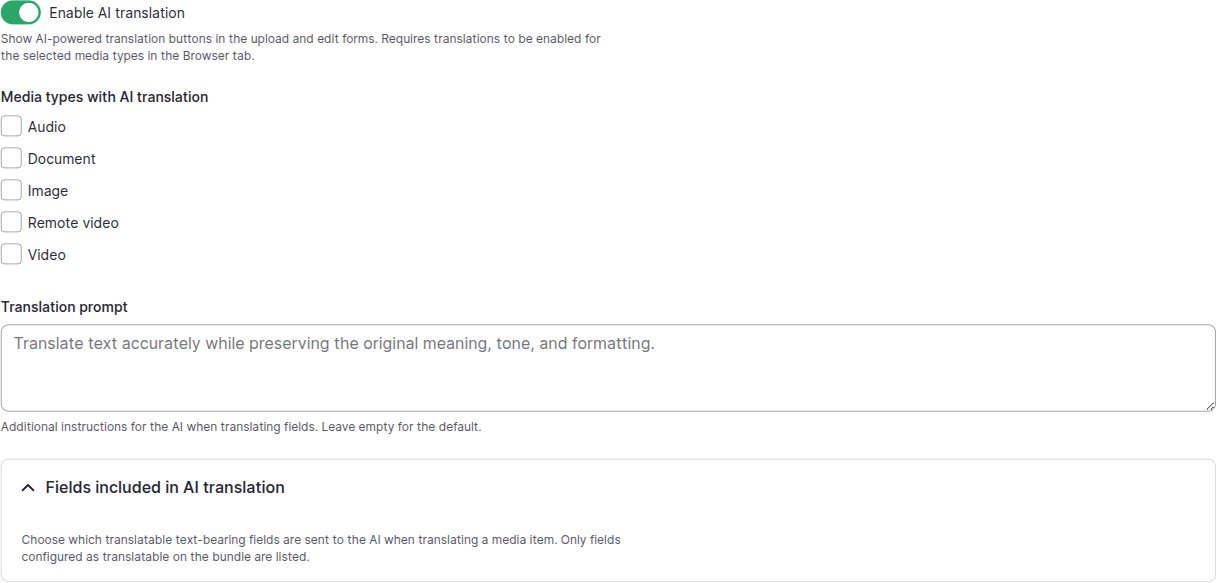
- Enable AI translation — surfaces AI translate buttons next to translatable fields in the upload and edit modals.
- Media types with AI translation — which bundles get those buttons. Each bundle listed here must also have translations enabled for it on the Browser tab; otherwise the buttons would target fields that aren't translatable.
- Translation prompt — extra instructions appended to the default translation prompt. Useful for pinning tone, terminology or brand vocabulary (e.g. "always keep product names in their original English").
- Fields included in AI translation — per bundle, which translatable text-bearing fields are sent to the AI when translating a media item.
Additional setup
For AI translation to be useful end-to-end you need both halves wired up:
- Install and configure the AI module — provider, key, default chat model.
- Enable core
content_translationand mark the media bundles + fields you want translated as translatable. - On the Browser tab, tick Enable translations and pick the same bundles under Media types with translations. The browser will show per-language tabs in the upload/edit modals.
- On the AI tab, tick Enable AI translation and pick the same bundles under Media types with AI translation. The AI translate buttons appear next to translatable fields.
- Optionally adjust the prompts to match your site voice.
For AI alt text the only prerequisite is that the AI module's default provider supports image vision — most modern chat providers do.
Verifying the install
- The AI tab is visible at
/admin/config/media/media_directories/ai. - With AI alt text enabled and a vision-capable provider configured, the image edit modal shows a Generate button on the alt text field.
- With AI translation enabled, the upload/edit modals show AI translate buttons next to translatable fields.